<?xml version="1.0" encoding="UTF-8"?>
<feed xmlns="http://www.w3.org/2005/Atom" xml:lang="">
                        <id>https://mobidonia.support-hub.io/feed/121</id>
                                <link href="https://mobidonia.support-hub.io/feed/121" rel="self"></link>
                                <title><![CDATA[App Platform - All in one React Native Universal Mobile App Article Feed]]></title>
                    
                                <subtitle></subtitle>
                                                    <updated>2019-06-17T11:38:19+00:00</updated>
                        <entry>
            <title><![CDATA[SIMPLE SETUP]]></title>
            <link rel="alternate" href="https://mobidonia.support-hub.io/articles/simple-setup" />
            <id>https://mobidonia.support-hub.io/576</id>
            <author>
                <name><![CDATA[Daniel Dimov]]></name>
            </author>
            <summary type="html">
                <![CDATA[<h3>Create <b>Database</b> and Admin Panel</h3><p><b>( *** <a href="https://www.loom.com/share/894baff1d15b4270b096f3d5421a5842" target="_blank" rel="noreferrer noopener">VIDEO</a> *** )</b></p><p><b><br /></b>Create a Database Project in <a href="https://console.firebase.google.com/" target="_blank" rel="noreferrer noopener">Firebase</a> (Firestore and RealtimeDB).</p><p>Create an Authenticated user in Firebase.</p><p>Import Demo Data</p><p>Connect to <a href="https://apps.appadm.in" target="_blank" rel="noreferrer noopener">Cloud Admin Panel</a><br /><br /></p><h3><span>Create a </span><b>Mobile app</b></h3><p><b>(*** <a href="https://www.loom.com/share/adb6a72350924dcdbd6944ee27d99bae" target="_blank" rel="noreferrer noopener">VIDEO</a> *** )</b></p><p><br /></p><p>Install Required software (<a href="https://www.npmjs.com/get-npm" target="_blank" rel="noreferrer noopener"> Node, npm</a>, <a href="https://docs.expo.io/versions/latest/introduction/installation/" target="_blank" rel="noreferrer noopener">Expo</a>, <a href="https://git-scm.com/downloads" target="_blank" rel="noreferrer noopener">git</a> )</p><p>Install NPM Dependencies ( npm install )</p><p>Connect to Firebase DB </p><p>Run the app ( expo start )</p><p></p>]]>
            </summary>
                                    <updated>2019-06-17T11:38:19+00:00</updated>
        </entry>
            <entry>
            <title><![CDATA[Step 1. Installation of the app]]></title>
            <link rel="alternate" href="https://mobidonia.support-hub.io/articles/step-1-installation-of-the-app" />
            <id>https://mobidonia.support-hub.io/91</id>
            <author>
                <name><![CDATA[Daniel Dimov]]></name>
            </author>
            <summary type="html">
                <![CDATA[<p>This is <a href="https://facebook.github.io/react-native/" target="_blank" rel="noreferrer noopener">React Native</a> app that uses <a href="https://expo.io/" target="_blank" rel="noreferrer noopener">Expo</a>, solution for easy development and management of your React Native app. </p>

<p>	<br /></p>

<h1>Setup your environment</h1>

<p>You will need to setup your computer to prepare for configuring the UNIEXPO React Native App.</p>

<p>	<br /></p>

<p>You will need Node + NPM to build the phone apps, GIT for version control, and Expo for  development testing.</p>

<p>	<br /></p>

<ol><li><strong>Install node and npm</strong>: Download it from <a href="https://www.npmjs.com/get-npm" target="_blank" rel="noreferrer noopener">here</a>.</li>	<li><strong>Install GIT</strong>: Download it from <a href="https://git-scm.com/downloads" target="_blank" rel="noreferrer noopener">here</a>.</li>	<li><strong>Install Expo</strong>: Follow <a href="https://docs.expo.io/versions/latest/introduction/installation.html" target="_blank" rel="noreferrer noopener">instructions </a>for the local development tool and mobile client.</li>
</ol><p>To verify your installation run</p>

<p>	<br /></p><pre>node --version
npm --version
git --version</pre>

<p>	<br /></p>

<h1>Extract and initialize the uniexpo code base.</h1>

<ol><li>Download and unzip the universal-app-platform.zip file from <a href="https://codecanyon.net/item/universal-app-platform-full-multipurpose-all-in-one-react-native-mobile-app/21247686?s_rank=1" target="_blank" rel="noreferrer noopener">CodeCanyon:Envato</a> into your documents or development folder.</li>	<li>Unzip the uniexpo zip file found in <span> </span><span><strong>universal-app-platform\UNIVERSAL APP\Mobile app</strong> </span></li>	<li>The resulting folder dimovdaniel-uniexpoapp-8d6ec940704b contains a folder named dimovdaniel-uniexpoapp-8d6ec940704b, move it to the Mobile app folder and rename it  <span><strong> <span>uniexpo </span></strong> 		</span>.</li>	<li>Open a terminal / command line in the uniexpo folder and run  <span><strong> <span>npm install</span> </strong> 		</span> 		<br />   This will take 5+ minutes. 		<br />   You can complete steps 5+6 before step 4 is complete. </li>	<li>Configure your app name and icon in uniexpo/app.json ( how to )</li>	<li>Configure your Firebase credentials in uniexpo/config.js ( <a href="https://mobidonia.freshdesk.com/support/solutions/articles/35000028881-step-2-create-firebase-account" target="_blank" rel="noreferrer noopener">how to</a> )</li>
</ol><p>	<br /></p>

<h2>Preview your app.</h2>

<p> </p>

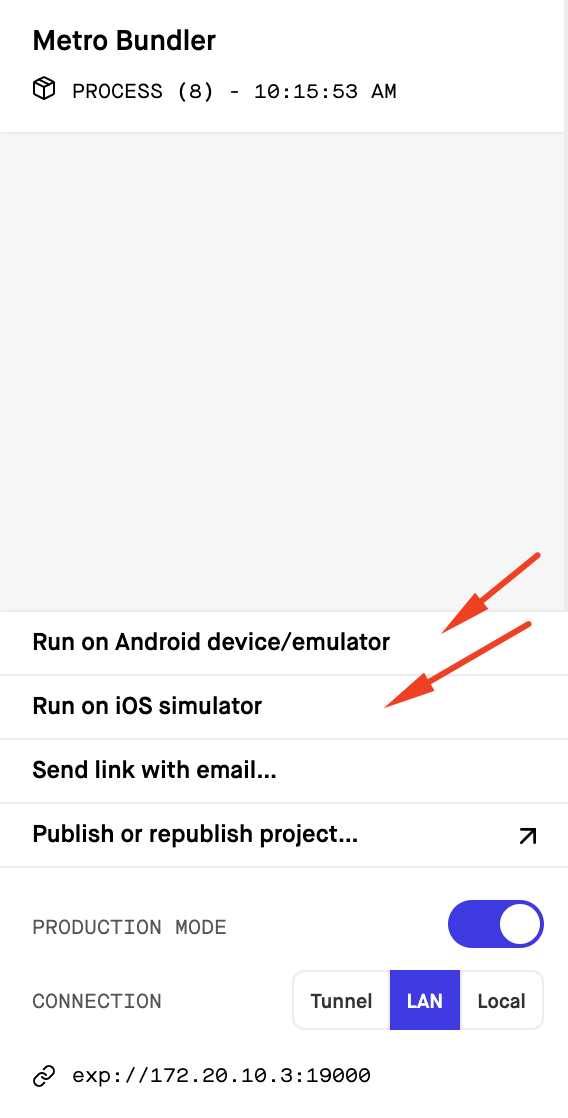
<p>Open your project in the terminal. </p><p>Run</p><pre>expo start</pre><p>This will open a new web page in your browser.</p><p>From there you can preview the app on the simulator, using the buttons</p><p>* Run on Android device/emulator</p><p>* Run on iOS simulator</p><p><img src="https://support-hub--assets.s3.eu-west-2.amazonaws.com/assets/74/images/n72S4O4i6Sx1aDG83KwptTsriEsJXV6QkiH5Ktjz.png" style="width:50%;" alt="n72S4O4i6Sx1aDG83KwptTsriEsJXV6QkiH5Ktjz.png" /><br /></p><p>This will open the app on android or ios simulator. </p><p><br /></p><p><br /></p>

<p>	<br /></p>

<p><span><iframe src="https://www.youtube.com/embed/DsEqrebCeKg"></iframe></span></p>]]>
            </summary>
                                    <updated>2019-06-17T11:33:08+00:00</updated>
        </entry>
            <entry>
            <title><![CDATA[Step 2. Create Firebase account]]></title>
            <link rel="alternate" href="https://mobidonia.support-hub.io/articles/step-2-create-firebase-account" />
            <id>https://mobidonia.support-hub.io/92</id>
            <author>
                <name><![CDATA[Daniel Dimov]]></name>
            </author>
            <summary type="html">
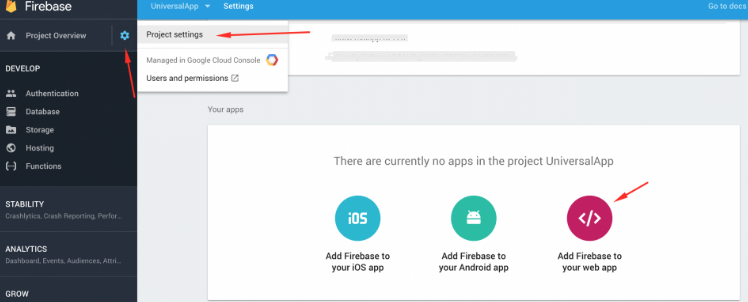
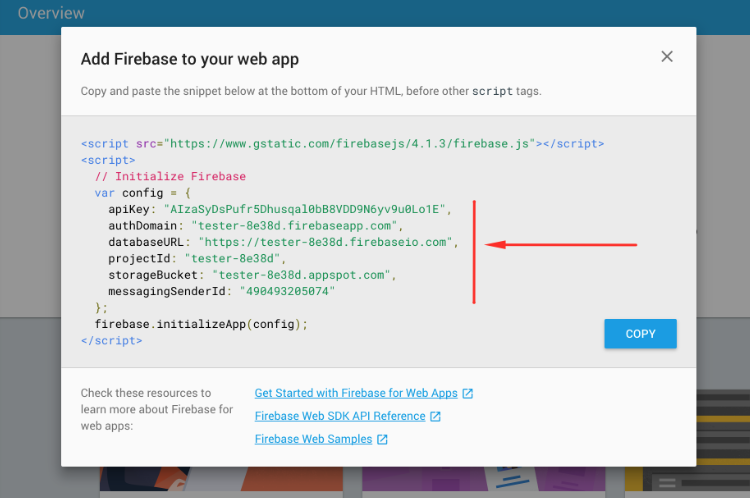
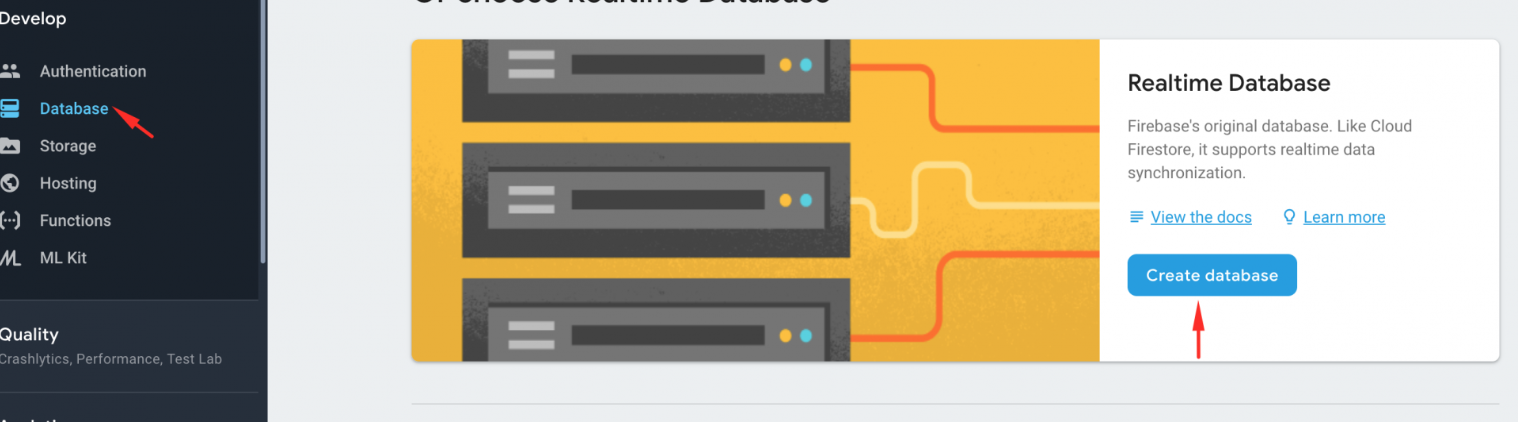
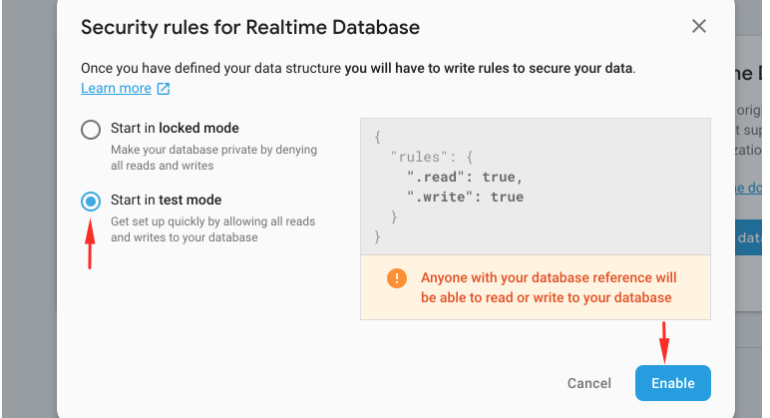
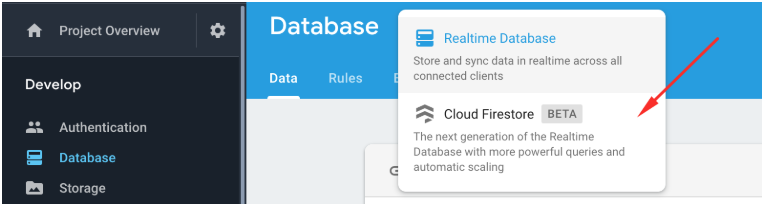
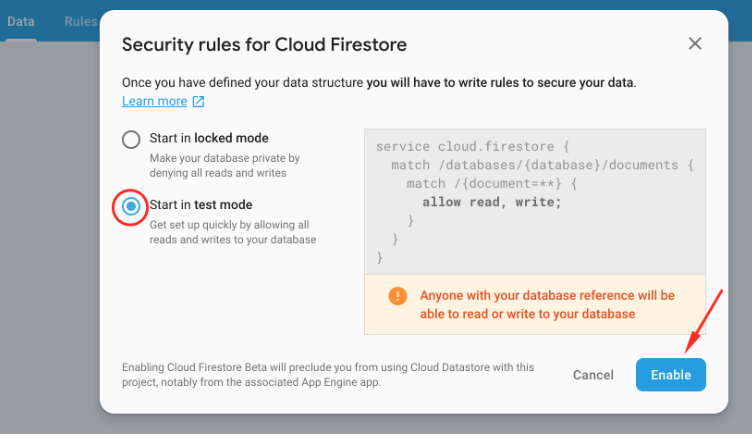
                <![CDATA[<p>All the data is stored in Firebase Realtime Database and Firestore database.</p><p>In Firebase we store information about the app, like colors, navigation etc..<br /></p><p>And in Firestore is where our actual data is. Like menu content, categories, orders etc..<br /></p><p>We use Firebase because it has an import function. <br /></p><p>Let's get started. Create an account in Firebase with your google account. <br /></p><p>Create Firebase Project. <br /></p><p>Then go in Project settings, and click on "Add Firebase to your web app"</p><p><img src="https://support-hub--assets.s3.eu-west-2.amazonaws.com/assets/74/images/T633OlrZDdLjUJvnF5UQxUw2pnMi9Jk3pMxEbRFD.png" style="width:50%;" alt="T633OlrZDdLjUJvnF5UQxUw2pnMi9Jk3pMxEbRFD.png" /></p><p>Then copy the config string. </p><p><img src="https://support-hub--assets.s3.eu-west-2.amazonaws.com/assets/74/images/PCP3WNwvLewimNlelq5r0dmM82HKxMvyvxYnHBB0.png" style="width:50%;" alt="PCP3WNwvLewimNlelq5r0dmM82HKxMvyvxYnHBB0.png" /></p><p>Then in your downloaded project, in the root folder, there is<b> "config.js"</b> file. At start replace the config for firebase there.</p><p><br /></p><p>Your mobile app is set up now and connected to Firebase.</p><p><br /></p><h4>Create the real time database</h4><p>Go to Database and then click on the button called "Create database"</p><p><img src="https://support-hub--assets.s3.eu-west-2.amazonaws.com/assets/74/images/zS4AOZiudOj4RXrCQnlq2P4fM0tVJu5RaGRCICRM.png" style="width:50%;" alt="zS4AOZiudOj4RXrCQnlq2P4fM0tVJu5RaGRCICRM.png" /></p><p>After clicking on the button it should appear a window that will ask you about security rules. Click on the Start in <b>test mode</b> and after that click <b>Enable</b>.</p><p><img src="https://support-hub--assets.s3.eu-west-2.amazonaws.com/assets/74/images/jTTudvyl9QrdEAZT8HaqMD5eGIFUNDijxIuGbvdr.png" style="width:50%;" alt="jTTudvyl9QrdEAZT8HaqMD5eGIFUNDijxIuGbvdr.png" /></p><p>With rules configured like this everyone can read and write in your database. This is ok for test and development purposes.</p><p>But for production, this is a good starting point. This will allow edit and write to all registered users. </p><pre>{<br />  "rules": {<br />    ".read": true,<br />     ".write": "auth !== null"<br />  }<br />} </pre><p><br /></p><h4>Create Firestore Database</h4><p>        Go in Databases -&gt;Cloud Firestore</p><p><img src="https://support-hub--assets.s3.eu-west-2.amazonaws.com/assets/74/images/905O0YLo5eu3iVIaT9ylFNHJs8inGtrIHOKKojPR.png" style="width:50%;" alt="905O0YLo5eu3iVIaT9ylFNHJs8inGtrIHOKKojPR.png" /></p><p>Then, a pop up will appear. </p><p><img src="https://support-hub--assets.s3.eu-west-2.amazonaws.com/assets/74/images/ThNcx6r2f2gBKhAbC6hjHVrFWq54G09Ir3iMxjZW.png" style="width:50%;" alt="ThNcx6r2f2gBKhAbC6hjHVrFWq54G09Ir3iMxjZW.png" /><br /></p><p>For now, use Start in test mode. </p>]]>
            </summary>
                                    <updated>2019-06-17T11:33:08+00:00</updated>
        </entry>
            <entry>
            <title><![CDATA[Step 3. Installing the admin panel]]></title>
            <link rel="alternate" href="https://mobidonia.support-hub.io/articles/step-3-installing-the-admin-panel" />
            <id>https://mobidonia.support-hub.io/94</id>
            <author>
                <name><![CDATA[Daniel Dimov]]></name>
            </author>
            <summary type="html">
                <![CDATA[<p>Inside the folder that you get from CodeCanyon there is a folder "AdminPanel". <br /></p><p><br /></p><p>This admin panel is React based admin panel and you can run it locally, deploy to your own hosting or install it in Firebase.</p><p>We have separate documentation for it. <br /></p><p><br /></p><p>You have to follow just few of the step provided in our documentation. </p><p><br /></p><p>So let't get started</p><p>First, in the folder that you get from CodeCanyon there is folder "DemoData".<br /></p><p>Inside that folder you will find "app.js" file.</p><p>Extract the zip file from "AdminPanel" and replace the file "src/config/app.js" with the "app.js" from the "DemoData" folder.</p><p><br /></p><p>Next, in the same folder you will find the file "schema.json". Move that file to the "src/config" folder of your admin panel, replacing the existing file there.</p><p><br /></p><p>In the same folder you will find the file "firestoreschema.js". Move that file to the "src/config" folder of your admin panel, replacing the existing file there.</p><p><br /></p><p>Head over to FireAdmin Docs<br /></p><p><br /></p><p>Follow the following steps only</p><p>Installation - How to install FireAdmin Panle</p><p>Connect to Firebase - Connect the admin to the Firebase database you did before </p><p>After you have finished with thous 2 steps, in the folder that you get from CodeCanyon there is folder "DemoData". <br /></p><p>There you will find file "demodata.json".</p><p>Go in your <a href="https://console.firebase.google.com/" target="_blank" rel="noreferrer noopener">Firebase Console</a> </p><p>Open your project and go in "Database", and select "Realtime Database"</p><p>On the "More" icon on left, click on "Import JSON".<br /></p><p>Select the "demodata.json" file. This will insert the demo data (in fact only the design for your app )inside your firebase.</p><p>That's it. The admin panel is set up. <br /></p><p><br /></p><p>You can view <a href="http://fireadmin.mobidonia.com/videos.php#crud" target="_blank" rel="noreferrer noopener">videos</a> of the admin panel in action to see how it works.</p><p><br /></p><p>Next, you can publish the admin panel. </p><p><br /></p><p>To do that follow this <a href="http://fireadmin.mobidonia.com/docs.php#deployment" target="_blank" rel="noreferrer noopener">guide</a>.</p>]]>
            </summary>
                                    <updated>2019-06-17T11:33:08+00:00</updated>
        </entry>
            <entry>
            <title><![CDATA[Step 4. Local setup of the app]]></title>
            <link rel="alternate" href="https://mobidonia.support-hub.io/articles/step-4-local-setup-of-the-app" />
            <id>https://mobidonia.support-hub.io/95</id>
            <author>
                <name><![CDATA[Daniel Dimov]]></name>
            </author>
            <summary type="html">
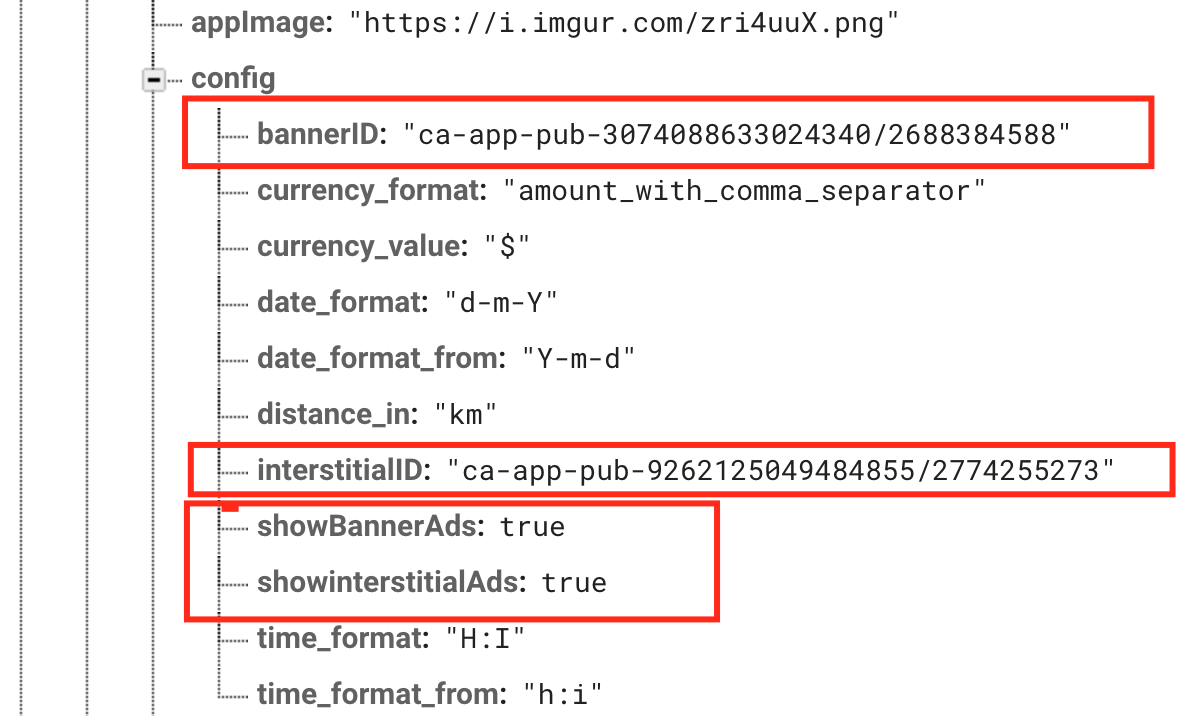
                <![CDATA[<p>In your react native project, in the root  there is file "config.js". You should already have set up the connection to your Firebase DB here. </p><p><br /></p><p><br /></p><p><br /></p><p>Bellow you will find some configurations for the PayPal and SendGrid email notify.</p><p><br /></p><p><br /></p><p><br /></p><h4>PayPal</h4><p><br /></p><p>In order to accept payment in the app, you will need to have merchant paypal account. </p><p><br /></p><p><br /></p><p><br /></p><h4><a href="https://sendgrid.com/" target="_blank" rel="noreferrer noopener">SendGrid</a></h4><p><br /></p><p>Sign up for free SendGrid account. With this in place, you will receive an email when new order is place. </p><p><br /></p><p>You can use <a href="https://smooch.io/" target="_blank" rel="noreferrer noopener">Smooch</a> email, and have thous orders received in Slack </p><p><br /></p><p><br /></p><p><br /></p><h4>AdMob</h4><p><br /></p><p>Sign up on <a href="https://www.google.com/admob/" target="_blank" rel="noreferrer noopener">AdMob</a>. In the navigation menu you have Apps, click on the Apps and then click on ADD APP. Enter your app name and choose the platform(Android or iOS). And then  click on NEXT: Create Ad Unit. Then you have to create banner  id or interstitial id. Now go into your firebase console open your project and in the config  you will add 4 variables:</p><p><br /></p><p><br /></p><p><br /></p><p>- <b>showBannerAds</b> - set it to true if you want to have bannerAds in your app</p><p><br /></p><p>- <b>bannerID</b> - insert your given banner id from AdMob</p><p><br /></p><p>- <b>showinterstitialAds</b> - set it to true if you want to have interstitialAds in your app</p><p><br /></p><p>- <b>interstitialID</b> -insert your given interstitial id from AdMob</p><p>Look at the image below</p><p><img src="https://support-hub--assets.s3.eu-west-2.amazonaws.com/assets/74/images/ztUDH3U6iF3QNJUbF689Nut2zwx9xpd3QeHZSPEL.png" style="width:50%;" alt="ztUDH3U6iF3QNJUbF689Nut2zwx9xpd3QeHZSPEL.png" /><br /></p><p><br /></p><p><br /></p><p><br /></p><p><br /></p><p><br /></p><p><br /></p>]]>
            </summary>
                                    <updated>2019-06-17T11:33:08+00:00</updated>
        </entry>
            <entry>
            <title><![CDATA[Step 5. Design changes of your app]]></title>
            <link rel="alternate" href="https://mobidonia.support-hub.io/articles/step-5-design-changes-of-your-app" />
            <id>https://mobidonia.support-hub.io/96</id>
            <author>
                <name><![CDATA[Daniel Dimov]]></name>
            </author>
            <summary type="html">
                <![CDATA[<h4>Logo change</h4><p>Go into the project and go in App/Images folder and replace the old <b>logo.png</b>, <b>navlogo.png</b> and the <b>sidelogo.png</b> with your logo.</p><h4>Color change</h4><p>-- Content goes here</p>]]>
            </summary>
                                    <updated>2019-06-17T11:33:08+00:00</updated>
        </entry>
            <entry>
            <title><![CDATA[Shopping functionality]]></title>
            <link rel="alternate" href="https://mobidonia.support-hub.io/articles/shopping-functionality" />
            <id>https://mobidonia.support-hub.io/97</id>
            <author>
                <name><![CDATA[Daniel Dimov]]></name>
            </author>
            <summary type="html">
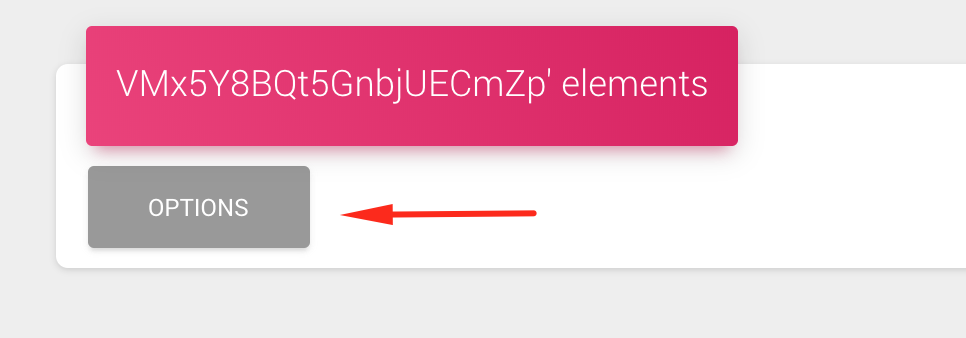
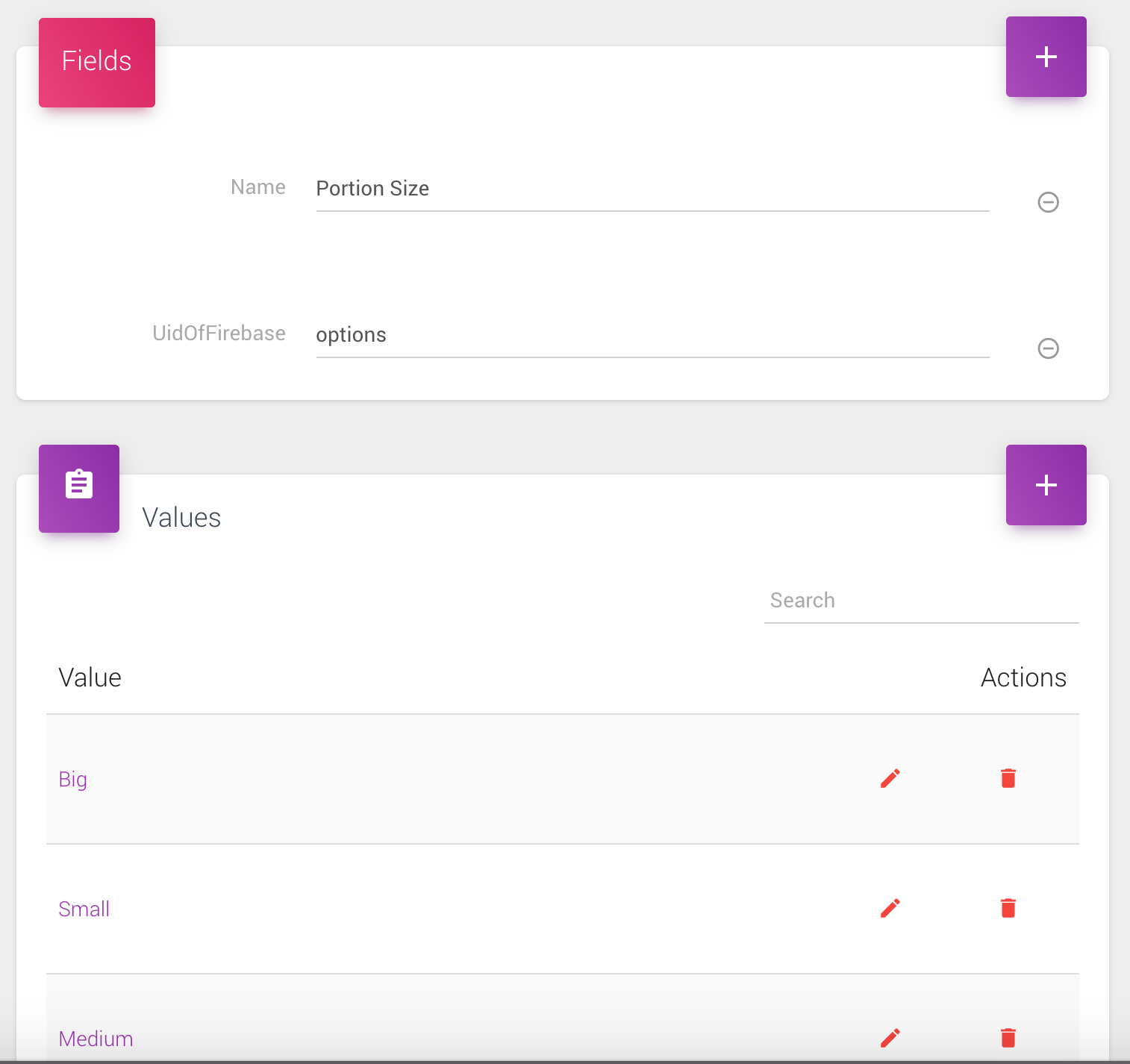
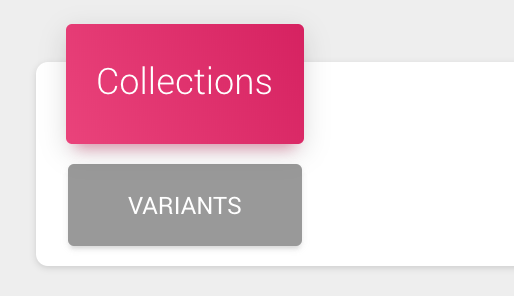
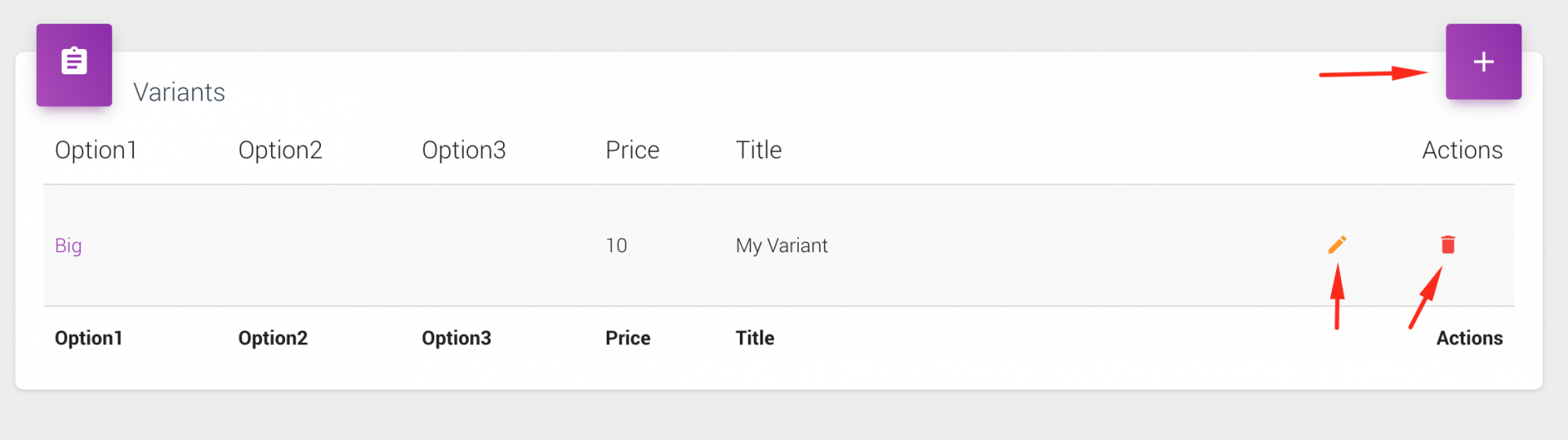
                <![CDATA[<p><br /></p><p>The shopping functionality is available in the following apps</p><p><br /></p><ol><li>Restaurant app</li><li>Shopping app</li><li>Events app</li></ol><p>And each of them follow the similar / same data structure of the products/items/tickets and their prices. </p><p><br /></p><p><br /></p><p><br /></p><p>We have implemented / followed the Shopify variants and options system. </p><p><br /></p><p>Learn about it here: <a href="https://help.shopify.com/manual/products/variants" target="_blank" rel="noreferrer noopener">https://help.shopify.com/manual/products/variants</a></p><p><br /></p><p><br /></p><p><br /></p><p>Each product has Options and Variant. </p><p><br /></p><p><br /></p><p><br /></p><p>Options</p><p>Options are array of options, and each options has name and array of values. </p><p><br /></p><p><br /></p><p><br /></p><p>So, lets imagine we are selling sun glasses. </p><p><br /></p><p>The sunglasses can have the following options: color, UVprotection,  lensWidth. </p><p><br /></p><p>And each of them can have the following values</p><p><br /></p><p><br /></p><p><br /></p><p><b>color</b>: red, black, white, green</p><p><br /></p><p><b>uv-protection</b>: yes, no</p><p><br /></p><p><b>lensWidth</b>: 66, 70</p><p><br /></p><p><br /></p><p><br /></p><p>So with the things declared above our options in JSON format will look like this</p><pre>"options":{<br />        "option1":{<br />          "name":"Color",<br />          "values":["Red","White","Green"]<br />        },<br />        "option2":{<br />          "name":"UV-Protection",<br />          "values":["Yes","No"]<br />        },<br />        "option3":{<br />          "name":"lensWidth",<br />          "values":["66","70"]<br />        }<br />      },</pre><p><br /></p><p>if this is general schema for all your product you can put it in "src/config/firestoreschema.js" - but it is not required since you can change the default options there. </p><p>So when new product is inserted through the admin panel, you will have the options there. And you can modify them to suit your needs. <br /></p><p><br /></p><p>Each product should have the options element </p><p><img src="https://support-hub--assets.s3.eu-west-2.amazonaws.com/assets/74/images/RCV152s2Q0Zg5gu31Xf7n0dp5jqBTfJuN3ZnbdqV.png" style="width:50%;" alt="RCV152s2Q0Zg5gu31Xf7n0dp5jqBTfJuN3ZnbdqV.png" /></p><p>When you click on options, and some of the options, you get the details of single option, and you can modify existing or add new values.</p><p><img src="https://support-hub--assets.s3.eu-west-2.amazonaws.com/assets/74/images/VOg1R9yAVL7bkrYNcJdBD8D2erPrBJEu6WVL37D5.png" style="width:50%;" alt="VOg1R9yAVL7bkrYNcJdBD8D2erPrBJEu6WVL37D5.png" /></p><h4>Variants</h4><p>In the above example we had the following options for the sunglasses product</p><p><b>color</b>: red, black, white, green<br /></p><p><b>uv-protection</b>: yes, no<br /></p><p><b>lensWidth</b>: 66, 70<br /></p><p>With this options we can build 4 * 2 * 2 = 16 variants of product<br /></p><h4>Example</h4><p><br /></p><ol><li> Red, With UV Protection, 66 mm - We sell it for 20$</li><li> Red, No UV Protection, 66 mm - We sell it for 22$</li><li> Green, with UV Protection, 60 mm - We sell it for 40$</li></ol><p>etc...</p><p>So we need to define prices for each of the variants we have ( not all variants are required - at leas one is necessary ) <br /></p><p><br /></p><p>Based on the examples above our JSON structure for single variant will looks like this</p><pre>{<br />      "option1":"Red",<br />      "option2":"Yes",<br />      "option3":"66",<br />      "price":20,<br />      "title":"Red, With UV Protection, 66mm"<br />    }</pre><p>But thanks to the Firebase Admin Panel, each product will came with 1 variant inside by default. You job will be to add more and modify existing. </p><p>Each product will have "Variants" colleciton</p><p><img src="https://support-hub--assets.s3.eu-west-2.amazonaws.com/assets/74/images/TrUM9Kff0lBbP2xZmi5WqoiYEAinU4ewz9IwQ1aM.png" style="width:50%;" alt="TrUM9Kff0lBbP2xZmi5WqoiYEAinU4ewz9IwQ1aM.png" /></p><p><br /></p><p>And you can add / modify / delete variants. </p><p><img src="https://support-hub--assets.s3.eu-west-2.amazonaws.com/assets/74/images/Qis9wJUw4nOaRkTWdURF4bBvftUtzJLtped8MPxY.png" style="width:50%;" alt="Qis9wJUw4nOaRkTWdURF4bBvftUtzJLtped8MPxY.png" /></p><h4>Summary </h4><p>We have taken what we think is good and extendable model. You can have as much as you want options and variants so the solution can work for every situation. <br /></p><p>And this is how the options / variants and their prices are displayed on the app side</p><p><img src="https://support-hub--assets.s3.eu-west-2.amazonaws.com/assets/74/images/hl9k5eWoYmulO92U7xOLLMrOBKwwDcHjU8YWimYr.png" style="width:50%;" alt="hl9k5eWoYmulO92U7xOLLMrOBKwwDcHjU8YWimYr.png" /><br /></p><p><br /></p><p><br /></p><p><br /></p>]]>
            </summary>
                                    <updated>2019-06-17T11:33:08+00:00</updated>
        </entry>
            <entry>
            <title><![CDATA[Orders receiving]]></title>
            <link rel="alternate" href="https://mobidonia.support-hub.io/articles/orders-receiving" />
            <id>https://mobidonia.support-hub.io/98</id>
            <author>
                <name><![CDATA[Daniel Dimov]]></name>
            </author>
            <summary type="html">
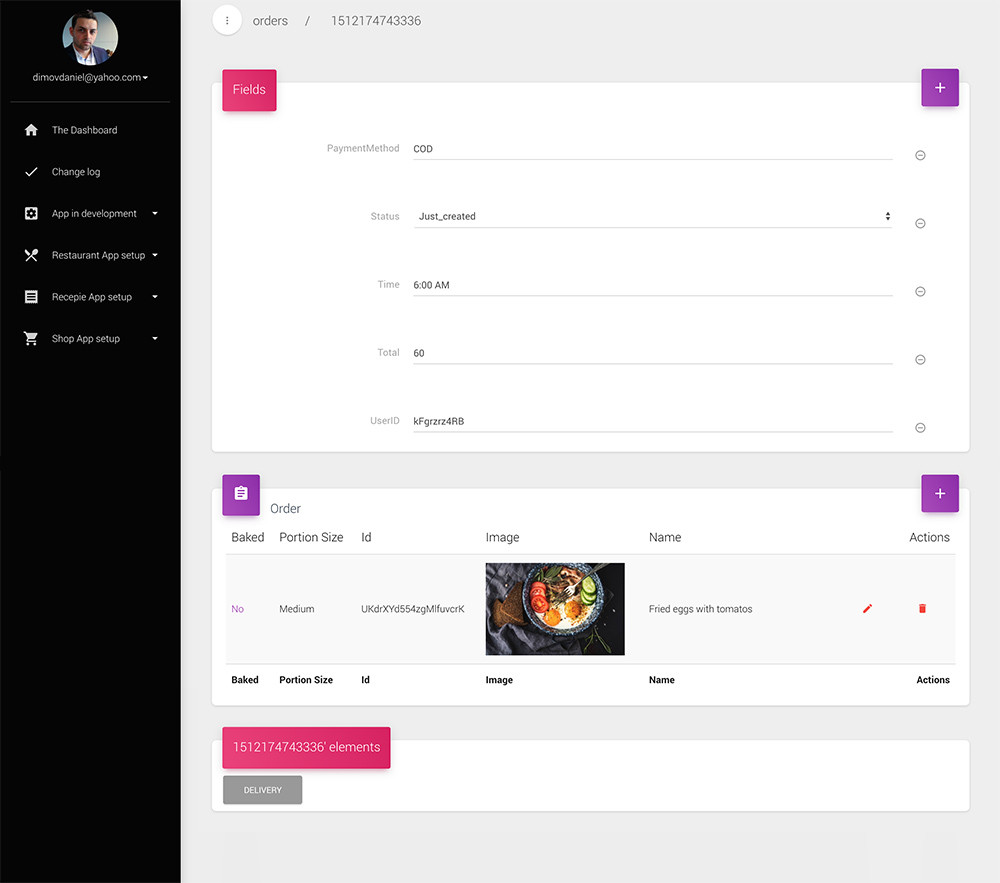
                <![CDATA[<p>The orders are bind with the Shopping functionality that is is available in</p><p><br /></p><ol><li>Shop app</li><li>Restaurant app</li></ol><p><br /></p><p>By default the orders will be received on your email and and saved in Firestore DB that you can preview in your Firebase Admin panel. </p><p>So the email will be more like a notification that you have received an order, and you will manage the order in your Admin. <br /></p><p>Here is how the order will look on the admin site. In the delivery element, you can view the delivery details. You can change the order status and preview all the ordered items. </p><p><img src="https://support-hub--assets.s3.eu-west-2.amazonaws.com/assets/74/images/SlqoNJt0IM9wn74fiAZYflBx73Q52MxefdXQo8cO.jpeg" style="width:50%;" alt="SlqoNJt0IM9wn74fiAZYflBx73Q52MxefdXQo8cO.jpeg" /><br /></p>]]>
            </summary>
                                    <updated>2019-06-17T11:33:08+00:00</updated>
        </entry>
            <entry>
            <title><![CDATA[Login and signup setup and how to add allowed users]]></title>
            <link rel="alternate" href="https://mobidonia.support-hub.io/articles/login-and-signup-setup-and-how-to-add-allowed-users" />
            <id>https://mobidonia.support-hub.io/99</id>
            <author>
                <name><![CDATA[Daniel Dimov]]></name>
            </author>
            <summary type="html">
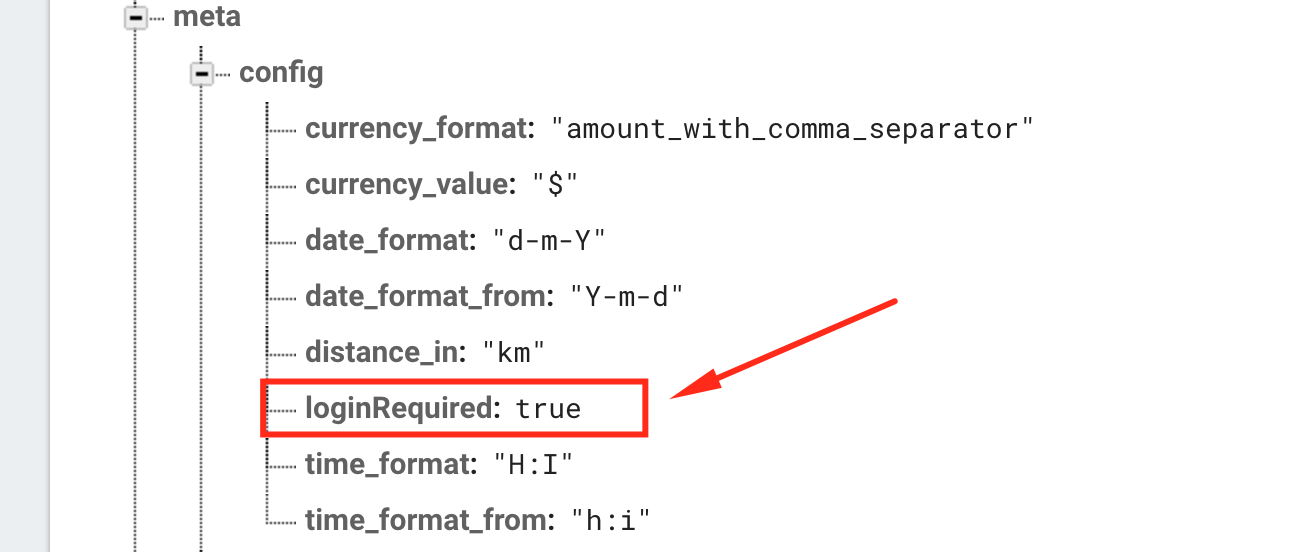
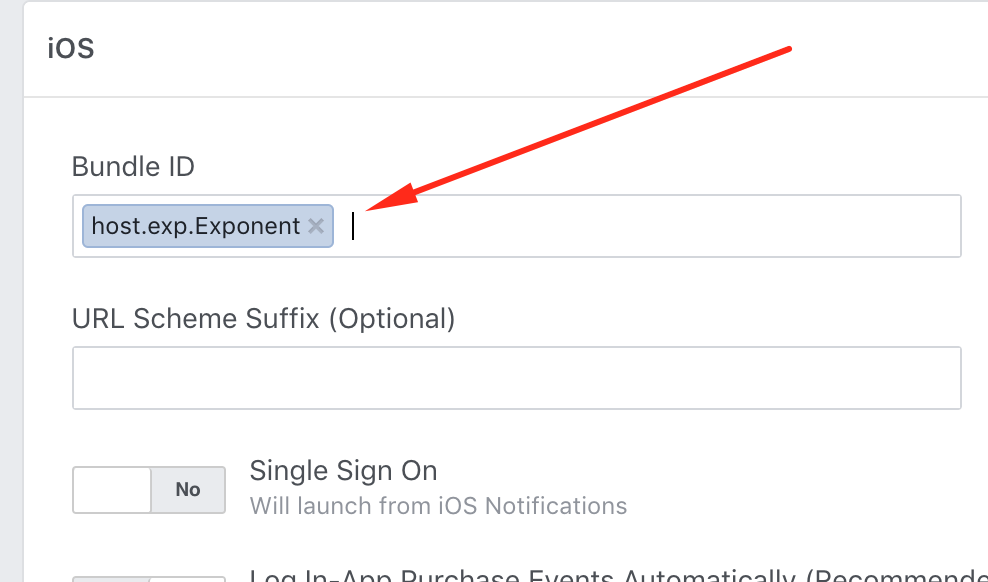
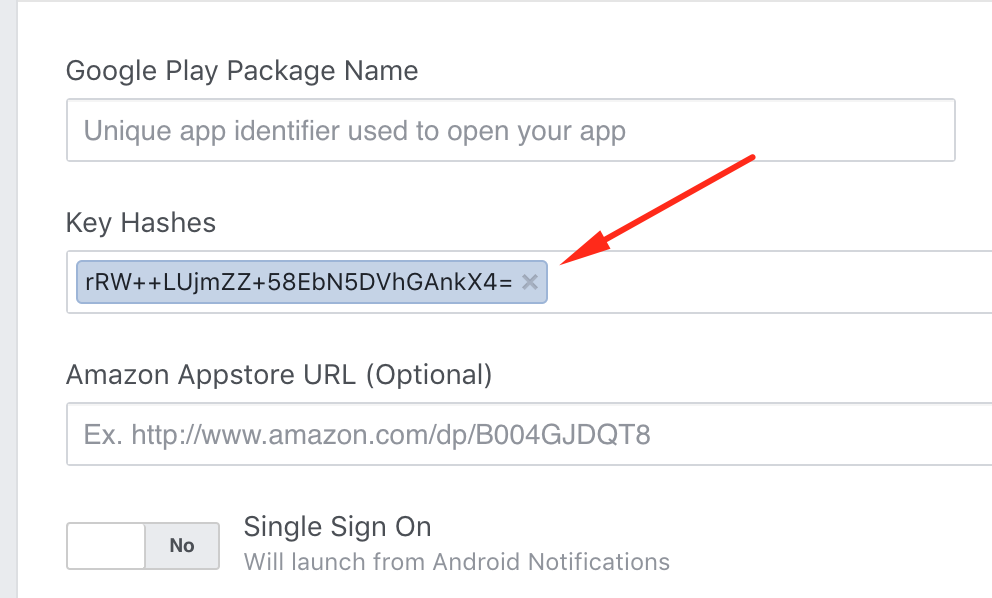
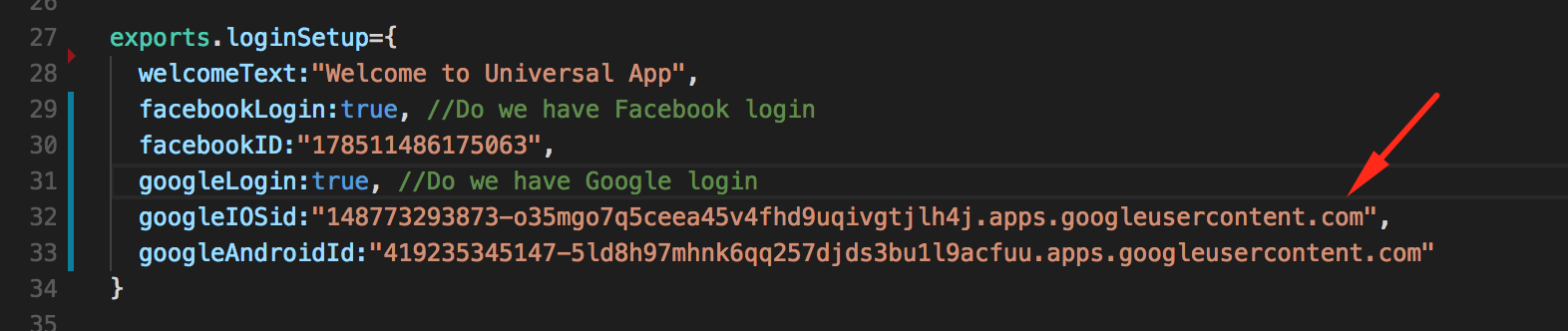
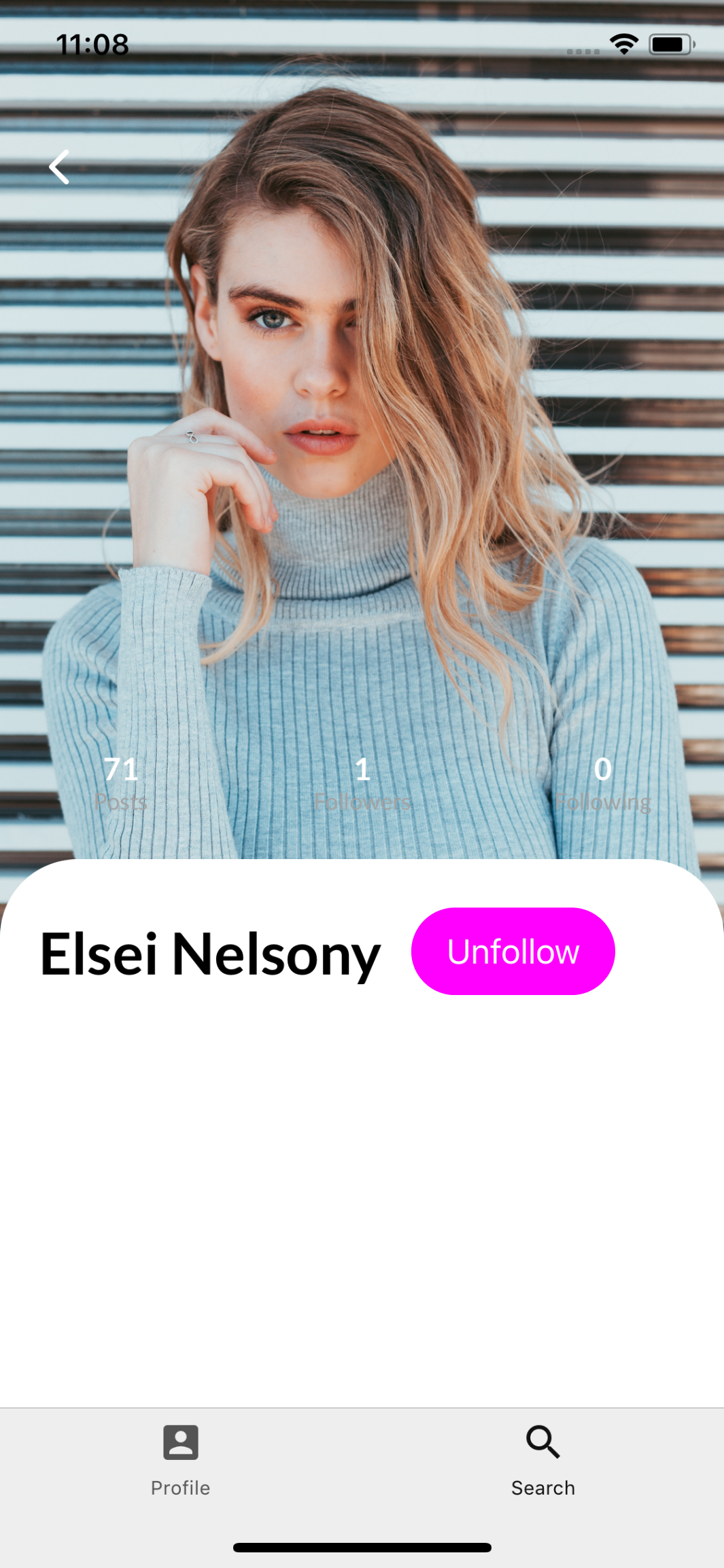
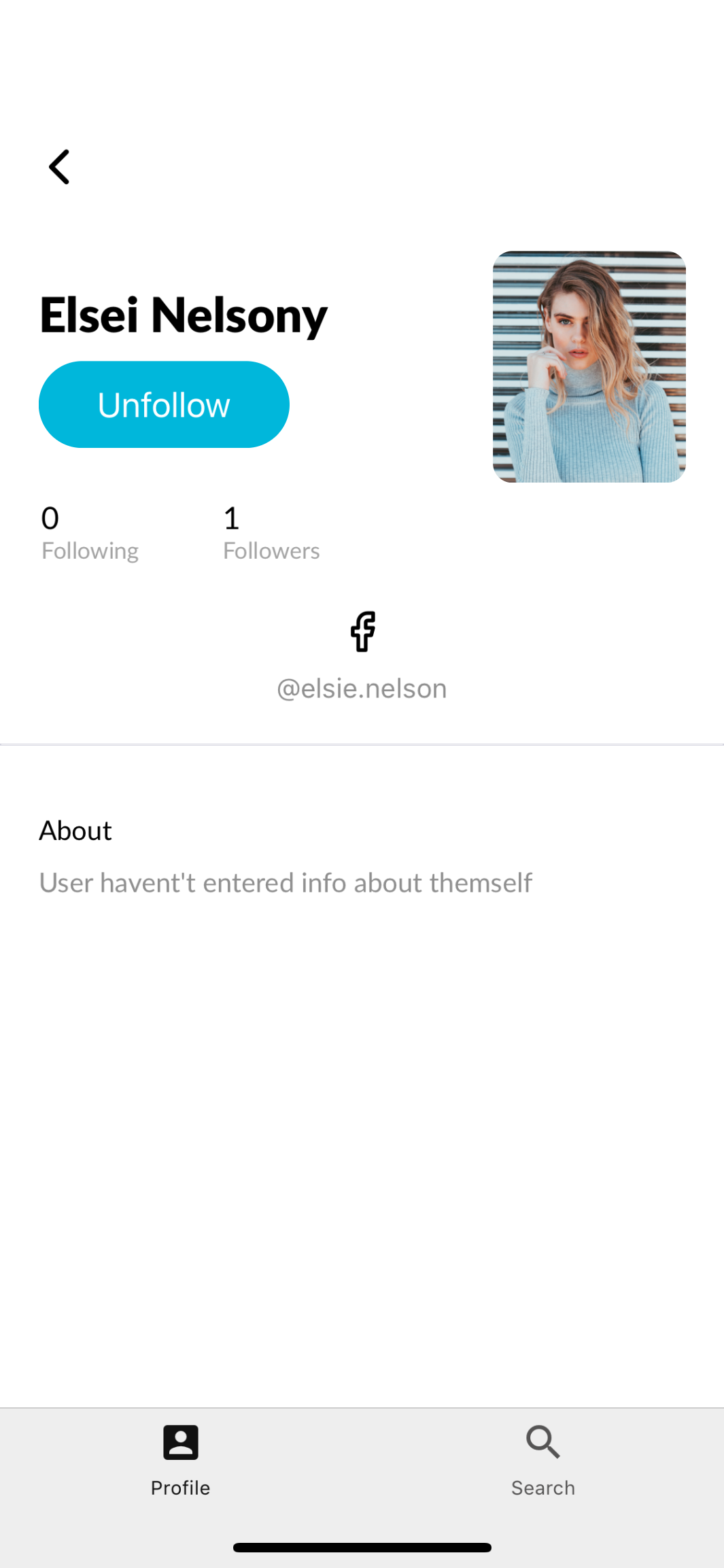
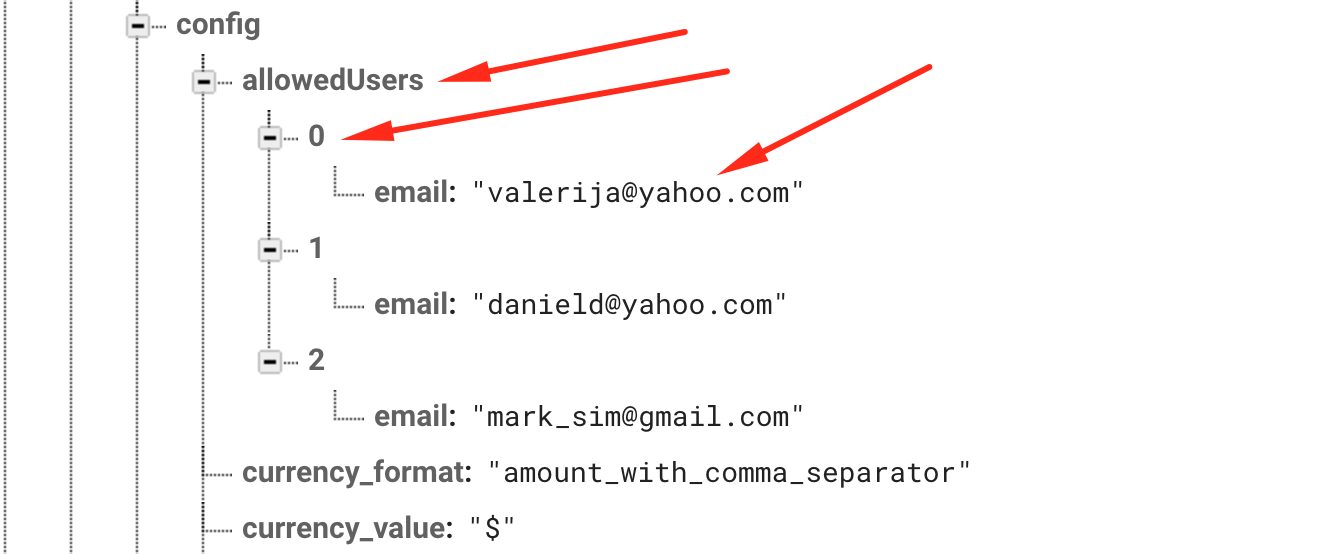
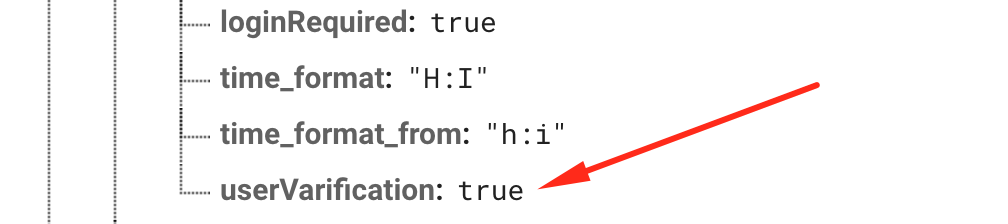
                <![CDATA[<p>Authentication  is optional in all apps, except in Users app when is required.</p><p>First of all if you want to have login and signup screens in your app, you have to set it up first in your firebase realtime database.</p><p>In <b>meta -&gt; config</b> you have to add <b>loginRequired: true</b>, just look at the screenshot below.</p><p><img src="https://support-hub--assets.s3.eu-west-2.amazonaws.com/assets/74/images/TeshnT1fte6wit7dJjnOm3PYxKyq1IsGKhdYCXIa.png" style="width:50%;" alt="TeshnT1fte6wit7dJjnOm3PYxKyq1IsGKhdYCXIa.png" /></p><h4>Facebook and Google login</h4><p>After the login setup you can add in your app facebook and google+ login. This option you can set up from the downloaded project, just open and you will find config.js. Around line  27 you will find exports.loginSetup, there you can customize your welcome text, facebook and google login.</p><p><img src="https://support-hub--assets.s3.eu-west-2.amazonaws.com/assets/74/images/ioPxQTayV7bp1UjXmcZzcN35Yv8rCHoKYxcj2uSe.png" style="width:50%;" alt="ioPxQTayV7bp1UjXmcZzcN35Yv8rCHoKYxcj2uSe.png" /></p><h5>Set up facebook login</h5><p>First you have to turn facebookLogin:true, and after that you should make your facebook app id.<br /></p><p><br /></p><p> -<a href="https://developers.facebook.com/apps" target="_blank" rel="noreferrer noopener"> https://developers.facebook.com/apps</a> create your facebook app.</p><p>- When the app is created then go to settings and scroll to the bottom, now you will see add platform button. Just add iOS and Android.<br /></p><p>- For iOS in the BundleID just add host.exp.Exponent, look at the picture below.</p><p><img src="https://support-hub--assets.s3.eu-west-2.amazonaws.com/assets/74/images/BTq1Sqrd7YfErOaPJjRSvLxPIcl6UC3vkN9RCMyC.png" style="width:50%;" alt="BTq1Sqrd7YfErOaPJjRSvLxPIcl6UC3vkN9RCMyC.png" /></p><p>- For Android in the Key Hashes just add <b>rRW++LUjmZZ+58EbN5DVhGAnkX4=</b> , look at the picture below.</p><p><img src="https://support-hub--assets.s3.eu-west-2.amazonaws.com/assets/74/images/scEISKzn89mUpZaBNagTd6aaHsDTyUEQ4yhCGe6L.png" style="width:50%;" alt="scEISKzn89mUpZaBNagTd6aaHsDTyUEQ4yhCGe6L.png" /></p><p>- On the top of <a href="https://developers.facebook.com/apps" target="_blank" rel="noreferrer noopener">https://developers.facebook.com/apps</a> you should see your <b>APP ID</b>, copy the id and replace the  current <b>facebookID in config.js</b> in the downloaded project  with your  <b>APP ID</b>.</p><p><img src="https://support-hub--assets.s3.eu-west-2.amazonaws.com/assets/74/images/7eIp53aynOIygK7WSNoMFQihvSvxkSM1tbPDq6WE.png" style="width:50%;" alt="7eIp53aynOIygK7WSNoMFQihvSvxkSM1tbPDq6WE.png" /></p><h5>Set up Google login</h5><p><br /></p><p>First you have to turn <b>googleLogin:true</b>, and after that you should make your google ids.<br /></p><p><br /></p><p><b>Get an app set up on the Google Developer Console</b><br /></p><ul><li>Go to the Credentials Page<br /></li><li>Create an app for your project if you haven't already.<br /></li><li>Once that's done, click "Create Credentials" and then "OAuth client ID." You will be prompted to set the product name on the consent screen, go ahead and do that.<br /></li></ul><p><b>Create an iOS OAuth Client ID</b><br /></p><ul><li>Select "iOS Application" as the Application Type. Give it a name if you want (e.g. "iOS Development").<br /></li><li>Use host.exp.exponent as the bundle identifier.<br /></li><li>Click "Create"<br /></li><li>You will now see a modal with the client ID.<br /></li></ul><p>            - The client ID that in  iosClientId, copy and replace it into config.js file. Look at the picture below.</p><p><img src="https://support-hub--assets.s3.eu-west-2.amazonaws.com/assets/74/images/b5Fya6Puu7jubsBJu9aFjuIOFSjQ9ZSe6q8E2niX.png" style="width:50%;" alt="b5Fya6Puu7jubsBJu9aFjuIOFSjQ9ZSe6q8E2niX.png" /></p><p><b>Create an Android OAuth Client ID</b></p><ul><li>Select "Android Application" as the Application Type. Give it a name if you want (maybe "Android Development").</li><li>Run openssl rand -base64 32 | openssl sha1 -c in your terminal, it will output a string that looks like A1:B2:C3 but longer. Copy the output to your clipboard.<br /></li><li>Paste the output from the previous step into the "Signing-certificate fingerprint" text field.<br /></li><li>Use host.exp.exponent as the "Package name".<br /></li><li>Click "Create"<br /></li><li>You will now see a modal with the Client ID</li></ul><p>            - The client ID that is in androidClientId, copy the id and replace it into config.js file. Look at the picture below.</p><p><img src="https://support-hub--assets.s3.eu-west-2.amazonaws.com/assets/74/images/lyN2BHUDYTKDBW0AR5t4Ak0Np3Mg4V3aUDiSjYMv.png" style="width:50%;" alt="lyN2BHUDYTKDBW0AR5t4Ak0Np3Mg4V3aUDiSjYMv.png" /></p><h5>Profile screen style</h5><p>After that, there are two types of profile screens, you will decided which one  fits more to your app design.<br /></p><p><b>This is ProfileOption1</b></p><p><img src="https://support-hub--assets.s3.eu-west-2.amazonaws.com/assets/74/images/1jVAyq5N5RY4vhlzdA2y5UGmHamRQPEyPAwc0t1H.png" style="width:50%;" alt="1jVAyq5N5RY4vhlzdA2y5UGmHamRQPEyPAwc0t1H.png" /><b><br /></b></p><p><b>This is ProfileOption2</b></p><p><img src="https://support-hub--assets.s3.eu-west-2.amazonaws.com/assets/74/images/5oKR6KiP3Xb824cV1CCkYYoCfuaeU8zmd8DURZ0R.png" style="width:50%;" alt="5oKR6KiP3Xb824cV1CCkYYoCfuaeU8zmd8DURZ0R.png" /><b><br /></b></p><p><b><br /></b></p><p> - When you will decided which one you will use please open again <b>config.js</b> file, around line 41 you will see <b>exports.profileScreen='ProfileOption2',</b>  so choose which one you like more.</p><p><img src="https://support-hub--assets.s3.eu-west-2.amazonaws.com/assets/74/images/v9GTsdyhx6b9lUNIIGxfZvDHqq3QbL5ilyG9lc7D.png" style="width:50%;" alt="v9GTsdyhx6b9lUNIIGxfZvDHqq3QbL5ilyG9lc7D.png" /></p><h5>How to add allowed users</h5><p>If you want to limit which accounts will have the access to use the application all you have to do is to follow this two simple steps.<br /></p><p><b>Step 1</b>. All you have to do is to add array in your meta -&gt; config called allowedUsers. The format should be like the picture below.</p><p><img src="https://support-hub--assets.s3.eu-west-2.amazonaws.com/assets/74/images/TdCOnGChMmrxnOJ6EjIsrqF0rvGsYlBTPYunHCfG.png" style="width:50%;" alt="TdCOnGChMmrxnOJ6EjIsrqF0rvGsYlBTPYunHCfG.png" /></p><p><b>Step 2</b>.  Add field in the same place ( meta-&gt; config) that must be called <b>userVarification</b> and set this field to <b>true</b>, just like in the picture below.</p><p><img src="https://support-hub--assets.s3.eu-west-2.amazonaws.com/assets/74/images/Rh6OZ52VhrU2nEeNIGe0MAF91nqXhzm49czCqleF.png" style="width:50%;" alt="Rh6OZ52VhrU2nEeNIGe0MAF91nqXhzm49czCqleF.png" /><br /></p><p><br /><br /></p>]]>
            </summary>
                                    <updated>2019-06-17T11:33:08+00:00</updated>
        </entry>
            <entry>
            <title><![CDATA[Load all apps at once]]></title>
            <link rel="alternate" href="https://mobidonia.support-hub.io/articles/load-all-apps-at-once" />
            <id>https://mobidonia.support-hub.io/121</id>
            <author>
                <name><![CDATA[Daniel Dimov]]></name>
            </author>
            <summary type="html">
                <![CDATA[<h4>Step 1. Change the path</h4><p>In app.json instead of </p><pre>"extra": {<br />      "firebaseMetaPath": "/meta"<br />    },</pre><p>Change the firebaseMetaPath to "/apps"</p><pre>"extra": {<br />      "firebaseMetaPath": "/apps"<br />    },</pre><p><br /></p><h4>Step 2. Import all apps in /apps</h4><p>In your filrebase real-time database create new node <b>apps</b> and create some element inside, just to create the node, later will be overwritten. </p><p>Now click on "apps" so you path in firebase is there. </p><p>In the <b>Demo Data</b> folder, you will find  another folder <b>All</b></p><p>Inside there is apps.json</p><p>Import that files in Firebase. </p><h4>Step 3. Let uni expo know that this is a preview app</h4><p>In config.js at the end, there is</p><pre>exports.isPreview=false;</pre><p>Make it <b>true</b></p><p>Now run your app</p><p><br /></p>]]>
            </summary>
                                    <updated>2019-06-17T11:33:08+00:00</updated>
        </entry>
            <entry>
            <title><![CDATA[Mix of Layouts]]></title>
            <link rel="alternate" href="https://mobidonia.support-hub.io/articles/mix-of-layouts" />
            <id>https://mobidonia.support-hub.io/333</id>
            <author>
                <name><![CDATA[Daniel Dimov]]></name>
            </author>
            <summary type="html">
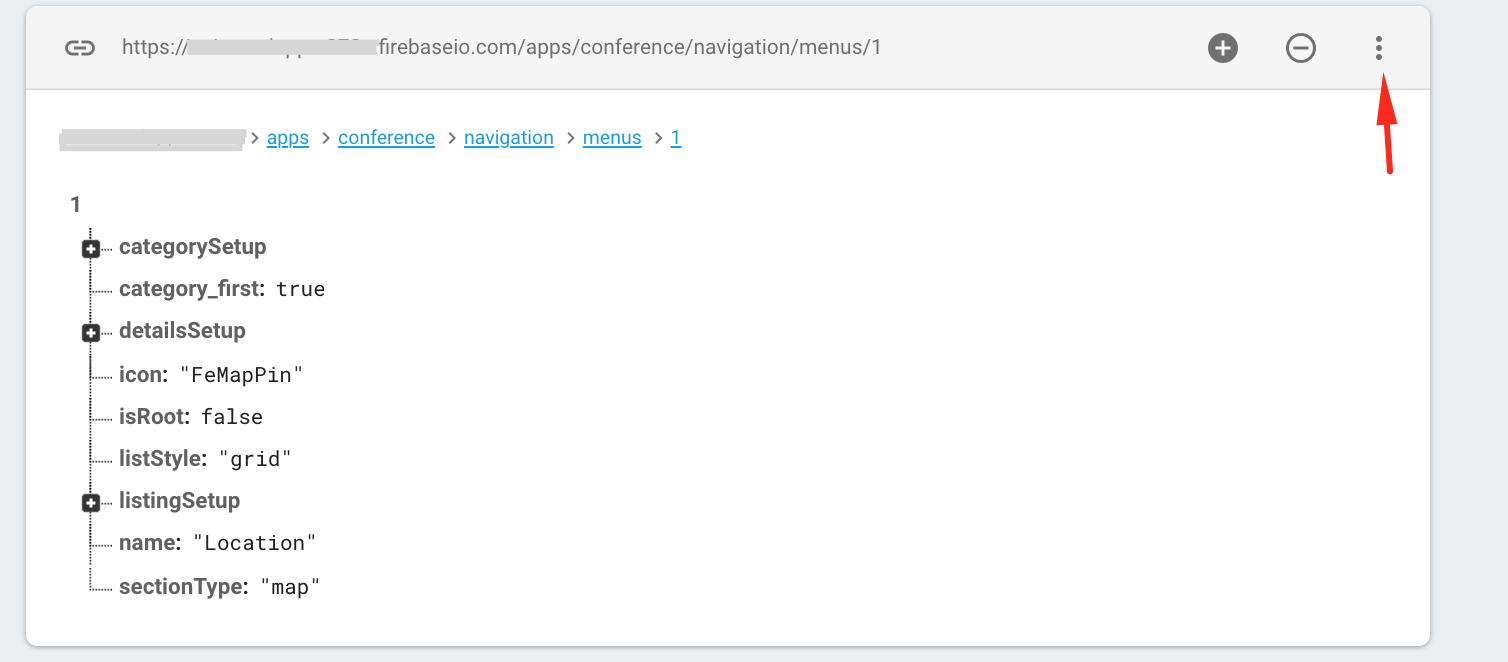
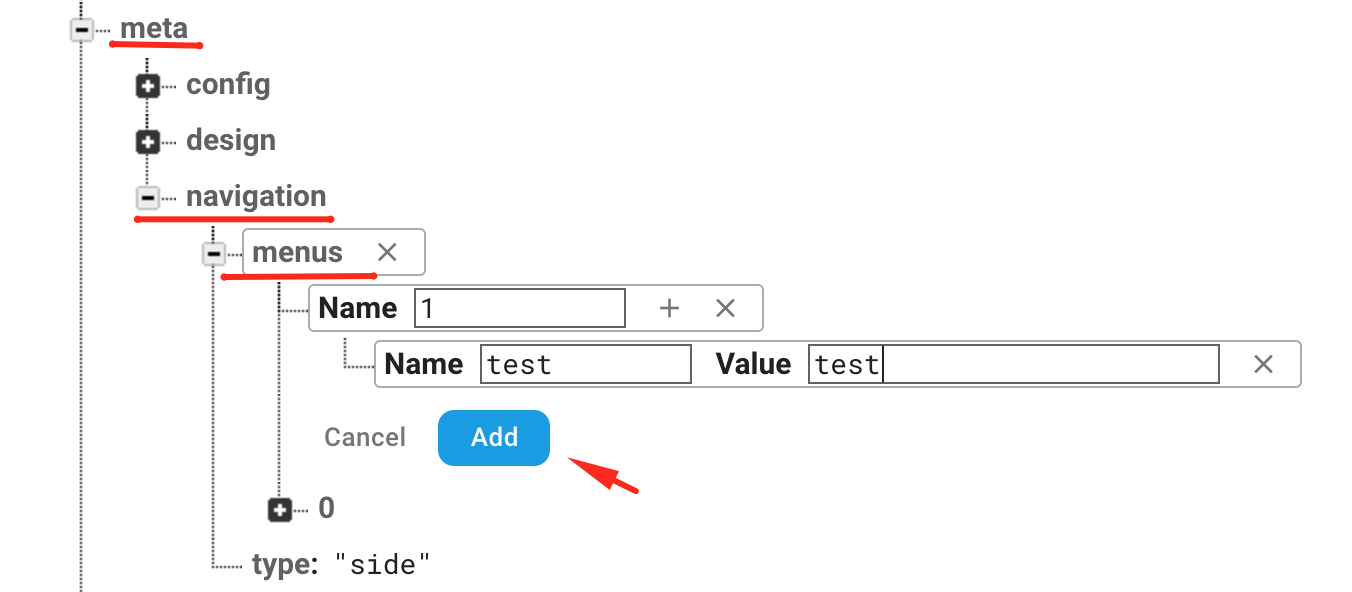
                <![CDATA[<p>In some cases, you may wish to combine sections from different apps. </p><p>The easier way to do this is by doing drag&amp;drop in <a href="https://codecanyon.net/item/react-app-builder-unlimited-number-of-apps/22649230" target="_blank" rel="noreferrer noopener">React App Builder</a>.</p><p>But in <a href="https://codecanyon.net/item/universal-app-platform-full-multipurpose-all-in-one-react-native-mobile-app/21247686" target="_blank" rel="noreferrer noopener">App</a><a href="https://codecanyon.net/item/universal-app-platform-full-multipurpose-all-in-one-react-native-mobile-app/21247686" target="_blank" rel="noreferrer noopener"> platform</a>, we don't have that <b>drag&amp;drop</b> functionality.</p><p>So the easiest way to do that, that we can think of is the following. </p><p><b>1.</b> Do <a href="https://mobidonia.support-hub.io/articles/load-all-apps-at-once#step-2-import-all-apps-in-apps" target="_blank" rel="noreferrer noopener">Step 2</a> from the guide.</p><p><b>2.</b> Find the app and component that you need, go inside it. and export it.  This will download a JSON file.</p><p>Ex. I want to use the map section from the conference app.</p><p><img src="https://support-hub--assets.s3.eu-west-2.amazonaws.com/assets/74/images/umBcVo3KZn5Xntuarv987eMTO60mp5W9gqGD2AVd.png" style="width:100%;" alt="umBcVo3KZn5Xntuarv987eMTO60mp5W9gqGD2AVd.png" /><br /></p><p>3. In your app navigation menus path in firebase ( probably <b>meta/navigation/menus</b> ) manually add the next item in the array, just to create the value.</p><p><img src="https://support-hub--assets.s3.eu-west-2.amazonaws.com/assets/74/images/gEfAvSNg0xDUxPpXPpXDSWze3eBgOETjOYvAFW19.png" style="width:100%;" alt="gEfAvSNg0xDUxPpXPpXDSWze3eBgOETjOYvAFW19.png" /></p><p>4. Go inside the newly created item. And import the exported component. This will import the component into your app. </p><p>5. This where all steps to import the components into the app. But now you should be able to edit them ( their data ) in the admin panel. The easiest way to declare them is to explore how the admin panel for the component you copied is done.<br />For example, I copied the "Location" component from the conference app. <br />I need to open the app.js file for the <b>demo/conference</b> app and copy the specific item from the navigations.</p><p><img src="https://support-hub--assets.s3.eu-west-2.amazonaws.com/assets/74/images/GuExJMeNf9Gmxb4vLcoSsl3J9q1BOu6PSQ32PNOm.png" style="width:100%;" alt="GuExJMeNf9Gmxb4vLcoSsl3J9q1BOu6PSQ32PNOm.png" /></p><p>Next. I need to paste this navigation item in my admin panel <b>src/config/app.js/--&gt;navigation</b> array</p><p>Besides this, I need to copy the collection firestore schema.</p><p><img src="https://support-hub--assets.s3.eu-west-2.amazonaws.com/assets/74/images/n3KW1f5OaD7Eaqms1riYkRiq1kSdA4MjZqt18ye0.png" style="width:100%;" alt="n3KW1f5OaD7Eaqms1riYkRiq1kSdA4MjZqt18ye0.png" /></p><p>And place it into my <b>firestoreschema.js.</b> </p>]]>
            </summary>
                                    <updated>2019-06-17T11:33:08+00:00</updated>
        </entry>
            <entry>
            <title><![CDATA[Data doesn't load on Android]]></title>
            <link rel="alternate" href="https://mobidonia.support-hub.io/articles/data-doesnt-load-on-android" />
            <id>https://mobidonia.support-hub.io/247</id>
            <author>
                <name><![CDATA[Daniel Dimov]]></name>
            </author>
            <summary type="html">
                <![CDATA[<p><br /></p><p>Check this error</p><p><a href="https://github.com/firebase/firebase-js-sdk/issues/283">https://github.com/firebase/firebase-js-sdk/issues/283</a><a href="https://github.com/firebase/firebase-js-sdk/issues/283" target="_blank" rel="noreferrer noopener"></a></p><p><br /></p><p>In "App/Datapoint/Firebase.js" add the following code on start</p><pre>const originalSend = XMLHttpRequest.prototype.send;
XMLHttpRequest.prototype.send = function(body) {
if (body === '') {
    originalSend.call(this);
} else {
    originalSend.call(this, body);
};</pre>]]>
            </summary>
                                    <updated>2019-01-29T09:29:49+00:00</updated>
        </entry>
            <entry>
            <title><![CDATA[Category list is not shown]]></title>
            <link rel="alternate" href="https://mobidonia.support-hub.io/articles/category-list-is-not-shown" />
            <id>https://mobidonia.support-hub.io/249</id>
            <author>
                <name><![CDATA[Daniel Dimov]]></name>
            </author>
            <summary type="html">
                <![CDATA[<p><b>Problem</b></p><p>The category list appears just like lines, no content is displayed.<br /></p><p><b>Reason</b><br /></p><p>Removed style "list" replaced with "grid1"<br /></p><p><b>Solution</b><br /></p><p>This is the bug in version 5.0.0 and older. In the new versions, this is fixed<br /></p><p><i>Solution 1</i> ( Recommended )<br /></p><p>In Categories.js around line 37 add the following</p><pre>if(theProps.data.categorySetup&amp;&amp;theProps.data.categorySetup.category_style=="list"){
    theProps.data.categorySetup.category_style="grid1";
}</pre><p><i>Solution 2</i></p><p>In Firebase, in your navigation setup in "categorySetup/category_style", instead of "list" enter "grid1";<br /></p>]]>
            </summary>
                                    <updated>2019-01-29T09:32:47+00:00</updated>
        </entry>
            <entry>
            <title><![CDATA[Changelog]]></title>
            <link rel="alternate" href="https://mobidonia.support-hub.io/articles/changelog-255" />
            <id>https://mobidonia.support-hub.io/255</id>
            <author>
                <name><![CDATA[Daniel Dimov]]></name>
            </author>
            <summary type="html">
                <![CDATA[<p><b>ver 5.0.0</b></p><p><b>2018-04-19  <br /></b></p><p><b>Summary</b><br /></p><p>In version 5.0.0 we have added the new Night Club app.<br /></p><p>To update from version 4.0.0 just replace the updated files listed below<br /></p><p><b>Updates</b><br /></p><p><br /></p><ul><li>NEW APP: Night Club app</li><li>Feature: Window design change</li><li>Feature: Tab Bar change</li><li>Feature: Category selector in Master View</li><li>Feature: Gallery screen</li></ul><p><b>Updated files</b><br /></p><p><b>ver 4.0.0<br /></b></p><p><b>2018-03-21</b><br /></p><p><b>Summary</b><br /></p><p>In version 4.0.0 we have added the new Events app.<br /></p><p>To update from version 3.0.0 just replace the updated files listed below<br /></p><p><b>Updates</b></p><ul><li>NEW APP: Events Mobile app</li><li>Feature: Expo push notifications</li><li>Feature: Checkout on item details</li><li>Feature: Map - show items on Map</li><li>Feature: Better order screen, with details window</li><li>Feature: Configurable infoboxes</li></ul><p><b>Updated files</b></p>]]>
            </summary>
                                    <updated>2019-01-29T09:39:14+00:00</updated>
        </entry>
            <entry>
            <title><![CDATA[@connectActionSheet Problem]]></title>
            <link rel="alternate" href="https://mobidonia.support-hub.io/articles/at-connectactionsheet-problem" />
            <id>https://mobidonia.support-hub.io/260</id>
            <author>
                <name><![CDATA[Daniel Dimov]]></name>
            </author>
            <summary type="html">
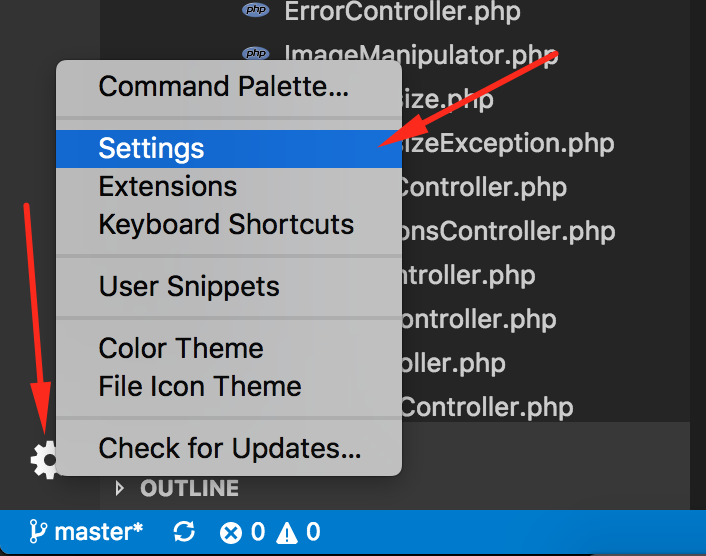
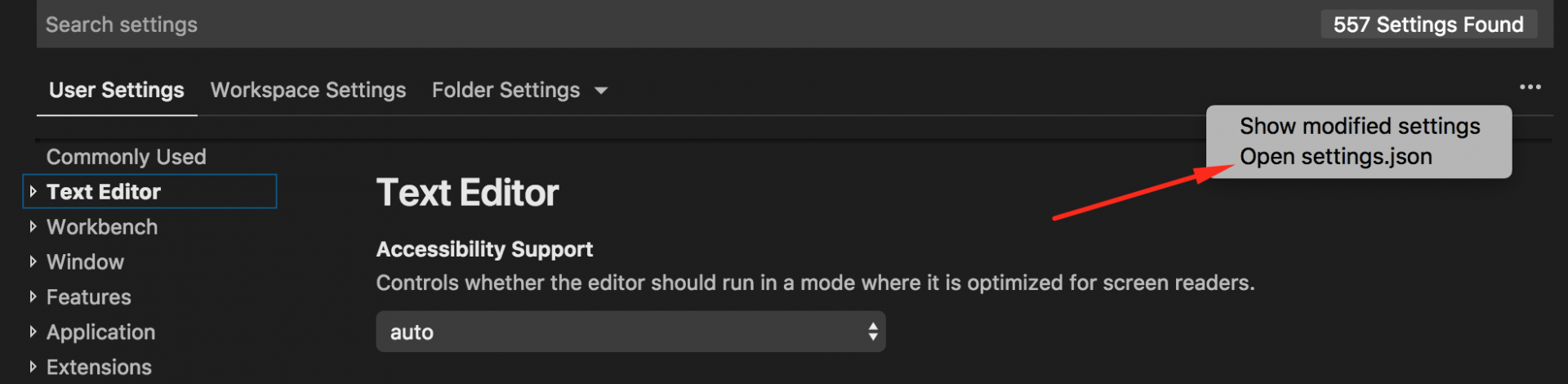
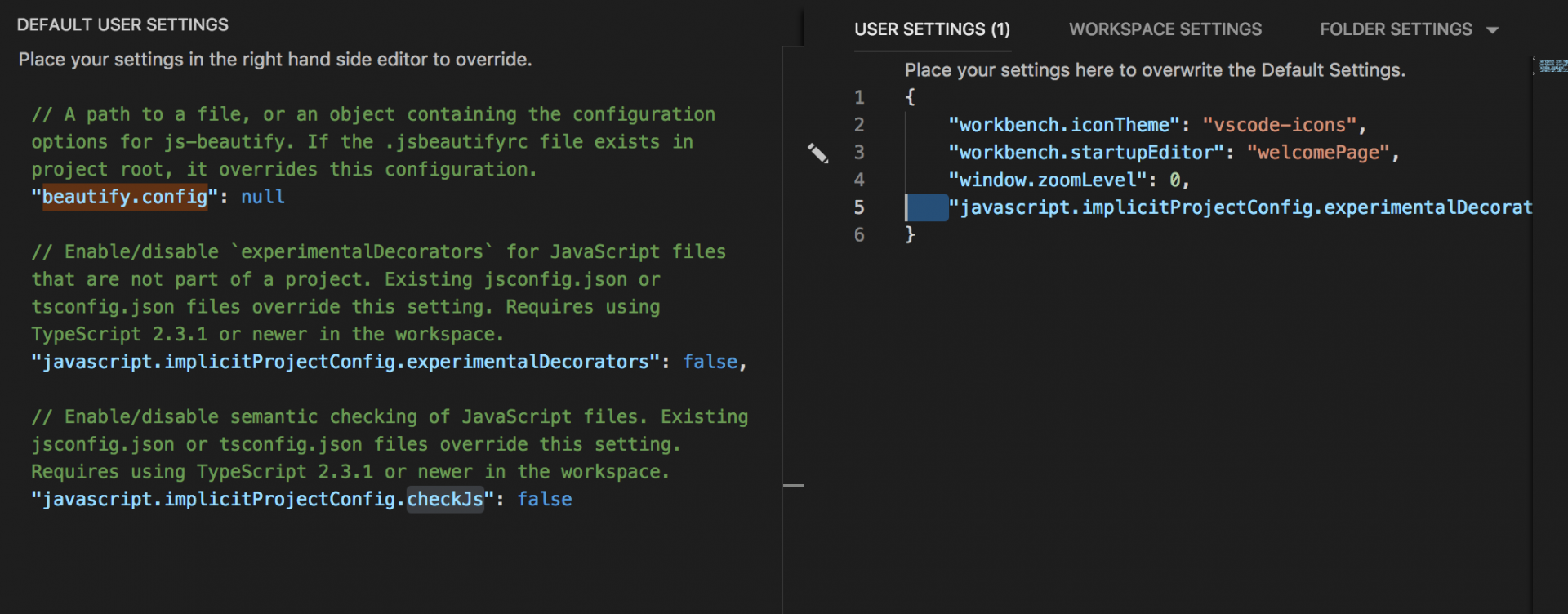
                <![CDATA[<p>If you use VS code you should add this in your settings</p><pre>"javascript.implicitProjectConfig.experimentalDecorators": true</pre><p><b>Step 1.- Open Settings</b></p><p><img src="https://support-hub--assets.s3.eu-west-2.amazonaws.com/assets/74/images/526VdiWKboBHyTazHfyKFnGqUJqIHp1qggUg8PjZ.png" style="width:50%;" alt="526VdiWKboBHyTazHfyKFnGqUJqIHp1qggUg8PjZ.png" /><b><br /></b></p><p><b>Step 2. Open settings.json</b></p><p><img src="https://support-hub--assets.s3.eu-west-2.amazonaws.com/assets/74/images/AYxBESHlHNSCh1kArWvHk7J6WJVFZ0nmuuPzzNFI.png" style="width:50%;" alt="AYxBESHlHNSCh1kArWvHk7J6WJVFZ0nmuuPzzNFI.png" /><b><br /></b></p><p><b>Step 3. Add your settings</b></p><p><img src="https://support-hub--assets.s3.eu-west-2.amazonaws.com/assets/74/images/2M1pBWIbdqB5mSJCj0SeBFFCeQsgzlfIoZpywVpI.png" style="width:50%;" alt="2M1pBWIbdqB5mSJCj0SeBFFCeQsgzlfIoZpywVpI.png" /><b><br /></b></p><p>Let me know if this helps.</p>]]>
            </summary>
                                    <updated>2019-01-29T09:42:50+00:00</updated>
        </entry>
            <entry>
            <title><![CDATA[Error on running npm install]]></title>
            <link rel="alternate" href="https://mobidonia.support-hub.io/articles/error-on-running-npm-install" />
            <id>https://mobidonia.support-hub.io/262</id>
            <author>
                <name><![CDATA[Daniel Dimov]]></name>
            </author>
            <summary type="html">
                <![CDATA[<p>There could be many types of error when running npm install </p><p>We would suggest to always use the latest Node and NPM version<br /></p><p><b>Updating Node</b><br /></p><p>The easiest way to update node is to install "n" -&gt; a node version control. <br /></p><p>Install it by running <b>npm install n -g</b><br /></p><p>Then run <b>n latest </b><br /></p><p><b>Updating NPM<br /></b></p><p><b>npm install -g npm</b><br /></p><p>Then run</p><p>node -v</p><p>npm -v <br /></p><p>Send this version with any support request <br /></p><h4>Common Problem #1 - ERR! Tried to download(404): <a href="https://fsevents-binaries" target="_blank" rel="noreferrer noopener">https://fsevents-binaries</a></h4><p><b>Problem</b> <br /></p><p>npm install firebase fails due to grpc<br /></p><p><b>Solution</b><br /></p><p>Use the latest version from firebase in the package.json<br /></p><p>1. Go on the firebase NPM package page <br /></p><p>   <a href="https://www.npmjs.com/package/firebase" target="_blank" rel="noreferrer noopener"> https://www.npmjs.com/package/firebase</a><br /></p><p>2. There you will find the latest version of this package<br /></p><p>3. Open package.json file <br /></p><p>4. Locate the "firebase" string in the dependencies object<br /></p><p>5. Replace the value with the latest version that you found.<br /></p><p>6. Remove the ^ symobl<br /></p><p>7. Run <b>npm install</b><br /></p><p><br /></p><p><b>Note: This fix may produce another error, related to firestore datetime. </b><br /></p><p><br /></p><p>Solution: <a href="https://mobidonia.freshdesk.com/support/solutions/articles/35000089514-firestore-date-object-behaviours-" target="_blank" rel="noreferrer noopener">https://mobidonia.freshdesk.com/support/solutions/articles/35000089514-firestore-date-object-behaviours-</a></p>]]>
            </summary>
                                    <updated>2019-01-29T09:48:55+00:00</updated>
        </entry>
            <entry>
            <title><![CDATA[Firestore: Date object behaviours]]></title>
            <link rel="alternate" href="https://mobidonia.support-hub.io/articles/firestore-date-object-behaviours" />
            <id>https://mobidonia.support-hub.io/267</id>
            <author>
                <name><![CDATA[Daniel Dimov]]></name>
            </author>
            <summary type="html">
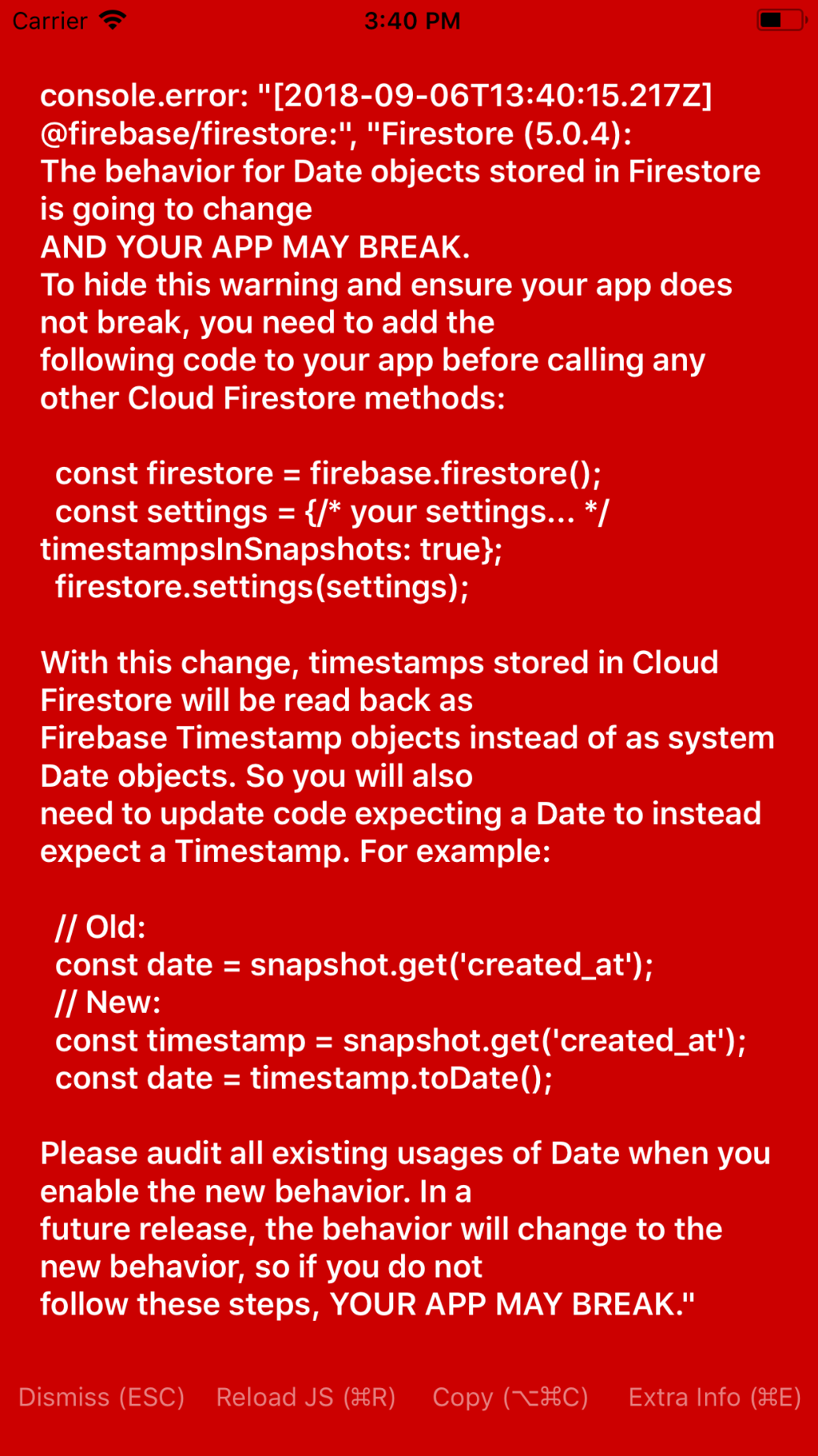
                <![CDATA[<p><br /></p><p><b>Problem</b></p><p>Firestore now changed they way date object are fetched. </p><p>And you may get an error screen like this one</p><p><img src="https://support-hub--assets.s3.eu-west-2.amazonaws.com/assets/74/images/Vjzn87KBV5YKkViUCwDzaMdcG30NMF5QZeXTk91G.png" style="width:50%;" alt="Vjzn87KBV5YKkViUCwDzaMdcG30NMF5QZeXTk91G.png" /></p><p><b>Solution</b></p><p>In App/Datapoints/Firebase.js at the end of the file, before <b>export default firebase</b> add this</p><pre>/**
 *  Fix for latest version on Firestore
 */
const firestore=firebase.firestore();
const settings={
 timestampsInSnapshots:true<a></a>
}
firestore.settings(settings);
//END FIX </pre>]]>
            </summary>
                                    <updated>2019-01-29T09:54:15+00:00</updated>
        </entry>
            <entry>
            <title><![CDATA[Distribute your app to Google Play and App store]]></title>
            <link rel="alternate" href="https://mobidonia.support-hub.io/articles/distribute-your-app-to-google-play-and-app-store" />
            <id>https://mobidonia.support-hub.io/269</id>
            <author>
                <name><![CDATA[Daniel Dimov]]></name>
            </author>
            <summary type="html">
                <![CDATA[<p>Expo has the easiest compile method for distributing your apps.</p><p>It takes around 5 min to learn the process here.</p><p><a href="https://docs.expo.io/versions/latest/distribution" target="_blank" rel="noreferrer noopener">https://docs.expo.io/versions/latest/distribution</a></p><p>Follow the guide step by step.<br /></p><p><b>Important<br /></b></p><p>In order the MAP to work in your standalone Android app, you need to follow this guide<br /></p><p><a href="https://docs.expo.io/versions/latest/sdk/map-view#if-you-already-have-not-configured-google" target="_blank" rel="noreferrer noopener">https://docs.expo.io/versions/latest/sdk/map-view#if-you-already-have-not-configured-google</a><br /></p><p><br /></p><p><br /></p>]]>
            </summary>
                                    <updated>2019-01-29T09:57:17+00:00</updated>
        </entry>
            <entry>
            <title><![CDATA[Common items]]></title>
            <link rel="alternate" href="https://mobidonia.support-hub.io/articles/common-items" />
            <id>https://mobidonia.support-hub.io/271</id>
            <author>
                <name><![CDATA[Daniel Dimov]]></name>
            </author>
            <summary type="html">
                <![CDATA[<pre>{
     "icon" : "MdLocalSee",
     "name" : "Scanner",
     "sectionType" : "scanner"
}</pre><p>These three items are required in each and single menu item in the app. </p><ul><li>Icon - is the icon of the menu<br /></li><li>Name - is the name of the section</li><li>sectionType - the type of section</li></ul><p>          -  "master-detail" empty or null - if you are creating master view detail</p><p>          -  "profile" - Section when users can register or view their profile </p><p>          - "listOfUsers" - To show the list of registered users</p><p>          - "cart" - If you are creating some kind of application that should have a payment section</p><p>          - "orders" - To show the list of orders</p><p>          -  "web" - If you want to show some website or to show some HTML code</p><p>          - "map" - If you are creation application that has a map to show some locations (ex: night club location,             event location)</p><p>          -  "notifications" - To show the list of notifications</p><p>          -  "scanner" - If you want to have a ticket scanner app </p>]]>
            </summary>
                                    <updated>2019-01-29T10:05:15+00:00</updated>
        </entry>
            <entry>
            <title><![CDATA[Master - Detail]]></title>
            <link rel="alternate" href="https://mobidonia.support-hub.io/articles/master-detail" />
            <id>https://mobidonia.support-hub.io/273</id>
            <author>
                <name><![CDATA[Daniel Dimov]]></name>
            </author>
            <summary type="html">
                <![CDATA[<p><b>Master View Detail</b> is our core section type. And it is used to display master view ( list of items ) and then with a click on some it opens the details for the selected item. </p><p>But it also has different scenarios, when categories are the first to show, then the master then the detail. Also, there are use cases when this section directly displays the details view.</p><p>Let's go step by step and explain all the configuration options.</p><p>We can separate the configuration options in 4 types</p><ol><li><b>Basic configurations</b></li><li><b>Categories configurations</b> - categorySetup</li><li><b>Master configuration</b> - listingSetup</li><li><b>Details configurations</b> - detailsSetup</li><li><b>Form configurations</b> - form</li></ol><pre>{
 "category_first" : true,
 "icon" : "MdRestaurantMenu",
 "isRoot" : true,
 "listStyle" : "grid",
 "name" : "General",
 "goDirectlyInDetails":false,
 "objectIdToShow":"xxxxx",
 "categorySetup" : CONF_SETUP,
 "listingSetup" : CONF_SETUP,
 "detailsSetup" :  CONF_SETUP
}</pre><p><b>Basic configurations</b></p><ol><li>"category_first" - If you want to show category first - The value can be true or false.</li><li>"showCategoryFilter" - If you want to show </li><li>"isRoot" - if this is the root section</li><li>"listStyle" - Choose how you want to display the categories (You have 3 choices: grid, grid2, list)</li><li>"goDirectlyInDetails" - If you have only one item to show and to display only the detail from that item, just set this value to true</li><li>"objectIdToShow" - The id from the firestore document that you want to be shown if goDirectlyInDetails is true</li><li>The standard elements (only icon and name ) </li></ol><p><b>Categories configurations </b></p><pre> "categorySetup" : {
     "category_style" : "",
     "data_point" : "",
     "fields" : {
        "description" : "",
        "image" : "",
        "title" : ""
      }
 }</pre><ol><li>"category_style" - what kind of listing style you want to be listed your categories</li><li>"data_point" - the name of the collection that you want to get your data</li><li>"fields" -which fields have to be shown into the category container and from where to get that data  </li></ol><p><b>Master configurations</b></p><pre>"listingSetup" : {
    "collection_key" : "",
    "data_point" : "",
    "fields" : {
        "actionButton" : "",
        "numReview" : "",
        "rating" : "",
        "showRating" : true,
        "description" : "",
        "image" : "",
        "subtitle" : "",
        "subtitleFunctions" : "",
        "title" : ""
    }
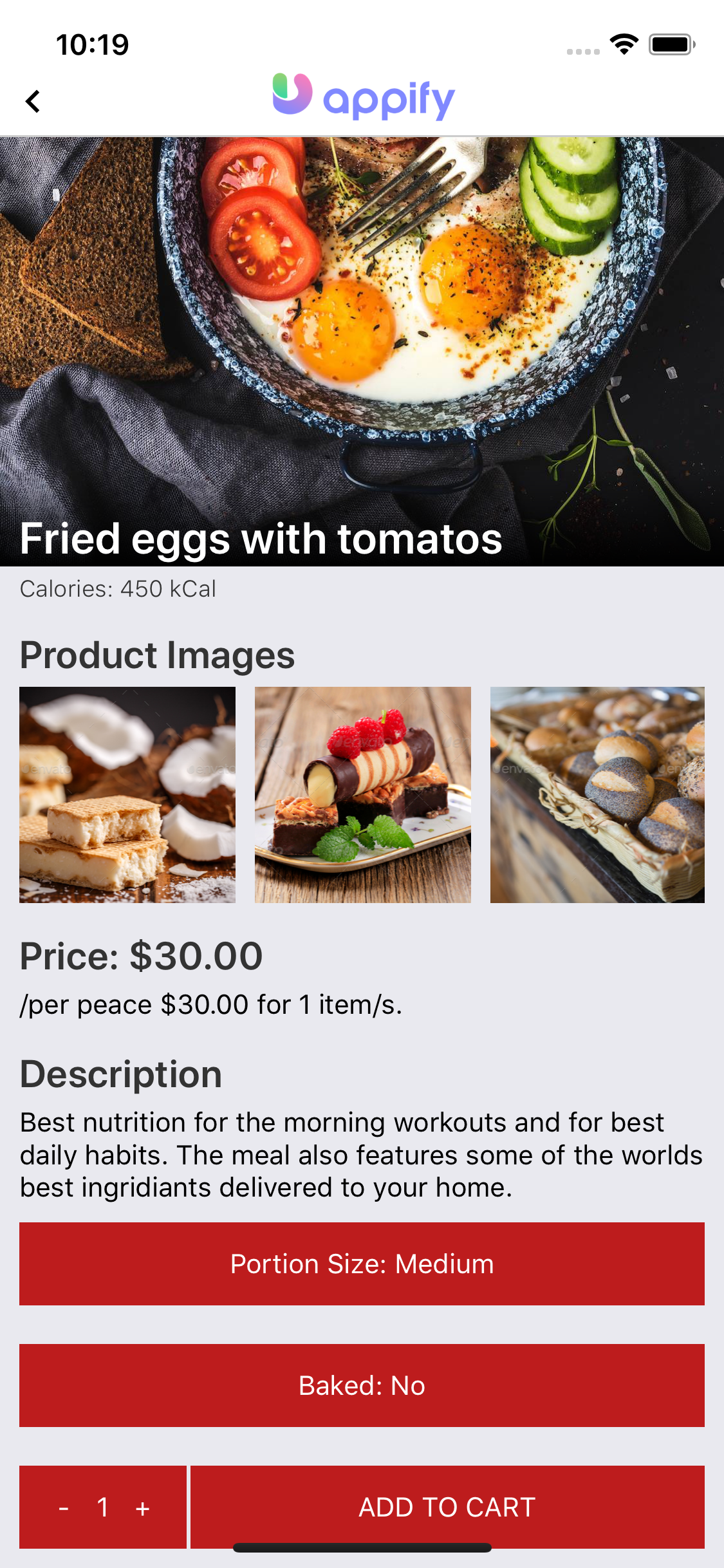
}</pre><ol><li>"collection_key" - Key of the object in firestore that represents the collection this object appears in.</li><li> "data_point" - from which collection to get the data</li><li>"hasFeatures" - if you want to display the newest items in the slider, turn this value to true</li><li>"listing_style" - Choose how you want to display the categories (You have 3 choices: grid, grid2, list)</li><li>"showCategoryFilter" - If you want to display a category tab, on the top below the navigation bar set this item to true</li><li>  "fields" : {</li></ol><p>                    - "actionButton" - Text of the action button</p><p>                    - "description" - description of the item</p><p>                    - "numReview" : -field for the number of reviews,</p><p>                   - "rating" : - the rating,</p><p>                    - "showRating" : - set it to <b>true</b> or <b>false</b>,</p><p>                    - "image" - an image of the item</p><p>                    - "subtitle" - show the subtitle of the item</p><p>                     - "subtitleFunctions" - If the subtitle is kind of a price</p><p>                    - "title" - a title of the item</p><pre>"detailsSetup" : {
    "actionButton" : "",
    "actionButtonWhenActionDone" : "",
    "cartCODAvailable" : true,
    "collections" : [ "", "" ],
    "descriptionTitle" : "",
    "isShopping" : true,
    "photosTitle" : "",
    "shareButton" : "",
    "showPhotos" : true,
    "callButton" : "Call",
    "chatButton" : "Chat with the owner",
    "deleteButton" : "Delete",
    "editButton" : "Edit",
    "reviewButton" : "Write a review",
    "fields" : {
        "description" : "",
        "rating" : "rating",
        "review" : "review",
        "shareLink" : "url",
        "descriptionFunctions" : ",",
        "image" : "",
        "photos" : "",
        "price" : "",
        "priceFunctions" : "",
        "shareLink" : "",
        "subPrice" : "",
        "subPriceFunctions" : "",
        "subtitle" : "",
        "subtitleFunctions" : "",
        "title" : "",
        "titleFunctions" : "",
        "video" : ""
    }
}</pre><p><br /></p><ol><li>"actionButton" - Text of the action button</li><li>"actionButtonWhenActionDone" - The text of the action button when the action is done</li><li>"cartCODAvailable" - Do we have Cash On Delivery Available - in effect only if isShopify is false.</li><li>"collections" - What collections or how many variants</li><li>"callButton" : -Add this button if in the description of the item you want to have button for making a call,</li><li> chatButton" : - This button if for chatting with the owner of the item,</li><li>"deleteButton" : If you are the owner of the item, then you will see the delete button for deleting the item,</li><li>"editButton" : If you are the owner of the item, then you will also see the edit button for editing the item,</li><li>"reviewButton" :  Button for leaving athe review of the item,</li><li>"descriptionTitle" : The title of the description section</li><li>"fields" : {</li></ol><p>                 - "description" : "description",</p><p>                 - "descriptionFunctions" : ",",</p><p>                 - "image" : "image",</p><p>                 - "photos" : "photos",</p><p>                 - "price" : "price",</p><p>                 - "priceFunctions" : "round,toCurrency~USD,prepend~Price: ",</p><p>                 - "shareLink" : "link",</p><p>                 - "subPrice" : "price",</p><p>                - "subPriceFunctions" : "multiply{qty},round,toCurrency~USD,prepend~/per peace ,append~ for {qty} item/s.",</p><p>                - "subtitle" : "calories",</p><p>                - "subtitleFunctions" : "prepend~Calories: ,append~ kCal",</p><p>                - "title" : "title",</p><p>                - "titleFunctions" : "trim:40",</p><p>                - "video" : "video"</p><pre>"formSetup" : [ {<br />        "key" : "title",<br />        "label" : "Title",<br />        "type" : "input"<br />      }, {<br />        "key" : "description",<br />        "label" : "Description",<br />        "type" : "textArea"<br />      }, {<br />        "key" : "phoneNumber",<br />        "label" : "Phone",<br />        "type" : "input"<br />      }, {<br />        "key" : "image",<br />        "label" : "Image",<br />        "type" : "image"<br />      }, {<br />        "key" : "eventLocation",<br />        "label" : "Location",<br />        "type" : "map"<br />      }, {<br />        "key" : "photos",<br />        "label" : "Photos",<br />        "type" : "photos"<br />      }, {<br />        "key" : "category",<br />        "label" : "Category",<br />        "type" : "checkBox"<br />      } ],</pre><p><b>Summary</b></p><p>So the overall Master View details configuration looks like this</p><p><br /></p><pre>{<br />  "categorySetup" : {<br />    "category_style" : "grid2",<br />    "data_point" : "",<br />    "fields" : {<br />      "description" : "description",<br />      "image" : "image",<br />      "title" : "title"<br />    }<br />  },<br />  "category_first" : true,<br />  "detailsSetup" : {<br />    "actionButton" : "ADD TO CART",<br />    "actionButtonWhenActionDone" : "PRODUCT ADDED",<br />    "cartCODAvailable" : true,<br />    "collections" : [ "variants", "ingredients", "photos" ],<br />    "descriptionTitle" : "Description",<br />    "fields" : {<br />      "description" : "description",<br />      "descriptionFunctions" : ",",<br />      "image" : "image",<br />      "photos" : "photos",<br />      "price" : "price",<br />      "priceFunctions" : "round,toCurrency~USD,prepend~Price: ",<br />      "shareLink" : "link",<br />      "subPrice" : "price",<br />      "subPriceFunctions" : "multiply~{qty},round,toCurrency~USD,prepend~/per peace ,append~ for {qty} item/s.",<br />      "subtitle" : "calories",<br />      "subtitleFunctions" : "prepend~Calories: ,append~ kCal",<br />      "title" : "title",<br />      "titleFunctions" : "trim:40",<br />      "video" : "video"<br />    },<br />    "isShopping" : true,<br />    "photosTitle" : "Product Images",<br />    "shareButton" : "Share this recepie",<br />    "showPhotos" : true,<br />    "videoButton" : "View Video"<br />  },<br />  "icon" : "MdRestaurantMenu",<br />  "isRoot" : true,<br />  "listStyle" : "grid",<br />  "listingSetup" : {<br />    "collection_key" : "collection",<br />    "data_point" : "",<br />    "fields" : {<br />      "actionButton" : "BUY",<br />      "description" : "description",<br />      "image" : "image",<br />      "subtitle" : "price",<br />      "subtitleFunctions" : "roundOn,toCurrency~USD",<br />      "title" : "title"<br />    },<br />    "listing_style" : "list"<br />  },<br />  "name" : "General"<br />}</pre><p><br /></p>]]>
            </summary>
                                    <updated>2019-02-21T14:01:01+00:00</updated>
        </entry>
            <entry>
            <title><![CDATA[Cart navigation menu]]></title>
            <link rel="alternate" href="https://mobidonia.support-hub.io/articles/cart-navigation-menu" />
            <id>https://mobidonia.support-hub.io/274</id>
            <author>
                <name><![CDATA[Daniel Dimov]]></name>
            </author>
            <summary type="html">
                <![CDATA[<p><br /></p><p>The cart menu is configured like this</p><pre>{<br />        "CODAvailable" : true,<br />        "PayPalAvailable" : true,<br />        "isShopify" : true,<br />        "shopifyLink" : "https://mobidonia.myshopify.com/",<br />        "icon" : "MdShoppingCart",<br />        "name" : "Cart",<br />        "sectionType" : "cart"<br />}</pre><ol><li>CODAvaialble - Do we have Cash On Delivery Available - in effect only if isShopify is false.</li><li>PayPalAvailable - Do we have PayPal payments - in effect only if isShopify is false.</li><li>isShopify - is this a Shopify cart</li><li>shopifyLink - link to your Shopify shop - needed only if isShopify is true.</li><li>The standard elements ( icon, name, sectionType )</li></ol>]]>
            </summary>
                                    <updated>2019-01-29T10:36:06+00:00</updated>
        </entry>
            <entry>
            <title><![CDATA[Folder section]]></title>
            <link rel="alternate" href="https://mobidonia.support-hub.io/articles/folder-section" />
            <id>https://mobidonia.support-hub.io/275</id>
            <author>
                <name><![CDATA[Daniel Dimov]]></name>
            </author>
            <summary type="html">
                <![CDATA[<pre>{<br />  "category_image" : "https://firebasestorage.googleapis.com/v0/b/universalapp-a272a.appspot.com/o/1530571286790.jpg?alt=media&amp;token=053c18fe-63f5-4763-a05e-f8b7cd89e476",<br />  "display_header_image" : true,<br />  "icon" : "FeUser",<br />  "listStyle" : "grid",<br />  "name" : "Folder Section",<br />  "subMenus" : [ {<br />    "html" : "&lt;img class='img-responsive' src='https://s3.amazonaws.com/tcdn.mobidonia.com/codecanyon/info/Screenshot+at+Mar+20+23-01-48.png' /&gt; &lt;br /&gt;&lt;br /&gt; &lt;div class=\"col-md-12\"&gt;     &lt;h4&gt;Thanks for purchasing&lt;/h4&gt;     &lt;h4&gt;App Platform - All in one React Native Universal Mobile App&lt;/h4&gt; &lt;/div&gt; &lt;br /&gt;&lt;br /&gt; &lt;div class=\"col-md-12\"&gt;     &lt;div class=\"col-md-6\"&gt;         &lt;h4&gt;Why do I see this?&lt;/h4&gt;         &lt;p&gt;Because you haven't setup the app to be pointed to your Firebase.&lt;/p&gt;     &lt;/div&gt;     &lt;div class=\"col-md-6\"&gt;         &lt;h4&gt;How do I do that?&lt;/h4&gt;         &lt;p&gt;In config.js, in the first lines, replace with your connection strings for Firebase. Follow the documentation steps.&lt;/p&gt;     &lt;/div&gt; &lt;/div&gt;",<br />    "icon" : "MdInfoOutline",<br />    "name" : "About",<br />    "sectionType" : "web",<br />    "url" : "http://mobidonia.com",<br />    "webSource" : "html"<br />  } ]<br />}</pre><p>1.  category_image - URL to the header image that should be displayed</p><p>2. display_header_image - Do we want to display the header image<br /></p><p>3. subMenus - An array that contains other menus.<br /></p><p>4. The standard elements (icon,name)<br /></p>]]>
            </summary>
                                    <updated>2019-01-29T10:38:50+00:00</updated>
        </entry>
            <entry>
            <title><![CDATA[Web]]></title>
            <link rel="alternate" href="https://mobidonia.support-hub.io/articles/web" />
            <id>https://mobidonia.support-hub.io/276</id>
            <author>
                <name><![CDATA[Daniel Dimov]]></name>
            </author>
            <summary type="html">
                <![CDATA[<pre>{<br />  "html" : "&lt;img class='img-responsive' src='https://s3.amazonaws.com/tcdn.mobidonia.com/codecanyon/info/Screenshot+at+Mar+20+23-01-48.png' /&gt; &lt;br /&gt;&lt;br /&gt; &lt;div class=\"col-md-12\"&gt;     &lt;h4&gt;Thanks for purchasing&lt;/h4&gt;     &lt;h4&gt;App Platform - All in one React Native Universal Mobile App&lt;/h4&gt; &lt;/div&gt; &lt;br /&gt;&lt;br /&gt; &lt;div class=\"col-md-12\"&gt;     &lt;div class=\"col-md-6\"&gt;         &lt;h4&gt;Why do I see this?&lt;/h4&gt;         &lt;p&gt;Because you haven't setup the app to be pointed to your Firebase.&lt;/p&gt;     &lt;/div&gt;     &lt;div class=\"col-md-6\"&gt;         &lt;h4&gt;How do I do that?&lt;/h4&gt;         &lt;p&gt;In config.js, in the first lines, replace with your connection strings for Firebase. Follow the documentation steps.&lt;/p&gt;     &lt;/div&gt; &lt;/div&gt;",<br />  "icon" : "MdInfoOutline",<br />  "name" : "Web",<br />  "sectionType" : "web",<br />  "url" : "http://mobidonia.com",<br />  "webSource" : "html"<br />}</pre><ol><li>html - HTML code</li><li>url - The web site that should be displayed<br /></li><li>webSource - You can choose what you want to display (html code or website url)<br /></li><li>sectionType </li></ol>]]>
            </summary>
                                    <updated>2019-01-29T10:39:48+00:00</updated>
        </entry>
            <entry>
            <title><![CDATA[Scanner]]></title>
            <link rel="alternate" href="https://mobidonia.support-hub.io/articles/scanner" />
            <id>https://mobidonia.support-hub.io/277</id>
            <author>
                <name><![CDATA[Daniel Dimov]]></name>
            </author>
            <summary type="html">
                <![CDATA[<pre>{<br />  "icon" : "MdLocalSee",<br />  "name" : "Scanner",<br />  "sectionType" : "scanner"<br />}</pre>]]>
            </summary>
                                    <updated>2019-01-29T10:40:16+00:00</updated>
        </entry>
            <entry>
            <title><![CDATA[User List]]></title>
            <link rel="alternate" href="https://mobidonia.support-hub.io/articles/user-list" />
            <id>https://mobidonia.support-hub.io/278</id>
            <author>
                <name><![CDATA[Daniel Dimov]]></name>
            </author>
            <summary type="html">
                <![CDATA[<pre>{<br />  "icon" : "MdSearch",<br />  "name" : "User List",<br />  "sectionType" : "listOfUsers"<br />}</pre>]]>
            </summary>
                                    <updated>2019-01-29T10:40:42+00:00</updated>
        </entry>
            <entry>
            <title><![CDATA[User Profile]]></title>
            <link rel="alternate" href="https://mobidonia.support-hub.io/articles/user-profile" />
            <id>https://mobidonia.support-hub.io/279</id>
            <author>
                <name><![CDATA[Daniel Dimov]]></name>
            </author>
            <summary type="html">
                <![CDATA[<pre>{<br />  "icon" : "MdAccountBox",<br />  "name" : "User Profile",<br />  "sectionType" : "profile"<br />}</pre>]]>
            </summary>
                                    <updated>2019-01-29T10:41:12+00:00</updated>
        </entry>
            <entry>
            <title><![CDATA[Recipes]]></title>
            <link rel="alternate" href="https://mobidonia.support-hub.io/articles/recipes" />
            <id>https://mobidonia.support-hub.io/280</id>
            <author>
                <name><![CDATA[Daniel Dimov]]></name>
            </author>
            <summary type="html">
                <![CDATA[<pre>{<br />  "categorySetup" : {<br />    "category_style" : "grid1",<br />    "data_point" : "recipes_collection",<br />    "fields" : {<br />      "description" : "description",<br />      "image" : "image",<br />      "title" : "title"<br />    }<br />  },<br />  "category_first" : false,<br />  "detailsSetup" : {<br />    "actionButton" : "ADD TO CART",<br />    "actionButtonWhenActionDone" : "PRODUCT ADDED",<br />    "collections" : [ "variants", "ingredients", "photos" ],<br />    "commentButton" : "Comments",<br />    "descriptionTitle" : "Directions",<br />    "fields" : {<br />      "description" : "description",<br />      "descriptionFunctions" : ",",<br />      "image" : "image",<br />      "photos" : "photos",<br />      "price" : "price",<br />      "priceFunctions" : "round,toCurrency~USD,prepend~Price: ",<br />      "shareLink" : "link",<br />      "subPrice" : "price",<br />      "subPriceFunctions" : "multiply~{qty},round,toCurrency~USD,prepend~/per peace ,append~ for {qty} item/s.",<br />      "subtitle" : "timetoprepare",<br />      "subtitleFunctions" : "prepend~Time to prepare: ,append~ for {for} persons.",<br />      "title" : "title",<br />      "titleFunctions" : "trim:40",<br />      "video" : "videolink"<br />    },<br />    "isShopping" : false,<br />    "photosTitle" : "Product Images",<br />    "shareButton" : "Share this recepie",<br />    "showPhotos" : true,<br />    "videoButton" : "View Video"<br />  },<br />  "expanded" : true,<br />  "icon" : "MdRestaurantMenu",<br />  "isRoot" : true,<br />  "listStyle" : "list",<br />  "listingSetup" : {<br />    "collection_key" : "collection_recipe",<br />    "data_point" : "recipes",<br />    "fields" : {<br />      "actionButton" : "BUY",<br />      "description" : "description",<br />      "image" : "image",<br />      "subtitle" : "timetoprepare",<br />      "title" : "title"<br />    },<br />    "listing_style" : "list"<br />  },<br />  "name" : "Recipes"<br />}</pre>]]>
            </summary>
                                    <updated>2019-01-29T10:41:54+00:00</updated>
        </entry>
            <entry>
            <title><![CDATA[Food Menu]]></title>
            <link rel="alternate" href="https://mobidonia.support-hub.io/articles/food-menu" />
            <id>https://mobidonia.support-hub.io/281</id>
            <author>
                <name><![CDATA[Daniel Dimov]]></name>
            </author>
            <summary type="html">
                <![CDATA[<pre>{<br />  "categorySetup" : {<br />    "category_style" : "grid2",<br />    "data_point" : "restaurant_collection",<br />    "fields" : {<br />      "description" : "description",<br />      "image" : "image",<br />      "title" : "title"<br />    }<br />  },<br />  "category_first" : true,<br />  "detailsSetup" : {<br />    "actionButton" : "ADD TO CART",<br />    "actionButtonWhenActionDone" : "PRODUCT ADDED",<br />    "cartCODAvailable" : true,<br />    "collections" : [ "variants", "ingredients", "photos" ],<br />    "descriptionTitle" : "Description",<br />    "fields" : {<br />      "description" : "description",<br />      "descriptionFunctions" : ",",<br />      "image" : "image",<br />      "photos" : "photos",<br />      "price" : "price",<br />      "priceFunctions" : "round,toCurrency~USD,prepend~Price: ",<br />      "shareLink" : "link",<br />      "subPrice" : "price",<br />      "subPriceFunctions" : "multiply~{qty},round,toCurrency~USD,prepend~/per peace ,append~ for {qty} item/s.",<br />      "subtitle" : "calories",<br />      "subtitleFunctions" : "prepend~Calories: ,append~ kCal",<br />      "title" : "title",<br />      "titleFunctions" : "trim:40",<br />      "video" : "video"<br />    },<br />    "isShopping" : true,<br />    "photosTitle" : "Product Images",<br />    "shareButton" : "Share this recepie",<br />    "showPhotos" : true,<br />    "videoButton" : "View Video"<br />  },<br />  "icon" : "MdRestaurantMenu",<br />  "isRoot" : true,<br />  "listStyle" : "grid",<br />  "listingSetup" : {<br />    "collection_key" : "collection",<br />    "data_point" : "restaurant",<br />    "fields" : {<br />      "actionButton" : "BUY",<br />      "description" : "description",<br />      "image" : "image",<br />      "subtitle" : "price",<br />      "subtitleFunctions" : "roundOn,toCurrency~USD",<br />      "title" : "title"<br />    },<br />    "listing_style" : "list"<br />  },<br />  "name" : "Food Menu"<br />}<br /><br /></pre><p><br /></p>]]>
            </summary>
                                    <updated>2019-01-29T10:42:31+00:00</updated>
        </entry>
            <entry>
            <title><![CDATA[Shop]]></title>
            <link rel="alternate" href="https://mobidonia.support-hub.io/articles/shop" />
            <id>https://mobidonia.support-hub.io/282</id>
            <author>
                <name><![CDATA[Daniel Dimov]]></name>
            </author>
            <summary type="html">
                <![CDATA[<pre>{<br />  "categorySetup" : {<br />    "category_style" : "grid1",<br />    "data_point" : "products_collection",<br />    "fields" : {<br />      "description" : "description",<br />      "image" : "image",<br />      "title" : "title"<br />    }<br />  },<br />  "category_first" : true,<br />  "detailsSetup" : {<br />    "actionButton" : "ADD TO CART",<br />    "actionButtonWhenActionDone" : "PRODUCT ADDED",<br />    "collections" : [ "variants", "ingredients", "photos" ],<br />    "descriptionTitle" : "Description",<br />    "fields" : {<br />      "description" : "description",<br />      "descriptionFunctions" : ",",<br />      "image" : "image",<br />      "photos" : "photos",<br />      "price" : "price",<br />      "priceFunctions" : "round,toCurrency~USD,prepend~Price: ",<br />      "shareLink" : "link",<br />      "subPrice" : "price",<br />      "subPriceFunctions" : "multiply~{qty},round,toCurrency~USD,prepend~/per peace ,append~ for {qty} item/s.",<br />      "subtitle" : "brand",<br />      "subtitleFunctions" : "prepend~Brand: ",<br />      "title" : "title",<br />      "titleFunctions" : "trim:40",<br />      "video" : "video"<br />    },<br />    "isShopping" : true,<br />    "navButtonAction" : "add-to-favorites",<br />    "navButtonActionDoneIcon" : "MdFavorite",<br />    "navButtonIconActiveIcon" : "MdFavoriteBorder",<br />    "photosTitle" : "Product Images",<br />    "shareButton" : "Share this recepie",<br />    "showNavButton" : "true",<br />    "showPhotos" : true,<br />    "videoButton" : "View Video"<br />  },<br />  "icon" : "MdHome",<br />  "isRoot" : true,<br />  "listStyle" : "grid1",<br />  "listingSetup" : {<br />    "collection_key" : "collection_product",<br />    "data_point" : "products",<br />    "fields" : {<br />      "actionButton" : "BUY",<br />      "description" : "description",<br />      "image" : "image",<br />      "subtitle" : "price",<br />      "subtitleFunctions" : "roundOn,toCurrency~USD",<br />      "title" : "title"<br />    },<br />    "listing_style" : "list"<br />  },<br />  "name" : "Shop"<br />}</pre>]]>
            </summary>
                                    <updated>2019-01-29T10:43:00+00:00</updated>
        </entry>
            <entry>
            <title><![CDATA[Radio]]></title>
            <link rel="alternate" href="https://mobidonia.support-hub.io/articles/radio" />
            <id>https://mobidonia.support-hub.io/283</id>
            <author>
                <name><![CDATA[Daniel Dimov]]></name>
            </author>
            <summary type="html">
                <![CDATA[<pre>{<br />  "categorySetup" : {<br />    "category_style" : "list",<br />    "data_point" : "radios_collection",<br />    "fields" : {<br />      "description" : "description",<br />      "image" : "image",<br />      "title" : "name"<br />    }<br />  },<br />  "category_first" : false,<br />  "detailsSetup" : {<br />    "collections" : [ "radios" ],<br />    "fields" : {<br />      "fb" : "facebook",<br />      "img" : "image",<br />      "song" : "currentSong",<br />      "stationName" : "name",<br />      "stitle" : "currentArtist",<br />      "streamLink" : "stream",<br />      "twitt" : "twitter"<br />    },<br />    "hideHeader" : true,<br />    "isHavingStream" : true,<br />    "navButtonAction" : "add-to-favorites",<br />    "navButtonActionDoneIcon" : "MdFavorite",<br />    "navButtonIconActiveIcon" : "MdFavoriteBorder",<br />    "showNavButton" : true<br />  },<br />  "icon" : "MdSettingsVoice",<br />  "isRoot" : true,<br />  "listStyle" : "grid",<br />  "listingSetup" : {<br />    "collection_key" : "collection_radios",<br />    "data_point" : "radios",<br />    "fields" : {<br />      "actionButton" : "",<br />      "description" : "description",<br />      "image" : "image",<br />      "subtitle" : "currentSong",<br />      "title" : "name"<br />    },<br />    "haveThumbnails" : true,<br />    "listing_style" : "list",<br />    "showCategoryFilter" : true<br />  },<br />  "name" : "Radio"<br />}</pre>]]>
            </summary>
                                    <updated>2019-01-29T10:43:35+00:00</updated>
        </entry>
            <entry>
            <title><![CDATA[Social]]></title>
            <link rel="alternate" href="https://mobidonia.support-hub.io/articles/social" />
            <id>https://mobidonia.support-hub.io/284</id>
            <author>
                <name><![CDATA[Daniel Dimov]]></name>
            </author>
            <summary type="html">
                <![CDATA[<pre>{<br />  "category_image" : "https://firebasestorage.googleapis.com/v0/b/universalapp-a272a.appspot.com/o/audience-band-celebration-196652.jpg?alt=media&amp;token=d017e658-d7e5-4183-a162-300bb0aa9d36",<br />  "display_header_image" : true,<br />  "icon" : "FeUsers",<br />  "image" : "https://firebasestorage.googleapis.com/v0/b/universalapp-a272a.appspot.com/o/audience-band-celebration-196652.jpg?alt=media&amp;token=d017e658-d7e5-4183-a162-300bb0aa9d36",<br />  "listStyle" : "grid",<br />  "name" : "Social",<br />  "subMenus" : [ {<br />    "id" : 1,<br />    "image" : "https://firebasestorage.googleapis.com/v0/b/universalapp-a272a.appspot.com/o/InsignificonSC32-Instagram-New%20copy.jpg?alt=media&amp;token=b69e510c-a9c1-4e3d-b3a5-5393a270a6cd",<br />    "link" : "https://www.instagram.com/",<br />    "name" : "@yourClubName"<br />  }, {<br />    "id" : "2",<br />    "image" : "https://firebasestorage.googleapis.com/v0/b/universalapp-a272a.appspot.com/o/InsignificonSC32-Facebook%20copy.jpg?alt=media&amp;token=4123c154-f9db-4187-8b40-724d1d153ab8",<br />    "link" : "https://www.facebook.com/",<br />    "name" : "fb.com/yourClubName"<br />  }, {<br />    "id" : "3",<br />    "image" : "https://firebasestorage.googleapis.com/v0/b/universalapp-a272a.appspot.com/o/InsignificonSC32-YouTube%20copy.png?alt=media&amp;token=c811d418-3b30-430f-924b-40b1c9d68ce0",<br />    "link" : "https://www.youtube.com/",<br />    "name" : "@yourClubName"<br />  }, {<br />    "id" : "4",<br />    "image" : "https://firebasestorage.googleapis.com/v0/b/universalapp-a272a.appspot.com/o/InsignificonSC32-Twitter%20copy.png?alt=media&amp;token=58497d70-f610-4849-a307-a3727771982a",<br />    "link" : "https://twitter.com/",<br />    "name" : "@yourClubName"<br />  } ]<br />}</pre>]]>
            </summary>
                                    <updated>2019-01-29T10:44:03+00:00</updated>
        </entry>
            <entry>
            <title><![CDATA[My Events]]></title>
            <link rel="alternate" href="https://mobidonia.support-hub.io/articles/my-events" />
            <id>https://mobidonia.support-hub.io/285</id>
            <author>
                <name><![CDATA[Daniel Dimov]]></name>
            </author>
            <summary type="html">
                <![CDATA[<pre>{<br />  "category_first" : false,<br />  "icon" : "FeClipboard",<br />  "isRoot" : true,<br />  "listStyle" : "grid",<br />  "name" : "My Events",<br />  "sectionType" : "orders"<br />}</pre>]]>
            </summary>
                                    <updated>2019-01-29T10:44:35+00:00</updated>
        </entry>
            <entry>
            <title><![CDATA[Notifications]]></title>
            <link rel="alternate" href="https://mobidonia.support-hub.io/articles/notifications-286" />
            <id>https://mobidonia.support-hub.io/286</id>
            <author>
                <name><![CDATA[Daniel Dimov]]></name>
            </author>
            <summary type="html">
                <![CDATA[<pre>{<br />  "icon" : "FeBell",<br />  "name" : "Notifications",<br />  "sectionType" : "notifications"<br />}</pre>]]>
            </summary>
                                    <updated>2019-01-29T10:45:09+00:00</updated>
        </entry>
            <entry>
            <title><![CDATA[Galleries]]></title>
            <link rel="alternate" href="https://mobidonia.support-hub.io/articles/galleries" />
            <id>https://mobidonia.support-hub.io/287</id>
            <author>
                <name><![CDATA[Daniel Dimov]]></name>
            </author>
            <summary type="html">
                <![CDATA[<pre>{<br />  "categorySetup" : {<br />    "category_style" : "grid2",<br />    "data_point" : "events_collection",<br />    "fields" : {<br />      "description" : "description",<br />      "image" : "image",<br />      "title" : "title"<br />    }<br />  },<br />  "category_first" : false,<br />  "detailsSetup" : {<br />    "collections" : [ "photos" ],<br />    "fields" : {<br />      "photos" : "photos"<br />    },<br />    "hideHeader" : true,<br />    "photosTitle" : "Photos",<br />    "photosVertical" : true,<br />    "showPhotos" : true<br />  },<br />  "icon" : "FeImage",<br />  "isRoot" : true,<br />  "listStyle" : "grid",<br />  "listingSetup" : {<br />    "collection_key" : "collection_album",<br />    "data_point" : "albums",<br />    "fields" : {<br />      "actionButton" : "BUY",<br />      "description" : "description",<br />      "image" : "image",<br />      "subtitle" : "date",<br />      "subtitleFunctions" : "toReadableDate~MMMM Do YYYY",<br />      "title" : "title"<br />    },<br />    "listing_style" : "list"<br />  },<br />  "name" : "Galleries"<br />}<br /><br /></pre><p><br /></p>]]>
            </summary>
                                    <updated>2019-01-29T10:45:41+00:00</updated>
        </entry>
            <entry>
            <title><![CDATA[Map]]></title>
            <link rel="alternate" href="https://mobidonia.support-hub.io/articles/map" />
            <id>https://mobidonia.support-hub.io/288</id>
            <author>
                <name><![CDATA[Daniel Dimov]]></name>
            </author>
            <summary type="html">
                <![CDATA[<pre>{<br />  "categorySetup" : {<br />    "category_style" : "grid2",<br />    "data_point" : "events_collection",<br />    "fields" : {<br />      "description" : "description",<br />      "image" : "image",<br />      "title" : "title"<br />    }<br />  },<br />  "category_first" : true,<br />  "detailsSetup" : {<br />    "callButton" : "Call",<br />    "cartIcons" : [ "ios-calendar-outline", "ios-person-outline", "ios-card-outline", "ios-list-box-outline" ],<br />    "cartLabels" : [ "Event", "Register", "Payment", "Summary" ],<br />    "cartPayPalAvailable" : true,<br />    "collections" : [ "variants", "ingredients", "photos" ],<br />    "descriptionTitle" : "Description",<br />    "fields" : {<br />      "description" : "description",<br />      "descriptionFunctions" : ",",<br />      "direction" : "",<br />      "image" : "image",<br />      "phone" : "phoneNumber",<br />      "photos" : "photos",<br />      "price" : "price",<br />      "priceFunctions" : "round,toCurrency~USD,prepend~Price: ",<br />      "shareLink" : "url",<br />      "subPrice" : "price",<br />      "subPriceFunctions" : "multiply~{qty},round,toCurrency~USD,prepend~/per ticket.",<br />      "subtitle" : "locationName",<br />      "subtitle2" : "eventDateStart",<br />      "subtitle2Functions" : "toReadableDate~YYYY-MM-DD HH:mm",<br />      "subtitle2Icon" : "ios-time-outline",<br />      "subtitle3" : "eventDateEnd",<br />      "subtitle3Functions" : "toReadableDate~YYYY-MM-DD HH:mm",<br />      "subtitle3Icon" : "ios-timer-outline",<br />      "subtitleAction" : "location",<br />      "subtitleActionFunction" : "openGps",<br />      "subtitleFunctions" : " ",<br />      "subtitleIcon" : "ios-pin-outline",<br />      "title" : "title",<br />      "titleFunctions" : "trim:40",<br />      "video" : "video"<br />    },<br />    "isDirectShopping" : true,<br />    "isShopping" : false,<br />    "photosTitle" : "Photos",<br />    "shareButton" : "Share the event",<br />    "showPhotos" : true,<br />    "videoButton" : "View Video"<br />  },<br />  "icon" : "FeMapPin",<br />  "isRoot" : false,<br />  "listStyle" : "grid",<br />  "listingSetup" : {<br />    "collection_key" : "collection_event",<br />    "data_point" : "venue",<br />    "fields" : {<br />      "actionButton" : "BUY",<br />      "description" : "description",<br />      "image" : "image",<br />      "subtitle" : "",<br />      "subtitleFunctions" : "",<br />      "title" : "title"<br />    },<br />    "listing_style" : "list"<br />  },<br />  "name" : "Map",<br />  "sectionType" : "map"<br />}</pre>]]>
            </summary>
                                    <updated>2019-01-29T10:46:13+00:00</updated>
        </entry>
            <entry>
            <title><![CDATA[Events]]></title>
            <link rel="alternate" href="https://mobidonia.support-hub.io/articles/events" />
            <id>https://mobidonia.support-hub.io/289</id>
            <author>
                <name><![CDATA[Daniel Dimov]]></name>
            </author>
            <summary type="html">
                <![CDATA[<pre>{<br />  "categorySetup" : {<br />    "category_style" : "grid2",<br />    "data_point" : "eventsnc_collection",<br />    "fields" : {<br />      "description" : "description",<br />      "image" : "image",<br />      "title" : "title"<br />    }<br />  },<br />  "category_first" : false,<br />  "detailsSetup" : {<br />    "actionButton" : "BUY TICKET",<br />    "actionButtonWhenActionDone" : "TICKET BOUGHT",<br />    "cartCODAvailable" : true,<br />    "cartCODText" : "You will pay at the venue.",<br />    "cartIcons" : [ "ios-calendar-outline", "ios-person-outline", "ios-card-outline", "ios-list-box-outline" ],<br />    "cartLabels" : [ "Event", "Register", "Payment", "Summary" ],<br />    "cartPayPalAvailable" : true,<br />    "collections" : [ "variants", "ingredients", "photos" ],<br />    "descriptionTitle" : "Description",<br />    "directionButton" : "Get Directions",<br />    "fields" : {<br />      "description" : "description",<br />      "descriptionFunctions" : ",",<br />      "direction" : "eventLocation",<br />      "image" : "image",<br />      "photos" : "photos",<br />      "price" : "price",<br />      "priceFunctions" : "round,toCurrency~USD,prepend~Price: ",<br />      "shareLink" : "url",<br />      "subPrice" : "price",<br />      "subPriceFunctions" : "multiply~{qty},round,toCurrency~USD,prepend~/per ticket.",<br />      "subtitle" : "locationName",<br />      "subtitle2" : "eventDateStart",<br />      "subtitle2Functions" : "toReadableDate~MMMM Do YYYY HH:mm",<br />      "subtitle2Icon" : "FeClock",<br />      "subtitle3" : "eventDateEnd",<br />      "subtitle3Functions" : "toReadableDate~MMMM Do YYYY HH:mm",<br />      "subtitle3Icon" : "FeClock",<br />      "subtitleAction" : "location",<br />      "subtitleActionFunction" : "openGps",<br />      "subtitleFunctions" : " ",<br />      "subtitleIcon" : "FeMapPin",<br />      "title" : "title",<br />      "titleFunctions" : "trim:40",<br />      "video" : "videolink"<br />    },<br />    "isDirectShopping" : true,<br />    "isShopping" : true,<br />    "photosTitle" : "Photos",<br />    "shareButton" : "Share the event",<br />    "showPhotos" : true,<br />    "videoButton" : "View Video"<br />  },<br />  "icon" : "FeCalendar",<br />  "isRoot" : true,<br />  "listStyle" : "grid",<br />  "listingSetup" : {<br />    "backgroundImageOption" : 1,<br />    "collection_key" : "collection_event",<br />    "data_point" : "eventsnc",<br />    "fields" : {<br />      "actionButton" : "BUY",<br />      "description" : "description",<br />      "image" : "image",<br />      "subtitle" : "eventDateStart",<br />      "subtitleFunctions" : "toReadableDate~dddd MMMM Do YYYY",<br />      "title" : "title"<br />    },<br />    "listing_style" : "list",<br />    "showCategoryFilter" : true<br />  },<br />  "name" : "Events"<br />}</pre>]]>
            </summary>
                                    <updated>2019-01-29T10:46:56+00:00</updated>
        </entry>
            <entry>
            <title><![CDATA[Introduction]]></title>
            <link rel="alternate" href="https://mobidonia.support-hub.io/articles/introduction" />
            <id>https://mobidonia.support-hub.io/290</id>
            <author>
                <name><![CDATA[Daniel Dimov]]></name>
            </author>
            <summary type="html">
                <![CDATA[<p>The UNI Expo app implements the ReactNative UI components by mobidonia.<br /></p><p>They are more like templates for the UNI Expo App<br /></p><p>Ex. <br /></p><p><br /></p><p>UniExpo - Wordpress</p><p>UITemplate (Components) - Template<br /></p><p>The components live in a "Components" folder and each of them has her own folder<br /></p><p>We have the following themes<br /></p><p><br /></p><ul><li> UNI ( The default one )</li><li>Awesome UI ( <a href="https://ui8.net/products/awesome-ios-ui-kit" target="_blank" rel="noreferrer noopener">https://ui8.net/products/awesome-ios-ui-kit</a> )<br /></li><li>Sketch Elements ( <a href="https://sketchapp.com/elements" target="_blank" rel="noreferrer noopener">https://sketchapp.com/elements</a> )<br /></li></ul>]]>
            </summary>
                                    <updated>2019-01-29T10:50:15+00:00</updated>
        </entry>
            <entry>
            <title><![CDATA[Permission management for Android]]></title>
            <link rel="alternate" href="https://mobidonia.support-hub.io/articles/permission-management-for-android" />
            <id>https://mobidonia.support-hub.io/304</id>
            <author>
                <name><![CDATA[Daniel Dimov]]></name>
            </author>
            <summary type="html">
                <![CDATA[<p><b>Change what permissions are needed</b></p><p>When you release your Android app, Expo will include a lot of permissions in the app by default.</p><p>And Google Play doesn't like this a lot :) </p><p>Good thing is that you can control which permissions you need in app.json file. </p><p>Read about this guide</p><p><a href="https://docs.expo.io/versions/v32.0.0/sdk/permissions/#android-permissions-equivalents-inside-appjson">https://docs.expo.io/versions/v32.0.0/sdk/permissions/#android-permissions-equivalents-inside-appjson</a></p><p>To see how to set up the permissions you need.</p><p><br /></p><p><b>SMS Permission</b></p><p>In Expo 30.0.0 the SMS permission is requested, which will mark your app as dangerous. </p><p>In that case, it is recommended to set app.json permissions manually. </p><p>Our new updates will be on expo sdk version 32.0 +. So the SMS permission will not be requested. </p>]]>
            </summary>
                                    <updated>2019-02-01T08:25:08+00:00</updated>
        </entry>
            <entry>
            <title><![CDATA[Error on Build: export * as Base from './baseCalendar .....]]></title>
            <link rel="alternate" href="https://mobidonia.support-hub.io/articles/error-on-build-export-as-base-from-basecalendar" />
            <id>https://mobidonia.support-hub.io/470</id>
            <author>
                <name><![CDATA[Daniel Dimov]]></name>
            </author>
            <summary type="html">
                <![CDATA[<h4>Problem </h4><p>You are not able to build the app. You get a similar error like this one.</p><p><img src="https://support-hub--assets.s3.eu-west-2.amazonaws.com/assets/74/images/7jCFkSzoKq2uKG0GLLVxgpS8WjImGUDYR3SVVoH2.png" alt="7jCFkSzoKq2uKG0GLLVxgpS8WjImGUDYR3SVVoH2.png" /><br /></p><h4>Cause</h4><p>One of the npm modules we require has created bugs.</p><p><b>react-native-ui-kitten</b></p><h4>Solu<b>t</b>ion</h4><p>Remove its usage in the file </p><p>"Mobile App/App/Containers/MenuLayouts/Grid.js"</p><p>To fix the problem simply replace that file with this content</p><p><a href="https://bitbucket.org/mobidonia/public-downloads-updates/raw/333f543636e95ce97accf13ba2a4227a00c9526e/uniexpo/Grid.js">https://bitbucket.org/mobidonia/public-downloads-updates/raw/333f543636e95ce97accf13ba2a4227a00c9526e/uniexpo/Grid.js</a></p><p><br /></p>]]>
            </summary>
                                    <updated>2019-04-20T01:58:52+00:00</updated>
        </entry>
    </feed>