<?xml version="1.0" encoding="UTF-8"?>
<feed xmlns="http://www.w3.org/2005/Atom" xml:lang="">
                        <id>https://mobidonia.support-hub.io/feed/125</id>
                                <link href="https://mobidonia.support-hub.io/feed/125" rel="self"></link>
                                <title><![CDATA[Restaurant App Template - React Native Article Feed]]></title>
                    
                                <subtitle></subtitle>
                                                    <updated>2019-06-07T08:04:44+00:00</updated>
                        <entry>
            <title><![CDATA[Adding your menu categories]]></title>
            <link rel="alternate" href="https://mobidonia.support-hub.io/articles/adding-your-menu-categories" />
            <id>https://mobidonia.support-hub.io/100</id>
            <author>
                <name><![CDATA[Daniel Dimov]]></name>
            </author>
            <summary type="html">
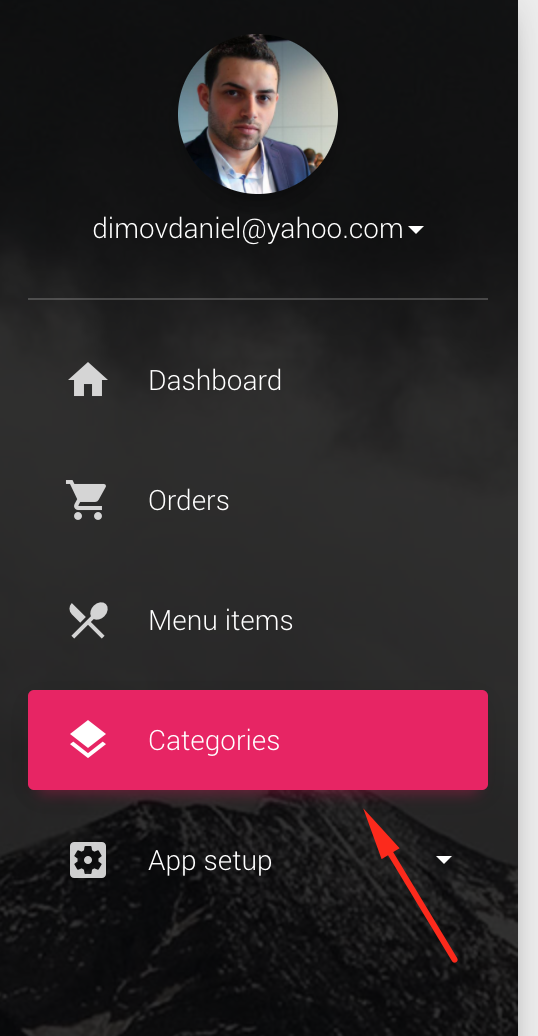
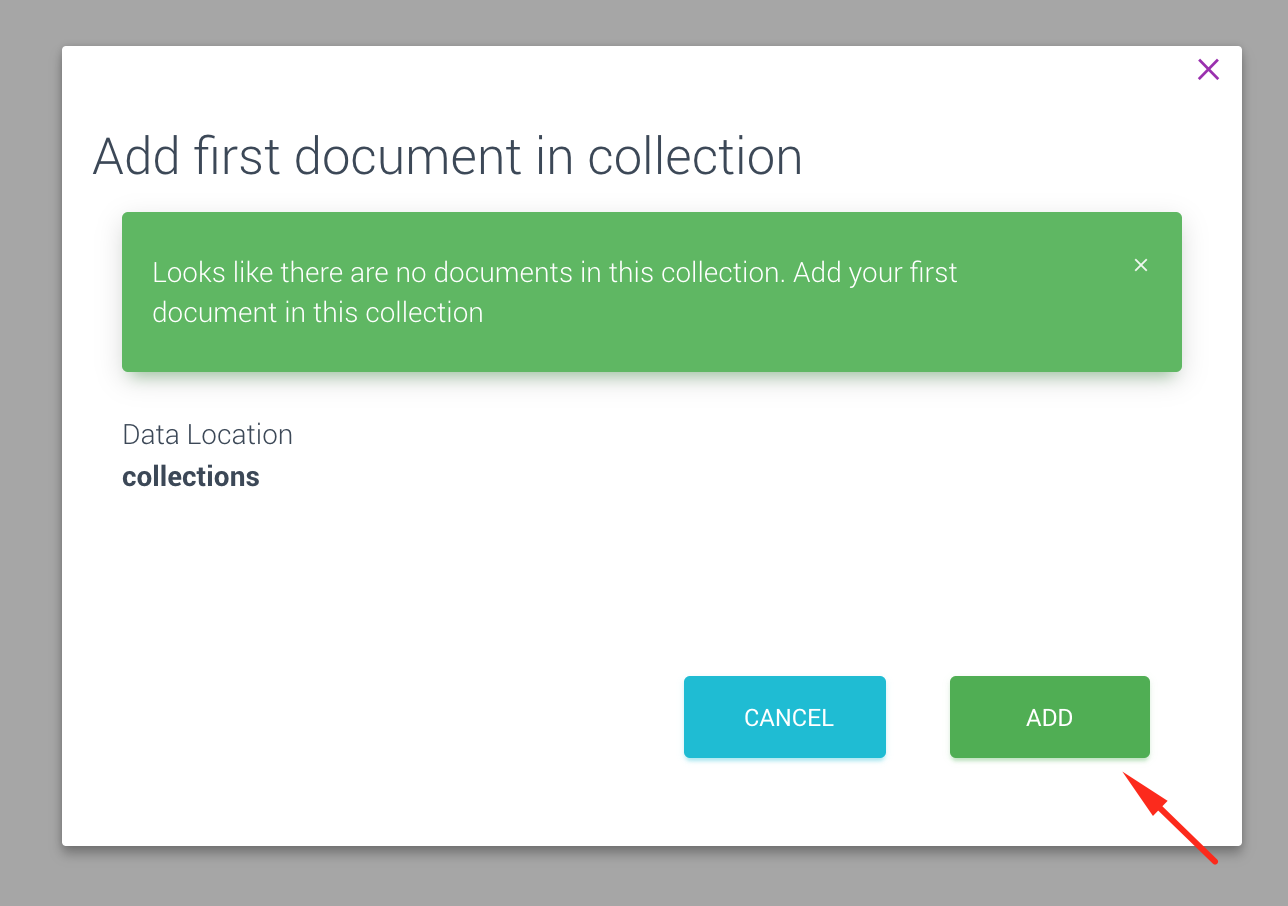
                <![CDATA[<p>Your categories are will be saved in FireStore. FireStore is more advanced than Firebase Realtime Database. <br /></p><p>You should already have created a Firebase Project. Automatically you get a FireStore project also. <br /></p><p>But thanks to the included FireBase admin panel, you will mange your data through it.<br /></p><p>If you have successfully followed the  install procedure from you should have menu similar to this one.<br /></p><p><br /></p><h5>Step 1. Go inside the categories</h5><p><img src="https://support-hub--assets.s3.eu-west-2.amazonaws.com/assets/74/images/6RfENFXboe3Wfv2bFYwm2LqKjl505zEUqyXlUk5D.png" style="width:50%;" alt="6RfENFXboe3Wfv2bFYwm2LqKjl505zEUqyXlUk5D.png" /></p><h5>Step 2. Adding your first category</h5><p><br /></p><p>When you go for the first time in your collections, a pop-up will appear that allows you to add your first collection. <br /></p><p>Pressing on the ADD button will add the first collection. </p><p><img src="https://support-hub--assets.s3.eu-west-2.amazonaws.com/assets/74/images/Bt5gB7VaZp8NVx2zUPY5e8aC3CnGesvT5g3c3X06.png" style="width:50%;" alt="Bt5gB7VaZp8NVx2zUPY5e8aC3CnGesvT5g3c3X06.png" /></p><h5>Step 3. Managing your collections</h5><p><br /></p><p>You can add / delete / modify your collections. In the search bar, you can filter your collections. </p><p><br /></p>]]>
            </summary>
                                    <updated>2019-06-07T08:04:44+00:00</updated>
        </entry>
    </feed>