<?xml version="1.0" encoding="UTF-8"?>
<feed xmlns="http://www.w3.org/2005/Atom" xml:lang="">
                        <id>https://mobidonia.support-hub.io/feed/137</id>
                                <link href="https://mobidonia.support-hub.io/feed/137" rel="self"></link>
                                <title><![CDATA[General Article Feed]]></title>
                    
                                <subtitle></subtitle>
                                                    <updated>2020-01-30T10:20:08+00:00</updated>
                        <entry>
            <title><![CDATA[How to take a screenshot]]></title>
            <link rel="alternate" href="https://mobidonia.support-hub.io/articles/how-to-take-a-screenshot" />
            <id>https://mobidonia.support-hub.io/186</id>
            <author>
                <name><![CDATA[Daniel Dimov]]></name>
            </author>
            <summary type="html">
                <![CDATA[<h4><br /></h4><p>A screenshot is a static image of what is being displayed on your computer or phone screen. In the course of troubleshooting, Airtable support may ask you to provide a screenshot demonstrating what the problem or issue is on your end.</p><p>The process of taking a screenshot varies between platforms. The following are instructions for how to take a screenshot on different platforms and devices.</p><p><br /></p><h3>Windows</h3><p>There are a few different methods for taking a screenshot on a Windows computer. Not all methods will work on all versions of Windows.</p><p><br /></p><p><b>Whole screen (Print Screen, Windows + Print Screen)</b></p><p>On your keyboard, press the <b>PrtScn</b> key. This will copy an image of everything on screen to your computer's clipboard. You will then need to paste <b>(</b><i><b>Cmd + V</b> </i>) this image from your clipboard into an image editing program, such as Paint. Once you have pasted the image into Paint (or another image editing program), you can save the image file. This method works on all Windows versions, including Windows XP.</p><p>Alternatively, if you want to skip the extra step of opening an image editing program, you can press the <b>Windows</b> and <b>PrtScn</b> keys. This will take a screenshot of everything on your computer's screen, and automatically save that file to your computer's Pictures library, under a folder called Screenshots. However, this method only works on Windows 8.1 and Windows 10.</p><p>Note that in either case, these methods will both capture your entire screen, so if you don't want Airtable support to see everything on your screen, please crop the image before sending it to us!</p><p><b><br /></b></p><p><b>Active window only (Alt + Print Screen)</b><br /></p><p>On your keyboard, press the <b>Alt</b> and <b>PrtScn</b> keys. This will copy an image of just the active application window to your computer's clipboard. You will then need to paste (<b>Cmd + V</b>) this image from your clipboard into an image editing program, such as Paint. Once you have pasted the image into Paint (or another image editing program), you can save the image file.</p><p>This method works on all Windows versions, including Windows XP.</p><p><b><br /></b></p><p><b>Snipping Tool</b></p><p>The Snipping Tool is an application that comes with most versions of Windows that will allow you to take screenshots of the entire screen, of a specific window, or of just a specific section of the screen.<br /></p><p><img src="https://support.airtable.com/hc/en-us/article_attachments/216535287/snipping_tool4.png" style="width:255.977px;" alt="snipping_tool4.png" /><br /></p><p>To open the Snipping Tool, go to the Start menu, then navigate to the Accessories folder, and then choose Snipping Tool. (You can also search for "snipping" using the search tool within the Start menu.) </p><p><img src="https://support.airtable.com/hc/en-us/article_attachments/216392188/snipping_tool6.png" style="width:255px;" alt="snipping_tool6.png" /><br /></p><p>Once within the Snipping Tool, click the New button and select the type of snip you want to make.</p><p>If you've selected rectangular or free-form snip, you can select the area you wish to capture by clicking and dragging your cursor. The window snip will let you select a window (e.g., your browser) and capture that. The full-screen snip captures the entire screen and works much like the Print Screen method.</p><p>Once you capture the desired screenshot, it'll show up in the Snipping Tool window. You can then save the screenshot or edit it as you wish.</p><p>This Snipping Tool works on <b>Windows Vista, Windows 7, Windows 8.1, and Windows 10.</b></p><p><b><br /></b></p><h4><br /></h4><h4>Mac<br /></h4><p><br /></p><p>Depending on how much of the screen you wish to capture, there are a few different methods for capturing a screenshot on a Mac computer.</p><p><br /></p><p><b>Partial screenshot</b></p><p>To capture a section of your screen, press <b>Cmd + Shift + 4.</b> (If your computer's sound is on, you should hear a camera shutter noise.) Your cursor will turn into a crosshairs reticle. Click and drag your cursor to highlight the rectangular area you'd like to capture. (If you need to return your cursor back to normal without taking a picture, press <b>Esc</b>.)</p><p><br /></p><p>The screenshot will appear on your desktop as a file named "Screen Shot," with the date and time.</p><p><br /></p><p><img src="https://support.airtable.com/hc/en-us/article_attachments/216395168/Screen_Shot_2016-11-08_at_3.55.45_PM.png" style="width:467.988px;" alt="Screen_Shot_2016-11-08_at_3.55.45_PM.png" /><br /></p><p><br /></p><p><b>Whole screen</b></p><p>To capture the entire screen, press <b>Cmd + Shiftt+3</b>. As with the above method, the screenshot will appear on your desktop as a file named "Screen Shot," with the date and time.</p><p>Note that this method will both capture your entire screen, so if you don't want Airtable support to see everything on your screen, please crop the image before sending it to us, or consider using the partial screenshot method instead!</p><p><br /></p><p><b>Active window only</b></p><p><br /></p><p>To capture just one active window (e.g. your browser window, or the Airtable desktop app), press <b>Cmd+Shift+4</b>, and then press <b>Space</b>. Your cursor will turn into a crosshairs reticle, then a camera. With the camera icon, click on the open window you wish to capture (the camera will helpfully highlight the windows blue as you mouse over them).</p><p>As with the above methods, the screenshot will appear on your desktop as a file named "Screen Shot," with the date and time.</p><p><br /></p><p><b>iPhone or iPad</b></p><p><br /></p><p>To take a screenshot on an iPhone or iPad, press the <b>Home</b> and <b>Sleep</b> buttons at the same time. If you successfully take a screenshot, you should see a brief white flash animation on your screen. (Please note that you will need to press and hold the buttons at the same time. It may take a few tries to get the timing correct.)</p><p>Screenshots are then stored in the Photos app.<br /></p><p><br /></p><p> </p><p><br /></p><p><b>Android</b></p><p><br /></p><p>Given the variety in Android devices, there are several different ways to take screenshots, only some of which may apply to your particular device.</p><p><br /></p><p>The standard Android shortcut for taking a screenshot is to press and hold the Volume and Power buttons at the same time. However, not all Android phones use this method. Samsung phones, for example, require that you press and hold the Power and Home buttons at the same time.</p><p><br /></p><p>If you successfully take a screenshot, you should see a brief onscreen animation, and a confirmation message in the notification bar. (Please note that you will need to press and hold the buttons at the same time. It may take a few tries to get the timing correct.)</p><p><br /></p><p>The method for retrieving the screenshot may vary, depending on your device, but usually, you can find the screenshots you've taken in your device's "Gallery" app.</p><p><br /></p><p>If these methods don't work for you, or if you have more questions on how to take a screenshot on an Android device, please seek help from the manufacturer of your specific device.</p><p><br /></p><p><br /></p><p>The article content is copied from:</p><p><a href="https://support.airtable.com/hc/en-us/articles/232048647-How-to-take-a-screenshot">https://support.airtable.com/hc/en-us/articles/232048647-How-to-take-a-screenshot</a></p><p><br /></p><p><b><br /></b></p><p><br /></p><p><br /></p>]]>
            </summary>
                                    <updated>2019-10-17T00:23:39+00:00</updated>
        </entry>
            <entry>
            <title><![CDATA[How to open the developer console]]></title>
            <link rel="alternate" href="https://mobidonia.support-hub.io/articles/how-to-open-the-developer-console" />
            <id>https://mobidonia.support-hub.io/187</id>
            <author>
                <name><![CDATA[Daniel Dimov]]></name>
            </author>
            <summary type="html">
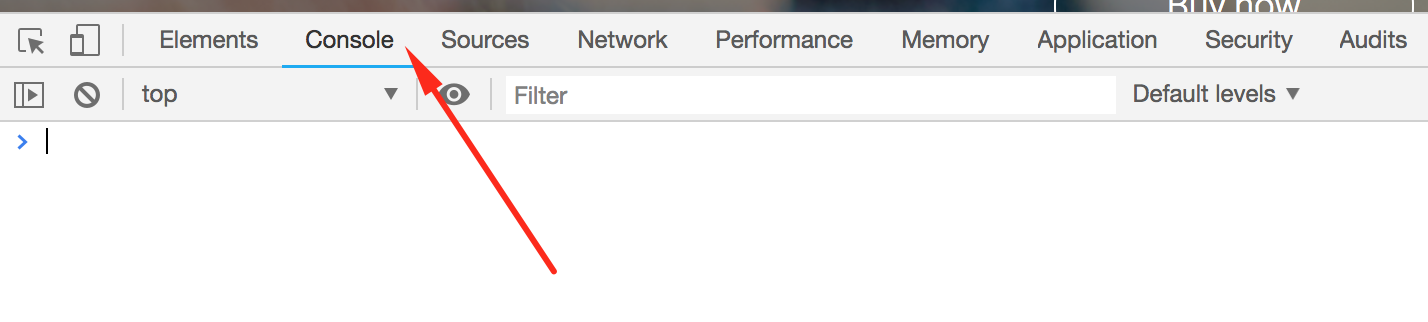
                <![CDATA[<p><br /></p><p>The developer console is a tool which logs the information associated with a web page, such as JavaScript, network requests, and security errors. (It does other things, too, but this is all that really matters for this article.)</p><p><br /></p><p>The information displayed in the developer console can be extremely helpful for the Mobidonia support team when we're trying to figure out how to solve an issue. In the course of troubleshooting your issue, the Mobidonia support team <a href="https://mobidonia.support-hub.io/articles/how-to-take-a-screenshot" target="_blank" rel="noreferrer noopener">may ask you to take a screenshot of the developer console</a>.</p><p><br /></p><p>The following are instructions for how to open the developer console on various different browsers.</p><p><br /></p><ul><li><a href="https://mobidonia.support-hub.io/articles/how-to-open-the-developer-console#bchromeb">Chrome</a></li><li><a href="https://mobidonia.support-hub.io/articles/how-to-open-the-developer-console#edge">Edge</a></li><li><a href="https://mobidonia.support-hub.io/articles/how-to-open-the-developer-console#safari" target="_blank" rel="noreferrer noopener">Firefox</a></li><li><a href="https://mobidonia.support-hub.io/articles/how-to-open-the-developer-console#safari">Safari</a></li></ul><p><br /></p><p> </p><p><br /></p><h4><b>Chrome</b></h4><p><br /></p><p>To open the developer console window on Chrome, use the keyboard shortcut <b>Cmd + Shift + J</b> (on Windows) or <b>Cmd + Option+J</b> (on Mac).</p><p><img src="https://support-hub--assets.s3.eu-west-2.amazonaws.com/assets/74/images/CVRZ6CWXzgk7tvvuD2PQKJL2HY0urFglSW9qwsoq.png" alt="CVRZ6CWXzgk7tvvuD2PQKJL2HY0urFglSW9qwsoq.png" /><br /></p><p><br /></p><p><br /></p><p>Alternatively, you can use the Chrome menu in the browser window, select the option "<b>More Tools,</b>" and then select "<b>Developer Tools</b>."</p><p><br /></p><h4>Edge</h4><p><br /></p><p>To open the console on Edge, hit <b>F12</b> to access the<b> F12 Developer Tools</b>. Once in the<b> F12 Developer Tools</b>, navigate to the Console tab.</p><p><br /></p><h4>Firefox</h4><p><br /></p><p>To open the console on Firefox, use the keyboard shortcut <b>Cmd+Shift+K</b> (on Windows) or <b>Cmd+Option+K</b> (on Mac). The toolbox will appear at the bottom of the browser window, with the Web Console activated.</p><p>Alternatively, under the header Tools in the Mac menu bar, navigate to the sub-menu <b>Web Developer</b> and select<b> Web Console</b>.</p><p><br /></p><h4>Safari</h4><p><br /></p><p>To open the console on Safari, you will first need to turn on the Develop menu. To do this, open the <b>Safari menu </b>in the Mac menu bar, then select <b>Preferences</b>.</p><p><br /></p><p>Once in the Preferences dialog, navigate to the <b>Advanced tab</b>, then check the "<b>Show Develop menu in the menu bar</b>" box.</p><p><br /></p><p>Once the Develop menu has been enabled, you can go to the <b>Develop menu</b> in the menu bar and then select the "<b>Show JavaScript Console</b>" option.</p><p>The JavaScript Console will show up on the bottom half of the active browser window.</p><p>Alternatively, you can use the keyboard shortcut <b>Option+Cmd+C</b>, though note that you will need to enable the Develop menu in your Safari Preferences for this shortcut to work.</p><p> </p><p>The content is taken from</p><p><a href="https://support.airtable.com/hc/en-us/articles/232313848-How-to-open-the-developer-console">https://support.airtable.com/hc/en-us/articles/232313848-How-to-open-the-developer-console</a></p><p><br /></p>]]>
            </summary>
                                    <updated>2019-10-17T00:23:39+00:00</updated>
        </entry>
            <entry>
            <title><![CDATA[How to install stable vesion of node]]></title>
            <link rel="alternate" href="https://mobidonia.support-hub.io/articles/how-to-install-stable-vesion-of-node-1290" />
            <id>https://mobidonia.support-hub.io/1290</id>
            <author>
                <name><![CDATA[Valerija Dimova]]></name>
            </author>
            <summary type="html">
                <![CDATA[<p>To install a stable version of node you should run these commands in your terminal/cmd.</p><pre>npm install -g n<br />n lts</pre><p>Please visit this <a href="https://nodejs.org/en/" target="_blank" rel="noreferrer noopener">node.js</a> to check the stable version of the node.</p>]]>
            </summary>
                                    <updated>2020-01-30T10:20:08+00:00</updated>
        </entry>
            <entry>
            <title><![CDATA[Pointing a domain to VPS]]></title>
            <link rel="alternate" href="https://mobidonia.support-hub.io/articles/pointing-a-domain-to-vps-1380" />
            <id>https://mobidonia.support-hub.io/1380</id>
            <author>
                <name><![CDATA[Daniel Dimov]]></name>
            </author>
            <summary type="html">
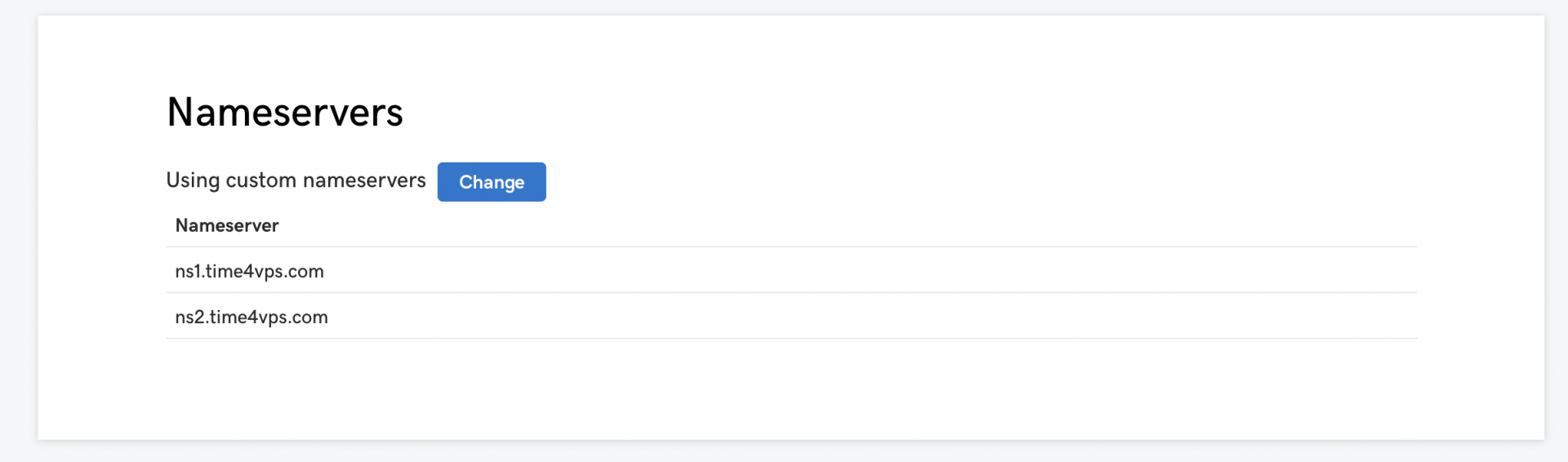
                <![CDATA[<p>In this tutorial, we will learn how to point your domain to your VPS. </p><p><br /></p><h3>Terminology</h3><p>DomainName - is registered through a domain registrar. Example: GoDaddy.</p><p>Domin Register - domain registration institution.</p><p>DNS - Domain name server. </p><p>VPS - Virtual Private Server</p><p>Zone Files  - List of entries that show where and how your domain points to some IP.</p><p><br /></p><h3>Changing domain DNS</h3><p>So when you register a domain, the Domain Register gives you a domain, with empty zone files and their default Name Server. </p><p>Most of the VPS providers have their own DNS, so it recommended to change your domain name Name Server to your VPS provider DNS. </p><p>In this example, we will use GoDaddy (domain register ) and Time4VPS (VPS provider and DNS provider).</p><p>Time4VPS offers free DNS service.</p><p>So I will change my domain Name Servers to NS1.time4vps.com and NS2.time4vps.com</p><p><img src="https://support-hub--assets.s3.eu-west-2.amazonaws.com/assets/74/images/a9d5eTyh2avlnapzO2x6XS4p3XHe5HSdEoyg2Bxh.png" style="width:100%;" alt="a9d5eTyh2avlnapzO2x6XS4p3XHe5HSdEoyg2Bxh.png" /><br /></p><p>From now on, all my changes should be done in Time4VPS (VPS provider and DNS provider).</p><p><br /></p><h3>Pointing Domain and Subdomain</h3><p>I can add a new domain, and time4vps creates new empty zone file. </p><p>In this zone file, I can create multiple records, point my domain, my subdomain and the www cname to point to my server IP address. </p><p>In this example, I will point my domain appbuilder.online and a subdomain make.appbuilder.online. </p><p>And I will also make www pointers. </p><p>Here is a video</p><p><a href="https://www.loom.com/share/81f0bb9e011f4bd29ff3562dd0779ac2">https://www.loom.com/share/81f0bb9e011f4bd29ff3562dd0779ac2</a></p><p><br /></p>]]>
            </summary>
                                    <updated>2019-10-17T00:23:39+00:00</updated>
        </entry>
            <entry>
            <title><![CDATA[OLD: RAB Easy setup on VPS]]></title>
            <link rel="alternate" href="https://mobidonia.support-hub.io/articles/easy-setup-on-vps-1302" />
            <id>https://mobidonia.support-hub.io/1302</id>
            <author>
                <name><![CDATA[Daniel Dimov]]></name>
            </author>
            <summary type="html">
                <![CDATA[<h3>OUTDATED: Will install v 11. Pls check the new docs</h3><p><a href="https://mobidonia.support-hub.io/articles/step-1-install-react-app-builder-1417">https://mobidonia.support-hub.io/articles/step-1-install-react-app-builder-1417</a></p><p><br /></p><p><br /></p><h3><iframe src="//www.youtube.com/embed/s7deChQTRHE" class="note-video-clip"></iframe></h3><p><br /></p><h3><b>Table of contents</b></h3><ol><li><a href="https://mobidonia.support-hub.io/articles/easy-setup-on-vps-1302#requirements">Requirements</a></li><li><a href="https://mobidonia.support-hub.io/articles/easy-setup-on-vps-1302#installation">Installation</a></li><li><a href="https://mobidonia.support-hub.io/articles/easy-setup-on-vps-1302#after-installation">After Installation</a></li><li><a href="https://mobidonia.support-hub.io/articles/easy-setup-on-vps-1302#ssl-via-lets-encrypt">SSL via Let's Encrypt</a></li><li><a href="https://mobidonia.support-hub.io/articles/easy-setup-on-vps-1302#updating">Updating</a></li><li><a href="https://mobidonia.support-hub.io/articles/easy-setup-on-vps-1302#having-problems-free-setup">Having Problems - Free Setup</a></li></ol><h3>Requirements</h3><ol><li>Clean (<b>NEW</b>) VPS with 2GB of RAM minimum. ( We suggest <a href="https://www.time4vps.com/?affid=3906" target="_blank" rel="noreferrer noopener">Time4VPS</a>, low as 4$/m ). <b>root access is required</b>.</li><li><a href="https://mobidonia.support-hub.io/articles/step-0-create-firebase-project" target="_blank" rel="noreferrer noopener">Firebase Database </a></li><li><a href="https://mobidonia.support-hub.io/articles/step-0-create-a-expoio-account" target="_blank" rel="noreferrer noopener">2x Expo accounts</a></li><li>(<a href="https://mobidonia.support-hub.io/articles/pointing-a-domain-to-vps-1380" target="_blank" rel="noreferrer noopener">TUTORIAL</a>)  Domain Name  - Pointed to your VPS, domain + subdomain ( used for the app builder page or landing page  )</li><li><a href="https://sendgrid.com/" target="_blank" rel="noreferrer noopener">SendGrid Account </a></li><li>Envato Purchase Code</li></ol><p><br /></p><h3>Installation</h3>
<p>1. Install CentOS 7 on your VPS</p><p>2. Connect via SSH   </p><pre>ssh root@YOUR.IP</pre><p>3. Install wget</p><pre>sudo yum install wget -y</pre><p>4. You must stay in /<b>root</b>. The install script is set up to run only from /<b>root</b>. Confirm that you are in /<b>root</b> by executing </p><pre>pwd</pre><p>5. Execute the following command</p><pre>wget --output-document=install http://install.reactappbuilder.com/rab/install ; bash install</pre><p>6. This will take some time ( around 15 min ). Will install all the needed scripts. </p><p>7. After some time passed, you will be asked to log in with your Firebase Account. Follow the on-screen instructions.</p><p><br /></p><h3>After installation </h3><p>After the install is fully done, you will need to follow just two additional steps ( also presented in the install script )</p><ol><li><a href="https://mobidonia.support-hub.io/articles/integrate-payments" target="_blank" rel="noreferrer noopener">Integrate Payments</a></li><li><a href="https://mobidonia.support-hub.io/articles/manage-the-landing-page" target="_blank" rel="noreferrer noopener">Set up a Landing page and pricing options</a></li></ol><p><br /></p><h3>SSL via Let's Encrypt</h3><p>Let's Encrypt is already installed, so all you have to do is run the following command</p><p><br /></p><p>-- For the  main domain ( Replace EXAMPLE.COM )</p><pre>sudo certbot --agree-tos --apache -d EXAMPLE.COM -d www.EXAMPLE.com --redirect -n --no-eff-email -m EXAMPLE@EXAMPLE.COM</pre><p><br /></p><p>-- For the subdomain ( Replace SUBDOMAIN.EXAMPLE.COM )</p><pre>sudo certbot --agree-tos --apache -d SUBDOMAIN.EXAMPLE.COM -d www.SUBDOMAIN.EXAMPLE.com --redirect -n --no-eff-email -m EXAMPLE@EXAMPLE.COM</pre><p><br /></p><h3>Updating</h3><p>1. Connect via SSH</p><pre>ssh root@YOUR.IP</pre><p>2. You must stay in /<b>root</b>. The install script is set up to run only from /<b>root. </b>Confirm that you are in /root by executing </p><pre>pwd </pre><p>3. Execute the following command</p><pre>wget --output-document=update http://install.reactappbuilder.com/rab/update ; bash update</pre><p><br /></p><h3>Having Problems - Free Setup</h3><p>Although we tried to make as simple as possible - there are cases when clients have a problem following these guides. </p><p>That is why we offer free setup on VPS. </p><p>Pls, check the <a href="https://mobidonia.support-hub.io/articles/easy-setup-on-vps-1302#requirements">REQUIREMENTS</a>  first.</p><p>After you have all the requirements, fill this form.</p><p><a href="https://forms.gle/eC4QaBGSUURAtfhaA">https://forms.gle/eC4QaBGSUURAtfhaA</a><a href="https://forms.gle/eC4QaBGSUURAtfhaA"></a> <a href="https://forms.gle/eC4QaBGSUURAtfhaA"></a></p><p>We will proceed with your request in 2 business days. </p><p>Please proceed this way only if you encounter an error in your <a href="https://mobidonia.support-hub.io/articles/easy-setup-on-vps-1302#installation" target="_blank" rel="noreferrer noopener">installation</a>. </p><p><br /></p>]]>
            </summary>
                                    <updated>2019-10-17T00:23:39+00:00</updated>
        </entry>
            <entry>
            <title><![CDATA[How to record a screen]]></title>
            <link rel="alternate" href="https://mobidonia.support-hub.io/articles/how-to-record-a-screen-1529" />
            <id>https://mobidonia.support-hub.io/1529</id>
            <author>
                <name><![CDATA[Daniel Dimov]]></name>
            </author>
            <summary type="html">
                <![CDATA[<p>In lot of cases, when clients have a problem, the best way will be to share a vide with us.</p><p>The easiest and cheapest way as we can suggest is to use <a href="https://www.loom.com/" target="_blank" rel="noreferrer noopener">Loom</a>.</p>]]>
            </summary>
                                    <updated>2019-11-14T06:35:53+00:00</updated>
        </entry>
    </feed>