<?xml version="1.0" encoding="UTF-8"?>
<feed xmlns="http://www.w3.org/2005/Atom" xml:lang="">
                        <id>https://mobidonia.support-hub.io/feed/384</id>
                                <link href="https://mobidonia.support-hub.io/feed/384" rel="self"></link>
                                <title><![CDATA[Firebase, Syncing and Functions Article Feed]]></title>
                    
                                <subtitle></subtitle>
                                                    <updated>2019-05-23T10:13:49+00:00</updated>
                        <entry>
            <title><![CDATA[Step 1. Install the script]]></title>
            <link rel="alternate" href="https://mobidonia.support-hub.io/articles/step-1-install-the-script-533" />
            <id>https://mobidonia.support-hub.io/533</id>
            <author>
                <name><![CDATA[Daniel Dimov]]></name>
            </author>
            <summary type="html">
                <![CDATA[<p>The <strong>sync script</strong> is a node js project. It runs on any node enabled environment. </p><p>You can run it locally or on a server. ( Node Server / Hosting is preferred )</p><p><a href="https://www.netguru.co/blog/nodejs-hosting-services" target="_blank" rel="noreferrer noopener">https://www.netguru.co/blog/nodejs-hosting-services</a></p><p><a href="https://hostadvice.com/hosting-companies/nodejs/" target="_blank" rel="noreferrer noopener">https://hostadvice.com/hosting-companies/nodejs/</a></p><p><br /></p><p><br /></p><h3>Environment setup</h3><p>First you will need to setup your environment. Then will need Node + NPM installation. You will also need GIT on your system.</p><p>But first upload the script you downloaded from codecanyon on any location you want to run it. </p><p><br /></p><p><strong>Install node and npm</strong>: Download it from <a href="https://www.npmjs.com/get-npm" target="_blank" rel="noreferrer noopener">here</a>.</p><p><strong>Install GIT</strong>: Download it from <a href="https://git-scm.com/downloads" target="_blank" rel="noreferrer noopener">here</a>.</p><p>To verify your installation run</p><p><br /></p><pre>node --version
npm --version
git --version</pre><p><br /></p><p><strong>Installing process manager</strong></p><p>We suggest <a href="https://github.com/Unitech/pm2" target="_blank" rel="noreferrer noopener">pm2</a> for process manager.  Follow that guide and install the pm2 globally, we will need it later.</p><pre>npm install pm2 -g</pre><p><br /></p><p><br /></p><p><strong>Installing the required node modules</strong></p><p>To install the required node modules, go in you script folder ( where package.json is ) and run the following command.</p><pre>npm install</pre><p><br /></p><p>The required node modules will be installed. </p><p><br /></p><p>Now continue with Step.2</p><p><br /></p>]]>
            </summary>
                                    <updated>2019-05-23T10:13:45+00:00</updated>
        </entry>
            <entry>
            <title><![CDATA[Step 2. Firebase setp]]></title>
            <link rel="alternate" href="https://mobidonia.support-hub.io/articles/step-2-firebase-setp" />
            <id>https://mobidonia.support-hub.io/534</id>
            <author>
                <name><![CDATA[Daniel Dimov]]></name>
            </author>
            <summary type="html">
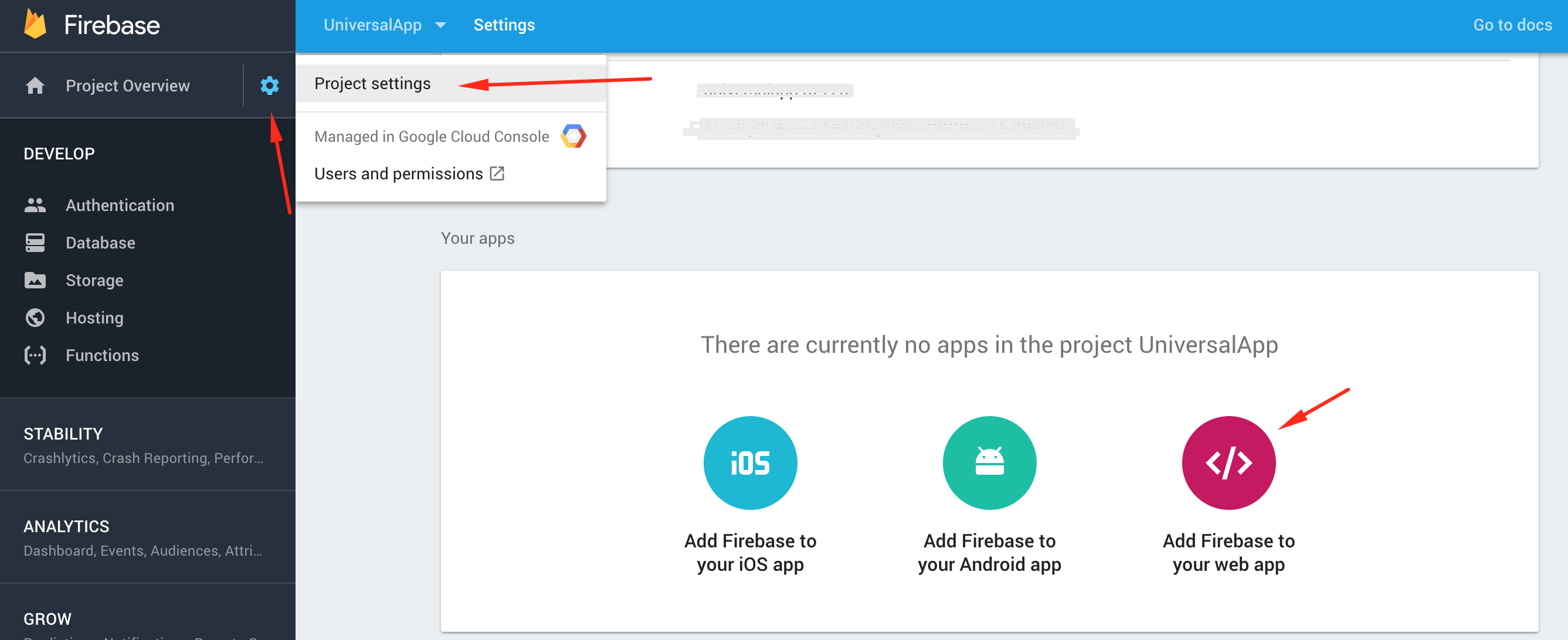
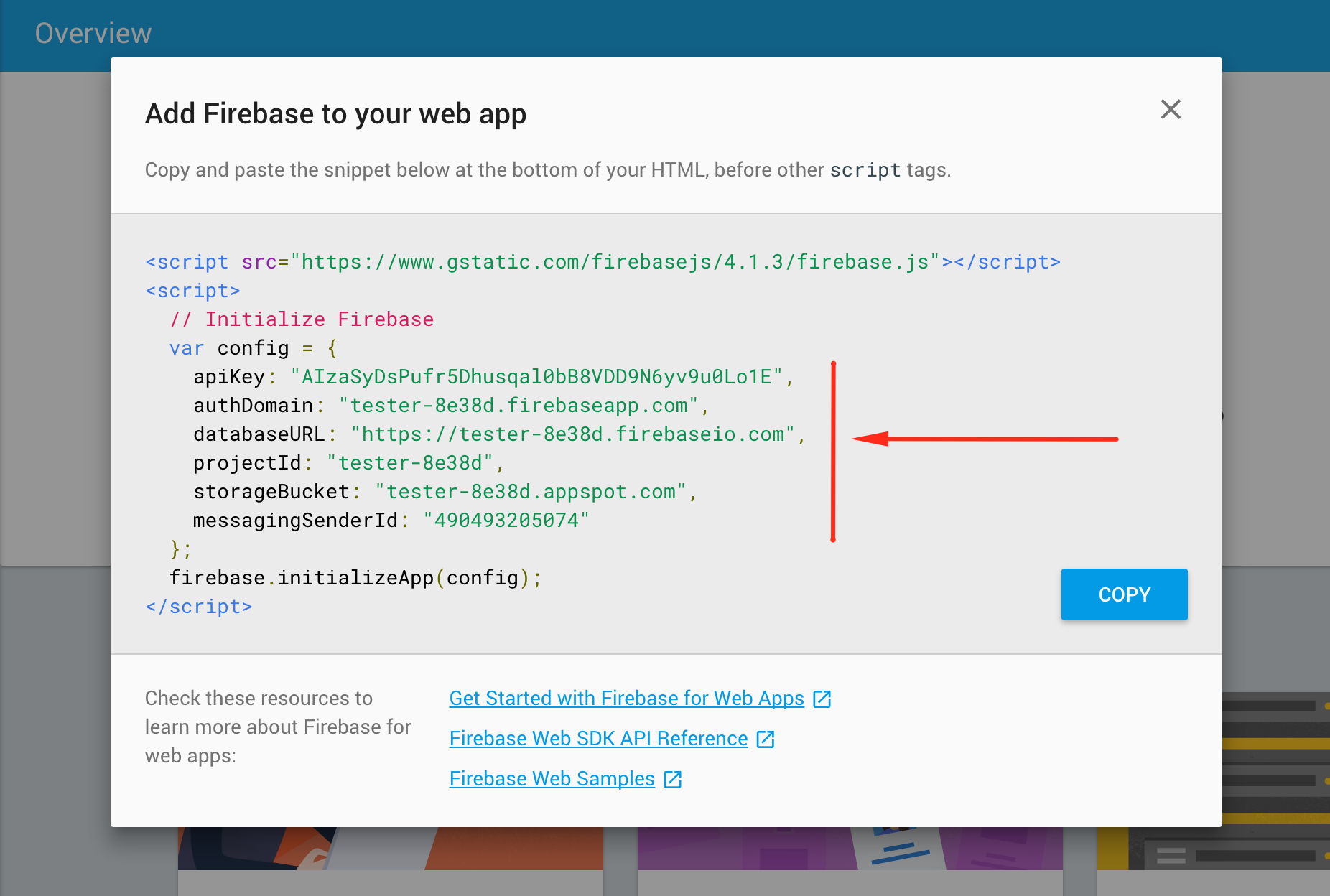
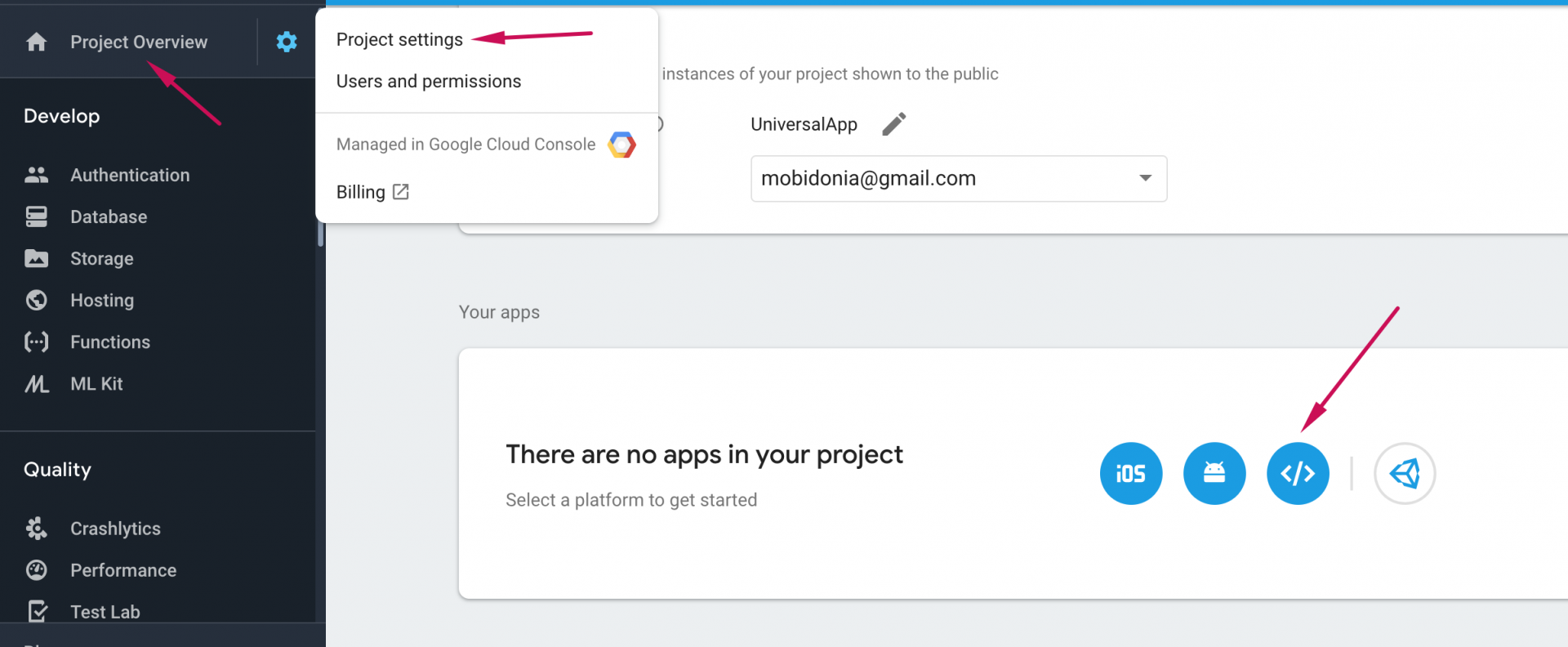
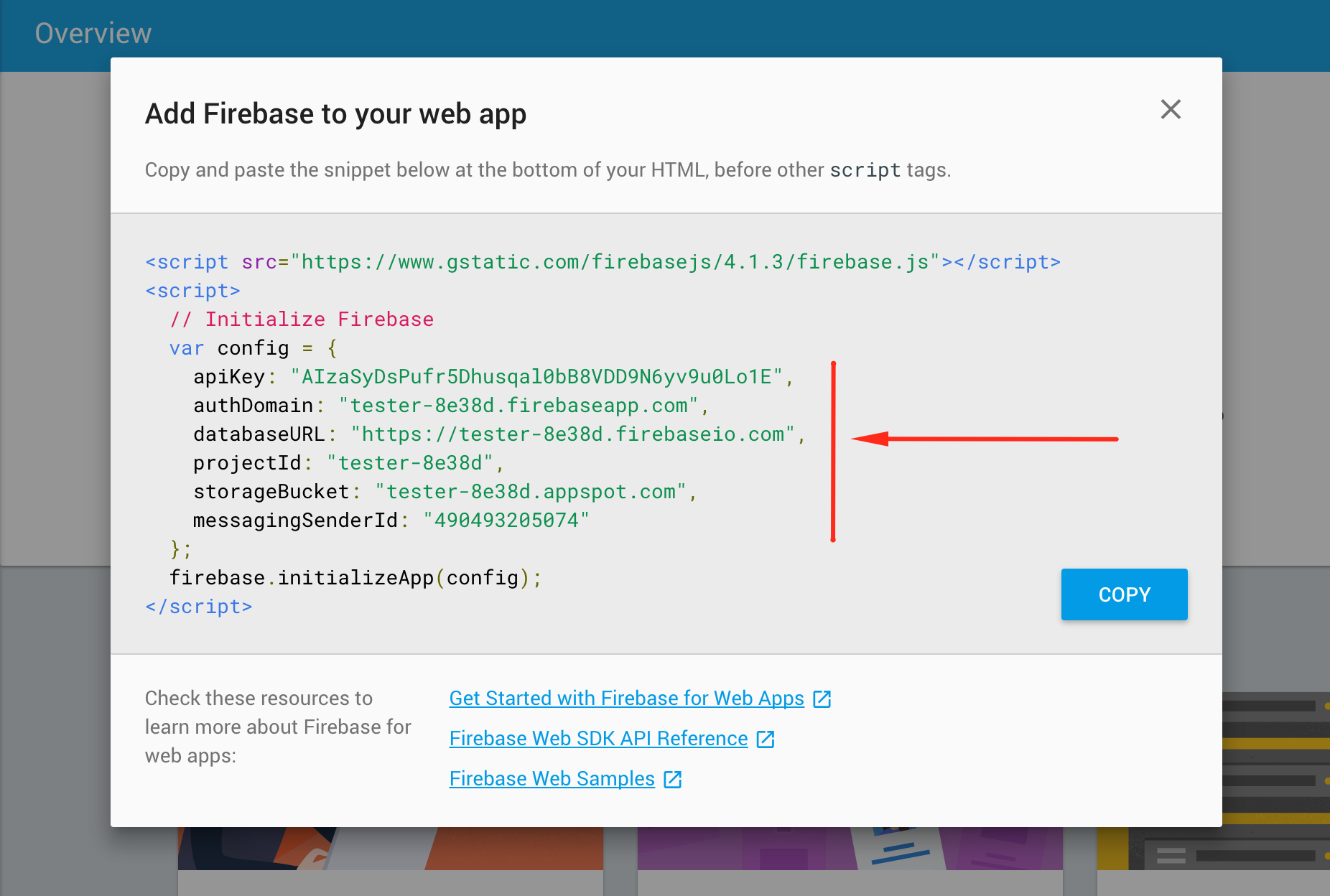
                <![CDATA[<p>All the data is store in Firestore database.</p><p><br /></p><p>Let's get started.  Create an account in Firebase with your google account. </p><p>( You may use existing firebase db )</p><p><br /></p><p>Create Firebase Project. </p><p><br /></p><p>Then go in Project settings, and click on "Add Firebase to your web app"</p><p><img class="fr-dib fr-draggable fr-fil" src="https://support-hub--assets.s3.eu-west-2.amazonaws.com/assets/74/images/G7H27XGtIqgBz2KtmSFcNFfCg7KZI9gjYSzRjgcs.png" style="width:489px;height:199.675px;" alt="G7H27XGtIqgBz2KtmSFcNFfCg7KZI9gjYSzRjgcs.png" /></p><p><br /></p><p>Then copy the config string. </p><p><img class="fr-dib fr-draggable fr-fil" src="https://support-hub--assets.s3.eu-west-2.amazonaws.com/assets/74/images/RtvBxMDXlufvoSl1vW1C7pwvmyQq6B1tZYlfzpkw.png" style="width:484px;height:326.7px;" alt="RtvBxMDXlufvoSl1vW1C7pwvmyQq6B1tZYlfzpkw.png" /></p><p><br /></p><p>Now in the <strong>config.js</strong> file you will find another <strong>config</strong> object. Copy the <strong>config</strong> from firebase and enter it there. </p><p><br /></p><p>Now continue with Step 3.</p><p><br /></p>]]>
            </summary>
                                    <updated>2019-05-23T10:13:48+00:00</updated>
        </entry>
            <entry>
            <title><![CDATA[Step 3. Set up the script]]></title>
            <link rel="alternate" href="https://mobidonia.support-hub.io/articles/step-3-set-up-the-script-535" />
            <id>https://mobidonia.support-hub.io/535</id>
            <author>
                <name><![CDATA[Daniel Dimov]]></name>
            </author>
            <summary type="html">
                <![CDATA[<p>in the start of the config.js you will find this code</p><p><br /></p><pre>var settings={
  serverPort:8000,
  appName:"Shopify Sync",
  shopifySite:"https://mobidonia.myshopify.com",  //Link to your shopify store
  firestoreCollectionForCategories:"product_collection_shopify", //Where to save the collections
  firestoreCollectionForProduct:"products_shopify", //Where to save the products
  cronInterval:"00 59 20 * * 1-5", //How ofter should the cron job run https://github.com/kelektiv/node-cron
}</pre><p><br /></p><p>The above code sets up the script. What you have to do is just replace <strong>shopifySite</strong> with link to your Shopify site.</p><p><br /></p><p>The <strong>cronInterval</strong> set how ofter the script should be called.</p><p>In the example above is Monday - Saturday  at 20:59</p><p>Read more here <a href="https://github.com/kelektiv/node-cron" target="_blank" rel="noreferrer noopener">https://github.com/kelektiv/node-cron</a></p><p><br /></p><p>Now go on Step 4.</p>]]>
            </summary>
                                    <updated>2019-05-23T10:13:48+00:00</updated>
        </entry>
            <entry>
            <title><![CDATA[Step 4. Running the script]]></title>
            <link rel="alternate" href="https://mobidonia.support-hub.io/articles/step-4-running-the-script-536" />
            <id>https://mobidonia.support-hub.io/536</id>
            <author>
                <name><![CDATA[Daniel Dimov]]></name>
            </author>
            <summary type="html">
                <![CDATA[<p>Before you have installed pm2. With this program the node js program will run when you close your terminal. </p><p><br /></p><p>To see what process is running enter</p><pre>pm2 list</pre><p><br /></p><p>To start the process enter</p><pre>pm2 start index.js --name shopify</pre><p><br /></p><p>This will start the process</p><p><br /></p><p>To stop the process enter</p><pre>pm2 stop shopify</pre><p><br /></p>]]>
            </summary>
                                    <updated>2019-05-23T10:13:48+00:00</updated>
        </entry>
            <entry>
            <title><![CDATA[Installing cloud functions in firebase]]></title>
            <link rel="alternate" href="https://mobidonia.support-hub.io/articles/installing-cloud-functions-in-firebase-537" />
            <id>https://mobidonia.support-hub.io/537</id>
            <author>
                <name><![CDATA[Daniel Dimov]]></name>
            </author>
            <summary type="html">
                <![CDATA[<p><br /></p><p>Cloud Functions for Firebase lets you automatically run backend code in response to events triggered by Firebase features and HTTPS requests. Your code is stored in Google's cloud and runs in a managed environment. There's no need to manage and scale your own servers.</p><p><br /></p><p><em><strong>Get started</strong></em></p><p><br /></p><p>First, install the Firebase CLI as described in the<span> </span><a href="https://firebase.google.com/docs/cli/?authuser=0">Firebase CLI Reference</a>. The Firebase CLI requires<span> </span><a href="https://nodejs.org/">Node.js</a><span> </span>and<span> </span><a href="https://www.npmjs.org/">npm</a>, which you can install by following the instructions on<span> </span><a href="https://nodejs.org/">https://nodejs.org/</a>. Installing Node.js also installs npm.</p><p><br /></p><p>After node.js installation, create project for example, in terminal or cmd run the commands:</p><pre>mkdir CloudFunctions
cd CloudFunctions
npm init</pre><p><br /></p><p>And when you will be done with creating the project, you will have to run the command:</p><p><br /></p><pre>npm install -g firebase-tools</pre><p><br /></p><p>To initialize your project:</p><ol><li>Run <code><strong>firebase login</strong></code> to log in via the browser and authenticate the firebase tool.</li><li>Go to your Firebase project directory.</li><li>Run <code><strong>firebase init functions</strong></code>. The tool gives you an option to install dependencies with npm. It is safe to decline if you want to manage dependencies in another way.</li><li>The tool gives you two options for language support:<ul><li>Javascript</li><li><a href="https://www.typescriptlang.org/">TypeScript</a>. See <a href="https://firebase.google.com/docs/functions/typescript?authuser=0">Write Functions with TypeScript</a> for more information.</li></ul></li></ol><p>We are recommend you to use Javascript.</p><p><br /></p><p>Once you have completed the setup and initialized your project, you can open the source directory and start adding code as described in the following sections.</p><p><br /></p><p><strong>Here is one example</strong></p><p><br /></p><p>For this sample, your project must import the Cloud Functions and Admin SDK modules using Node<span> </span><code>require</code>statements. Add lines like the following to your<span> </span><code>index.js</code><span> </span>file:</p><p><br /></p><pre>const functions = require('firebase-functions');

// The Firebase Admin SDK to access the Firebase Realtime Database.
const admin = require('firebase-admin');
admin.initializeApp();</pre><p><br /></p><h3>Add the <code>addMessage()</code> function</h3><p>For the <code>addMessage()</code> function, add these lines to <code>index.js</code></p><pre>// Take the text parameter passed to this HTTP endpoint and insert it into the
// Realtime Database under the path /messages/:pushId/original
exports.addMessage = functions.https.onRequest((req, res) =&gt; {
  // Grab the text parameter.
  const original = req.query.text;
  // Push the new message into the Realtime Database using the Firebase Admin SDK.
  return admin.database().ref('/messages').push({original: original}).then((snapshot) =&gt; {
    // Redirect with 303 SEE OTHER to the URL of the pushed object in the Firebase console.
    return res.redirect(303, snapshot.ref.toString());
  });
});</pre><p><br /></p><p>The <code>addMessage()</code> function is an HTTP endpoint. Any request to the endpoint results in ExpressJS-style <a href="http://expressjs.com/en/4x/api.html#req">Request</a> and <a href="http://expressjs.com/en/4x/api.html#res">Response</a> objects passed to the <a href="https://firebase.google.com/docs/reference/functions/functions.https?authuser=0#.onRequest"><code>onRequest()</code></a> callback.</p><p><br /></p><p>HTTP functions are synchronous, so you should send a response as quickly as possible and defer work using the Realtime Database. The <code>addMessage()</code> HTTP function passes a text value to the HTTP endpoint and inserts it into the Realtime Database under the path <code>/messages/:pushId/original</code> using the previously initialized <code>admin</code> app.</p><p><br /></p><h3>Deploy and execute <code>addMessage()</code></h3><p>To deploy and execute the <code>addMessage()</code> function, follow these steps:</p><ol><li><p>Run this command to deploy your functions:</p><pre>firebase deploy --only functions
</pre>By default, the Firebase CLI deploys all of the functions inside<span> </span><code>index.js</code><span> </span>at the same time. If that file contains numerous functions and you only need to deploy some of them, use the<span> </span><code>--only</code><span> </span>argument to perform<span> </span><a href="https://firebase.google.com/docs/cli/?authuser=0#partial_deploys">partial deploys</a>:<pre>firebase deploy --only functions:addMessage</pre>After you deploy, the Firebase CLI outputs the URL for any HTTP function endpoints. In your terminal, you should see a line like the following:<pre>Function URL (addMessage): https://us-central1-MY_PROJECT.cloudfunctions.net/addMessage</pre><p><br /></p>By default, the Firebase CLI looks in the<span> </span><code>functions/</code><span> </span>folder for the source code. You can specify another folder by adding the following lines in<span> </span><code>firebase.json</code>:<pre>"functions": {
  "source": "another-folder"
}</pre><p><br /></p><p><br /></p></li><li>Add a text query parameter to the<span> </span><code>addMessage()</code><span> </span>URL, and open it in a browser:<pre>https://us-central1-MY_PROJECT.cloudfunctions.net/addMessage?text=uppercaseme</pre><p><br />The function executes and redirects the browser to the Firebase console at the database location where the text string is stored. You should see your text value displayed in the console.</p><p>After deploying and executing functions, you can <a href="https://console.firebase.google.com/project/_/functions/logs?severity=DEBUG&amp;authuser=0">view logs in the Firebase console</a>.</p></li></ol><h3><br /></h3><h3>Add the <code>makeUppercase()</code> function</h3><p><br /></p><p>For the <code>makeUppercase()</code> function, add these lines to <code>index.js</code>:</p><pre>// Listens for new messages added to /messages/:pushId/original and creates an
// uppercase version of the message to /messages/:pushId/uppercase
exports.makeUppercase = functions.database.ref('/messages/{pushId}/original')
    .onCreate((snapshot, context) =&gt; {
      // Grab the current value of what was written to the Realtime Database.
      const original = snapshot.val();
      console.log('Uppercasing', context.params.pushId, original);
      const uppercase = original.toUpperCase();
      // You must return a Promise when performing asynchronous tasks inside a Functions such as
      // writing to the Firebase Realtime Database.
      // Setting an "uppercase" sibling in the Realtime Database returns a Promise.
      return snapshot.ref.parent.child('uppercase').set(uppercase);
    });</pre><p><br /></p><p>The <code>makeUppercase()</code> function executes when the Realtime Database is written to. The <a href="https://firebase.google.com/docs/reference/functions/functions.database?authuser=0#.ref"><code>ref(path)</code></a> function defines the part of the database to listen on. For performance reasons, you should be as specific as possible.</p><p>Braces—for example, <code>{pushId}</code>—surround "parameters," wildcards that expose their matched data in the callback.</p><p>The Realtime Database triggers the <a href="https://firebase.google.com/docs/reference/functions/functions.database.RefBuilder?authuser=0#onWrite"><code>onWrite()</code></a> callback whenever data is written or updated on the given path.</p><p><br /></p><p>Event-driven functions such as Realtime Database events are asynchronous. The callback function should return either a <code>null</code>, an Object, or a <a href="https://developer.mozilla.org/en/docs/Web/JavaScript/Reference/Global_Objects/Promise">Promise</a>. If you do not return anything, the function times out, signaling an error, and is retried. See <a href="https://firebase.google.com/docs/functions/terminate-functions?authuser=0">Sync, Async, and Promises</a>.</p><h3>Deploy and execute <code>makeUppercase()</code></h3><p>To complete the tutorial, deploy your functions again, and then execute <code>addMessage()</code> to trigger <code>makeUppercase()</code>.</p><ol><li><p>Run this command to deploy your functions:</p><pre>firebase deploy --only functions</pre><p><br /></p>By default, the Firebase CLI looks in the<span> </span><code>functions/</code><span> </span>folder for the source code. You can specify another folder by adding the following lines in<span> </span><code>firebase.json</code>:<pre>"functions": {
  "source": "another-folder"
}</pre><p><br /></p>If you encounter access errors such as "Unable to authorize access to project," try checking your<span> </span><a href="https://firebase.google.com/docs/cli/?authuser=0#managing_project_aliases">project aliasing</a>.<p><br /></p></li><li>Using the<span> </span><code>addMessage()</code><span> </span>URL output by the CLI, add a text query parameter, and open it in a browser:<pre>https://us-central1-MY_PROJECT.cloudfunctions.net/addMessage?text=uppercasemetoo</pre></li></ol><p>The function executes and redirects the browser to the Firebase console at the database location where the text string is stored. This write event triggers <code>makeUppercase()</code>, which writes an uppercase version of the string.After deploying and executing functions, you can <a href="https://console.firebase.google.com/project/_/functions/logs?severity=DEBUG&amp;authuser=0">view logs in the Firebase console for Cloud Functions</a>.</p><p><br /></p><p><br /></p><h1><br /></h1>]]>
            </summary>
                                    <updated>2019-05-23T10:13:48+00:00</updated>
        </entry>
            <entry>
            <title><![CDATA[Function 1: Making thumbnails of any uploaded image]]></title>
            <link rel="alternate" href="https://mobidonia.support-hub.io/articles/function-1-making-thumbnails-of-any-uploaded-image" />
            <id>https://mobidonia.support-hub.io/538</id>
            <author>
                <name><![CDATA[Daniel Dimov]]></name>
            </author>
            <summary type="html">
                <![CDATA[<p><br /></p><p>If you want to make thumbnails of any uploaded image, please just open the project that you created in the previous  open the <strong>functions</strong> folder in terminal and there you have to add some dependencies.</p><p><br /></p><p>The thumbnail generation is performed using ImageMagick which is installed by default on all Cloud Functions instances. This is a CLI so we execute the command from node using the <a href="https://www.npmjs.com/package/child-process-promise">child-process-promise</a> package. The image is first downloaded locally from the Cloud Storage bucket to the <code>tmp</code> folder using the <a href="https://github.com/GoogleCloudPlatform/google-cloud-node">google-cloud</a> SDK.</p><p><br /></p><p>When you will be done with the installation of theses two dependencies now open <strong>functions/index.js</strong> file and copy the following code.</p><p><br /></p><pre>'use strict';

// [START import]
const functions = require('firebase-functions');
const gcs = require('@google-cloud/storage')();
const spawn = require('child-process-promise').spawn;
const path = require('path');
const os = require('os');
const fs = require('fs');

// [END import]

// [START generateThumbnail]
/**
 * When an image is uploaded in the Storage bucket We generate a thumbnail automatically using
 * ImageMagick.
 */
// [START generateThumbnailTrigger]
exports.generateThumbnail = functions.storage.object().onFinalize((object) =&gt; {
// [END generateThumbnailTrigger]
  // [START eventAttributes]
  const fileBucket = object.bucket; // The Storage bucket that contains the file.
  const filePath = object.name; // File path in the bucket.
  const contentType = object.contentType; // File content type.
  const metageneration = object.metageneration; // Number of times metadata has been generated. New objects have a value of 1.
  // [END eventAttributes]

  // [START stopConditions]
  // Exit if this is triggered on a file that is not an image.
  if (!contentType.startsWith('image/')) {
    console.log('This is not an image.');
    console.log("Started with "+contentType);
    if(!contentType.startsWith('application/octet-stream')){
      console.log('This is not an octet-stream.');
      return null;
    }
    
  }

  // Get the file name.
  const fileName = path.basename(filePath);
  // Exit if the image is already a thumbnail.
  if (fileName.startsWith('thumb_')) {
    console.log('Already a Thumbnail.');
    return null;
  }
  // [END stopConditions]

  // [START thumbnailGeneration]
  // Download file from bucket.
  const bucket = gcs.bucket(fileBucket);
  const tempFilePath = path.join(os.tmpdir(), fileName);
  const metadata = {
    contentType: contentType,
  };
  return bucket.file(filePath).download({
    destination: tempFilePath,
  }).then(() =&gt; {
    console.log('Image downloaded locally to', tempFilePath);
    // Generate a thumbnail using ImageMagick.
    return spawn('convert', [tempFilePath, '-thumbnail', '200x200&gt;', tempFilePath]);
  }).then(() =&gt; {
    console.log('Thumbnail created at', tempFilePath);
    // We add a 'thumb_' prefix to thumbnails file name. That's where we'll upload the thumbnail.
    const thumbFileName = `thumb_${fileName}`;
    const thumbFilePath = path.join(path.dirname(filePath), thumbFileName);
    // Uploading the thumbnail.
    return bucket.upload(tempFilePath, {
      destination: thumbFilePath,
      metadata: metadata,
    });
    // Once the thumbnail has been uploaded delete the local file to free up disk space.
  }).then(() =&gt; fs.unlinkSync(tempFilePath));
  // [END thumbnailGeneration]
});
// [END generateThumbnail]</pre><p><br /></p><p>After that just run the command </p><pre>firebase deploy --only functions</pre><p> * Make sure that you are running this command in functions folder.</p><p><br /></p><p>And after the deployment try to upload some image in  Firebase Storage.</p><p><br /></p>]]>
            </summary>
                                    <updated>2019-05-23T10:13:48+00:00</updated>
        </entry>
            <entry>
            <title><![CDATA[Function 2: Merging two dates into desired format in Firestore]]></title>
            <link rel="alternate" href="https://mobidonia.support-hub.io/articles/function-2-merging-two-dates-into-desired-format-in-firestore" />
            <id>https://mobidonia.support-hub.io/539</id>
            <author>
                <name><![CDATA[Daniel Dimov]]></name>
            </author>
            <summary type="html">
                <![CDATA[<p>When we were making Conference app, we were facing with some problem. When we made the agenda for the conference we needed  3 fields  with date and time:</p><ol><li>eventStart</li><li>eventEnd </li><li>eventDateStartEndTime</li></ol><p>And when eventStart<strong> </strong>or eventEnd  is updated, we had to change it also into <strong>eventDateStartEndTime</strong>.</p><p>The <strong>eventDateStartEndTime</strong> is in HH:MM until HH:MM format, and we had idea of making a Cloud Function that will take <strong>eventStart</strong> hour and minutes and the same from <strong>eventEnd </strong>to generate <strong>eventDateStartEndTime.</strong></p><p><br /></p><p><img class="fr-dib fr-draggable fr-fil" src="https://support-hub--assets.s3.eu-west-2.amazonaws.com/assets/74/images/PmTXfYXOyyY1qTyqP0AQByxrbQnmJcyDjKZVucVf.png" style="width:441px;height:88.037px;" alt="PmTXfYXOyyY1qTyqP0AQByxrbQnmJcyDjKZVucVf.png" /></p><p><br /></p><p><br /></p><p><br /></p><p>So, instead of adding one more field in every Firestore document just to marge two dates into desired format, </p><p>you can add this function in<strong> f</strong><strong>unctions/index.js. </strong></p><p><br /></p><p>This function is <strong>onUpdate(),</strong> so everytime when <strong>eventStart</strong> and <strong>eventEnd</strong> will be updated, automatically  <strong>eventDateStartEndTime  </strong>will be changed.</p><p>And you don't need to create the field <strong>eventDateStartEndTime, </strong>automatically will be created when those two fields will be created or updated.</p><p><br /></p><pre>exports.updateEventDateStartEndTime = functions.firestore
    .document('/eventsconference/{documentId}')
    .onUpdate((change, context) =&gt; {
      // Get an object representing the document
     
      const startTime = change.after.data().eventStart;
      const endTime = change.after.data().eventEnd;
      const formatedStartTime= (startTime.getHours()+2)+":"+(startTime.getMinutes()&lt;10?'0':'')+startTime.getMinutes()
      const formatedEndTime= (endTime.getHours()+2)+":"+(endTime.getMinutes()&lt;10?'0':'')+endTime.getMinutes()
      // access a particular field as you would any JS property
      const eventDateStartEndTime = formatedStartTime+" until "+formatedEndTime;

      // perform desired operations ...
      return change.after.ref.set({
        eventDateStartEndTime
      }, {merge: true});
    });</pre><p><br /></p><p>After this just deploy the function using this command:</p><pre>firebase deploy --only functions</pre><p><br /></p><p><br /></p>]]>
            </summary>
                                    <updated>2019-05-23T10:13:49+00:00</updated>
        </entry>
            <entry>
            <title><![CDATA[Step 1 - Configuration]]></title>
            <link rel="alternate" href="https://mobidonia.support-hub.io/articles/step-1-configuration" />
            <id>https://mobidonia.support-hub.io/306</id>
            <author>
                <name><![CDATA[Valerija Dimova]]></name>
            </author>
            <summary type="html">
                <![CDATA[<p>In the project you downloaded from CodeCanyon there is a folder with name <b>Cloud Functions</b>. </p><p>Inside this folder, we have put all the functions that are necessary for running the React App Builder and also helper function that the App Needs. </p><p><br /></p><h4>Configuration</h4><p>First, we need to do some configuration before uploading the Cloud Functions.</p><p>In the folder <b>CloudFunction/functions</b> there is file <b>config.js. </b></p><p>Edit it with any text editor. </p><p><br /></p><p><b>SENDGRID_API_KEY</b> - Used for the send mail to client</p><ol><li>Create <a href="https://sendgrid.com/" target="_blank" rel="noreferrer noopener">SendGrid</a> account and getting an API_KEY.</li><li>Put that key in YOUR_SENDGRID_API_KEY</li></ol><pre>//The Sendgrid KEY --- CHANGE THEM WITH YOUR OWN SENDGRID<br />exports.SENDGRID_API_KEY="YOUR_SENDGRID_API_KEY";</pre><p><br /></p><p><b>fromEmail</b> - Email that will be the sender of the emails. Should be validated email in SendGrid</p><pre>//Email Config
exports.fromEmail="contact@mobidonia.com";</pre><p><br /></p><p><b>Email Subject and Email Text</b></p><p>Then you will find Email Subject and Email Text variables for ios and android. </p><p>These values are used when we notify the user that their app is created. </p><p>You can modify them to suit your needs. </p><p>They have  two placeholder fields</p><p><b>userName</b> - Client Name</p><p><b>linkToApp</b> - Link to android .apk file</p><p><br /></p><p><b>cryptoString</b> - String used to salt the Apple Password of the user</p><p>Change the value of this string to make it even more secure.</p><p>Security is important, so we do the following things</p><ol><li>We encrypt and salt the user password</li><li>We delete the store encrypted password when we have compiled the app</li></ol><p><br /></p><p><b>//Firebase configuration</b></p><p>Same as you did when you have initialized the ReactAppBuilder. We will need the configuration code for your Firebase Real-time Database</p><p>Here are the <a href="https://mobidonia.support-hub.io/articles/step-1-install-react-app-builder#img-srchttpssupport-hub-assetss3eu-west-2amazonawscomassets74imagestnrd4suahopcj9hml0zzz54zuiy8hfxhcdlobfenpng-stylewidth50-alttnrd4suahopcj9hml0zzz54zuiy8hfxhcdlobfenpng" target="_blank" rel="noreferrer noopener">instructions</a>.</p><p><br /></p><p><br /></p><p><b>NEXT: STEP 2 -<a href="https://mobidonia.support-hub.io/articles/step-2-publishing-cloud-functions-to-firebase" target="_blank" rel="noreferrer noopener">Publishing Cloud Functions</a></b></p>]]>
            </summary>
                                    <updated>2019-02-05T10:10:15+00:00</updated>
        </entry>
            <entry>
            <title><![CDATA[Create Zappier Account and Connect to your Firebase Database]]></title>
            <link rel="alternate" href="https://mobidonia.support-hub.io/articles/create-zappier-account-and-connect-to-your-firebase-database" />
            <id>https://mobidonia.support-hub.io/332</id>
            <author>
                <name><![CDATA[Daniel Dimov]]></name>
            </author>
            <summary type="html">
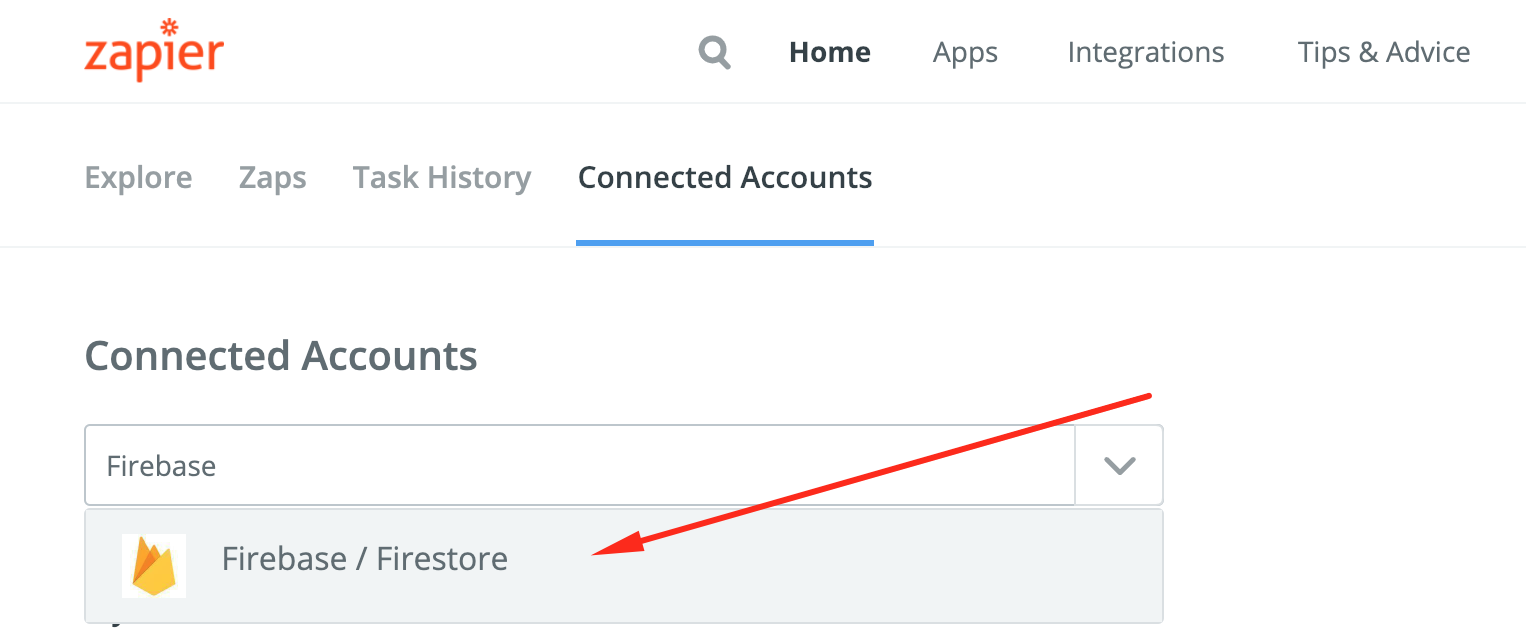
                <![CDATA[<p>First, create a free account on zappier</p><p><a href="https://zapier.com">https://zapier.com</a><a href="https://zapier.com"></a></p><p><br /></p><p>Then add new account ( Firebase )</p><p><a href="https://zapier.com/app/settings/authorizations">https://zapier.com/app/settings/authorizations</a><a href="https://zapier.com/app/settings/authorizations"></a></p><p><img src="https://support-hub--assets.s3.eu-west-2.amazonaws.com/assets/74/images/Z61rhMBmpwde7040RWxuY6aCMhJMewetQ41UHjve.png" style="width:100%;" alt="Z61rhMBmpwde7040RWxuY6aCMhJMewetQ41UHjve.png" /></p><p>Then follow the instructions to authorize Zappier to save data in your Firebase. </p><p><br /></p>]]>
            </summary>
                                    <updated>2019-02-16T03:29:50+00:00</updated>
        </entry>
            <entry>
            <title><![CDATA[Step 2 - Publishing Cloud Functions to Firebase]]></title>
            <link rel="alternate" href="https://mobidonia.support-hub.io/articles/step-2-publishing-cloud-functions-to-firebase" />
            <id>https://mobidonia.support-hub.io/307</id>
            <author>
                <name><![CDATA[Valerija Dimova]]></name>
            </author>
            <summary type="html">
                <![CDATA[<p>After you have finished <a href="https://mobidonia.support-hub.io/articles/step-1-configuration" target="_blank" rel="noreferrer noopener">Step 1. </a> you will be able to upload the cloud functions in your firebase instance.</p><p><br /></p><p>First, you will need to have Firebase Tools installed.</p><pre>sudo npm install -g firebase-tools</pre><p><br /></p><p>Open the folder CloudFunction folder in terminal</p><p>Run the following sequence of commands, one by one</p><p><br /></p><p><b>Initialize Firebase </b></p><pre>firebase init</pre><p>Answer on the following questions</p><ol><li>Select Firebase Cloud Function with the Space Bar</li><li>Select a default Firebase project for this directory:  --<b> Select your Firebase Instance</b></li><li>What language would you like to use to write Cloud Functions?  -- <b>JavaScript</b></li><li>Do you want to use ESLint to catch probable bugs and enforce style? (y/N) - <b>N</b></li><li>File functions/package.json already exists. Overwrite? (y/N) - <b>N</b></li><li>File functions/index.js already exists. Overwrite? (y/N) - <b>N</b></li><li>File functions/.gitignore already exists. Overwrite? (y/N) - <b>N</b></li><li>Do you want to install dependencies with npm now? (Y/n)- <b>y</b>    &lt;-- This will install the npm modules for Firebase</li></ol><p>You will something like</p><pre>Writing configuration info to firebase.json...<br />Writing project information to .firebaserc...<br />✔ Firebase initialization complete!</pre><p><br /></p><p>Now go inside the <b>funcitons</b> folder</p><pre>cd functions</pre><p>Then install the modules needed</p><pre>npm install</pre><p>Then upload the Functions to Firebase</p><pre>firebase deploy --only functions</pre><p><br /></p><p>You will see something like</p><p><br /></p><pre>i  deploying functions<br />i  functions: ensuring necessary APIs are enabled...<br />✔  functions: all necessary APIs are enabled<br />i  functions: preparing functions directory for uploading...<br />i  functions: packaged functions (56.79 KB) for uploading<br />✔  functions: functions folder uploaded successfully<br />i  functions: updating Node.js 6 function sendNotifyEmail(us-central1)...<br />i  functions: updating Node.js 6 function crypteTheApplePassword(us-central1)...<br />i  functions: updating Node.js 6 function saveAsGeostore(us-central1)...<br />i  functions: updating Node.js 6 function paddleIntegration(us-central1)...<br />i  functions: updating Node.js 6 function advancedSearch(us-central1)...<br />i  functions: updating Node.js 6 function generateThumbnail(us-central1)...<br />i  functions: updating Node.js 6 function saveVideoImage(us-central1)...<br />i  functions: updating Node.js 6 function updateEventDateStartEndTime(us-central1)...<br />✔  functions[advancedSearch(us-central1)]: Successful update operation.<br />✔  functions[crypteTheApplePassword(us-central1)]: Successful update operation.<br />✔  functions[saveAsGeostore(us-central1)]: Successful update operation.<br />✔  functions[generateThumbnail(us-central1)]: Successful update operation.<br />✔  functions[sendNotifyEmail(us-central1)]: Successful update operation.<br />✔  functions[saveVideoImage(us-central1)]: Successful update operation.<br />✔  functions[paddleIntegration(us-central1)]: Successful update operation.<br />✔  functions[updateEventDateStartEndTime(us-central1)]: Successful update operation.</pre><p><br /></p><p>And you are done with uploading the cloud functions to firestore</p>]]>
            </summary>
                                    <updated>2019-02-05T10:08:59+00:00</updated>
        </entry>
            <entry>
            <title><![CDATA[Wordpress Sync]]></title>
            <link rel="alternate" href="https://mobidonia.support-hub.io/articles/wordpress-sync" />
            <id>https://mobidonia.support-hub.io/330</id>
            <author>
                <name><![CDATA[Daniel Dimov]]></name>
            </author>
            <summary type="html">
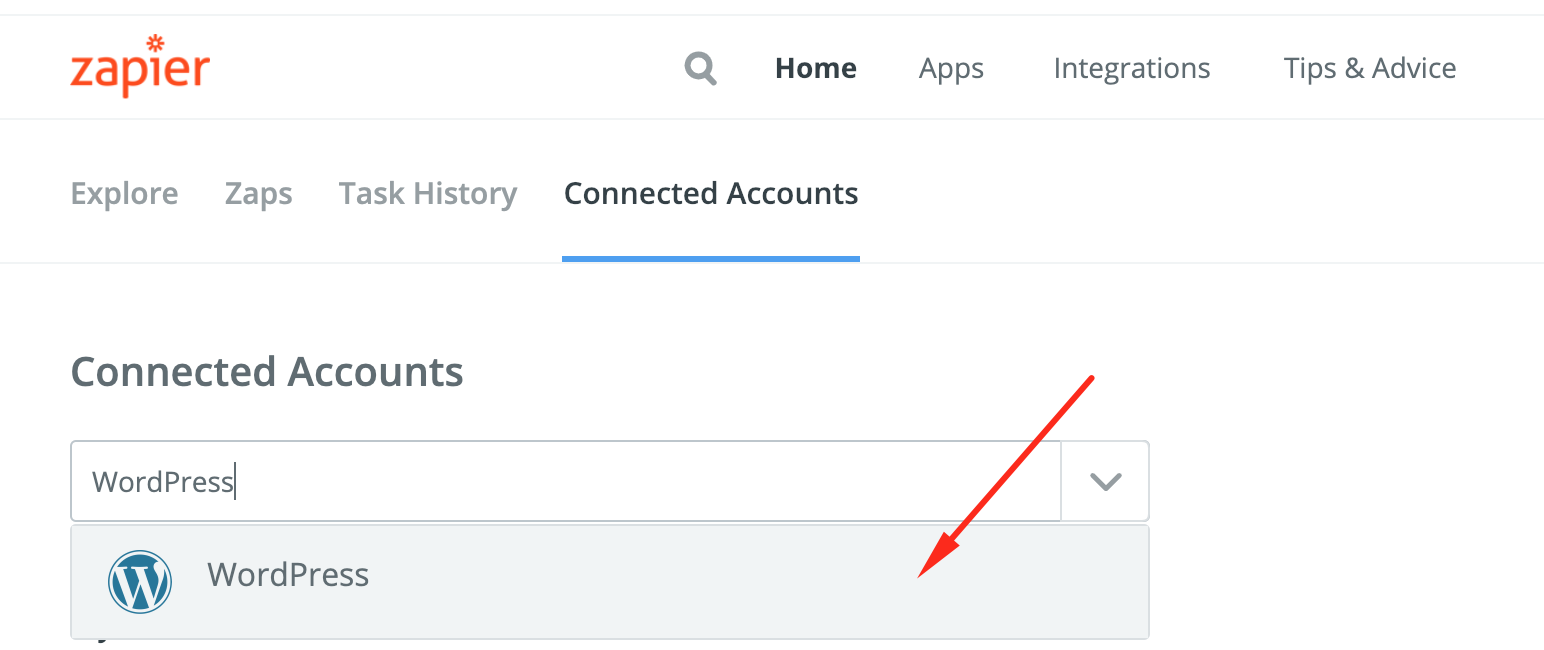
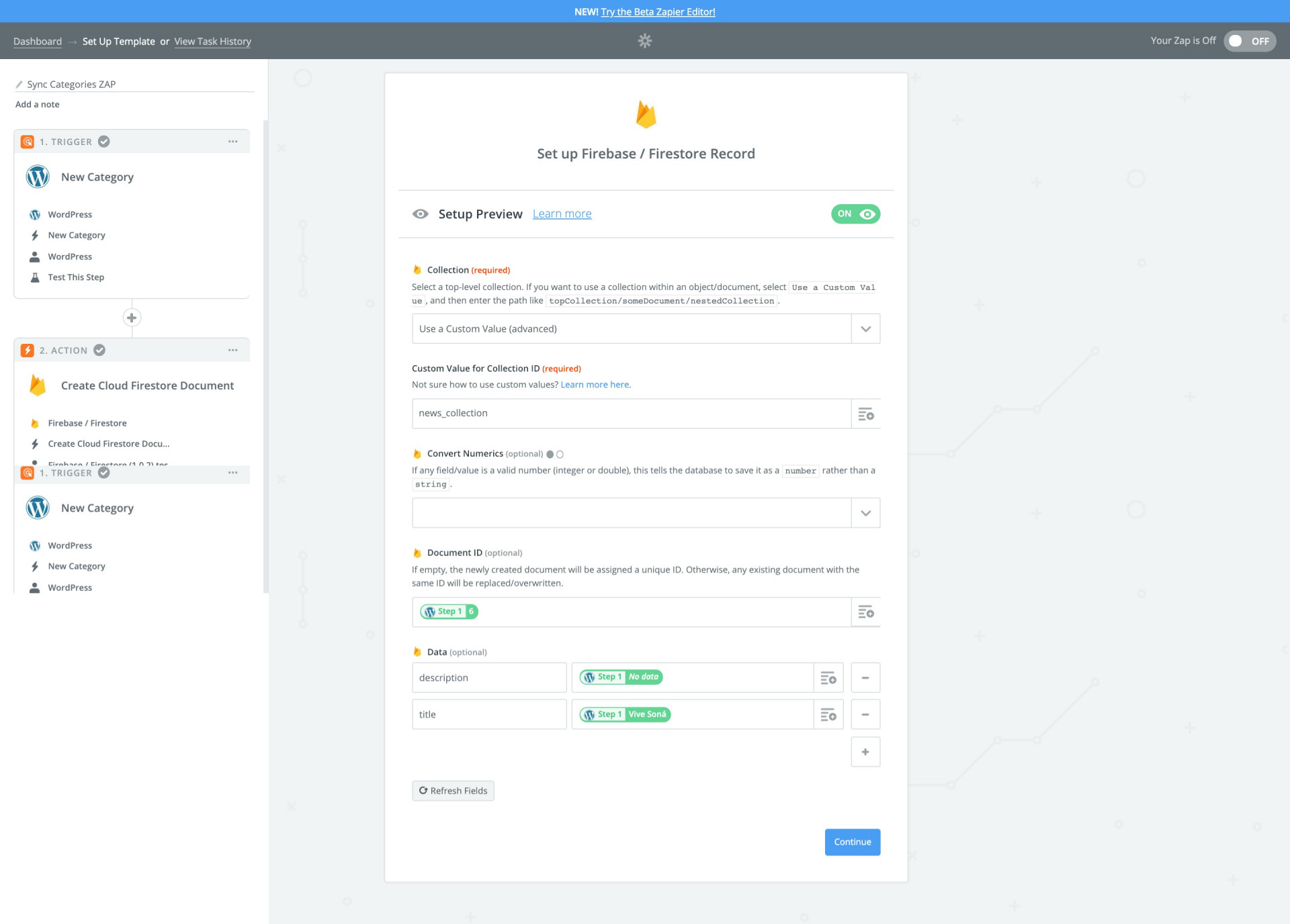
                <![CDATA[<p>After you have finished the <a href="https://mobidonia.support-hub.io/articles/create-zappier-account-and-connect-to-your-firebase-database" target="_blank" rel="noreferrer noopener">creation of an account and connect to firebase</a>, you should add a new connected account to WordPress. </p><p>Go Here</p><p><a href="https://zapier.com/app/settings/authorizations">https://zapier.com/app/settings/authorizations</a></p><p>And search for WordPress</p><p><img src="https://support-hub--assets.s3.eu-west-2.amazonaws.com/assets/74/images/IULBtDcn1nmZGZYmShyfF5w8xez7KEKpJYlvmoSd.png" style="width:50%;" alt="IULBtDcn1nmZGZYmShyfF5w8xez7KEKpJYlvmoSd.png" /></p><p>Follow the onscreen instruction to connect to your WordPress account. </p><p><br /></p><p>Note that the ZAPS will insert the new posts and categories. </p><p><br /></p><p>We will need to create two Zaps</p><p><a href="https://zapier.com/app/dashboard">https://zapier.com/app/dashboard</a></p><p><br /></p><h3>Sync Categories ZAP</h3><p>Click on the orange button "Make a ZAP"</p><p>STEP 1 - Trigger</p><p>Choose a Trigger App : <b>WordPress</b></p><p>Click on <b>show less common options</b></p><p>Select: <b>New Category - </b>Triggered when you add a new category.</p><p>In the next step, you should see the previous connected WordPress account. Click <b>Save+Continue</b></p><p>In the next screen, pick one test category and click <b>Continue</b>.</p><p>Now click on "Your Zap currently lacks an Action step. Add one now!".</p><p>STEP 2 - Action</p><p>Select: <b>Firebase / Firestore</b></p><p>Select: <b>Create Cloud Firestore Document</b></p><p>In the next step, you should see the previous connected Firebase account.<b> Click Save+Continue</b></p><p>For Collection (required) select: <b>Use a custom value</b></p><p>Custom Value for Collection ID<b>: news_collection  </b>&lt;--- or something specific based on your needs</p><p>For Document ID: Use "<b>Term ID"  </b>&lt;--- You can pick this value from the dropdown</p><p>In Data (optional)  -- Create two fields</p><p><b>title</b>:  Use "<b>name</b>" &lt;--- You can pick this value from the dropdown</p><p><b>description</b>: Use "<b>description</b>" &lt;--- You can pick this value from the dropdown</p><p>You can run the test to confirm it works. </p><p>After you run the test you should see your new collection in Firestore. </p><p>This step will look like this</p><p><img src="https://support-hub--assets.s3.eu-west-2.amazonaws.com/assets/74/images/X6csQMDnGjNS7gPzTSxQ1ymO2vrUUxXg5Npe4Q5d.jpeg" style="width:100%;" alt="X6csQMDnGjNS7gPzTSxQ1ymO2vrUUxXg5Npe4Q5d.jpeg" /><br /></p><p><br /></p><p><br /></p><p><br /></p><h3>Sync Articles ZAP</h3><p>Click on the orange button "Make a ZAP"</p><p>STEP 1 - Trigger<br /></p><p>Choose a Trigger App : WordPress</p><p>Select: <b>New Post </b>- Triggered when you add a new post.</p><p>In the next step, you should see the previous connected WordPress account. Click <b>Save+Continue</b></p><p>On the next step syn only Published Posts, and Post of type Post</p><p>In the next screen, pick one test post and click Continue.</p><p>Now click on "Your Zap currently lacks an Action step. Add one now!".</p><p>STEP 2 - Action</p><p>Select: Firebase / Firestore<br /></p><p>Select: Create Cloud Firestore Document<br /></p><p>In the next step, you should see the previous connected Firebase account. Click Save+Continue<br /></p><p>For Collection (required) select: Use a custom value<br /></p><p>Custom Value for Collection ID: <b>news</b>  &lt;--- or something specific based on your needs</p><p>Document ID: Leave blank or use <b>Post ID </b>&lt;--- You can pick this value from the dropdown</p><p>Data</p><p><b>category</b>: news_collection/{Terms Term ID} &lt;-- where {<b>Terms Term ID</b>} is  picked value from the dropdown</p><p><img src="https://support-hub--assets.s3.eu-west-2.amazonaws.com/assets/74/images/Nom1OiNAJetA5BRxNdxvrZFdO19F5RVJ21p2bJGh.png" style="width:50%;" alt="Nom1OiNAJetA5BRxNdxvrZFdO19F5RVJ21p2bJGh.png" /></p><p><b>description</b>: Select<b> Post Content</b></p><p><b>image: </b>Select<b> Post Thumbnail Link </b>&lt;-- or another image response</p><p><b>date</b>: Select <b>Post Date</b></p><p><b>shareLink: </b>Select <b>Link</b></p><p>You can run the test to confirm it works. </p><p>After you run the test you should see your new collection in Firestore. </p><p><br /></p>]]>
            </summary>
                                    <updated>2019-02-16T04:20:52+00:00</updated>
        </entry>
            <entry>
            <title><![CDATA[Installing cloud functions in firebase]]></title>
            <link rel="alternate" href="https://mobidonia.support-hub.io/articles/installing-cloud-functions-in-firebase" />
            <id>https://mobidonia.support-hub.io/291</id>
            <author>
                <name><![CDATA[Daniel Dimov]]></name>
            </author>
            <summary type="html">
                <![CDATA[<p>Cloud Functions for Firebase lets you automatically run backend code in response to events triggered by Firebase features and HTTPS requests. Your code is stored in Google's cloud and runs in a managed environment. There's no need to manage and scale your own servers.</p><p><i><b>Get started<br /></b></i></p><p>First, install the Firebase CLI as described in the <a href="https://firebase.google.com/docs/cli/?authuser=0" target="_blank" rel="noreferrer noopener">Firebase CLI Reference</a>. The Firebase CLI requires<a href="https://nodejs.org/" target="_blank" rel="noreferrer noopener"> Node.js</a> and <a href="https://www.npmjs.org/" target="_blank" rel="noreferrer noopener">npm</a>, which you can install by following the instructions on<a href="https://nodejs.org/" target="_blank" rel="noreferrer noopener"> https://nodejs.org/</a>. Installing Node.js also installs npm.</p><p>After node.js installation, open the downloaded project, in terminal or cmd and run the commands:</p><pre>cd cloud_functions<br />npm install</pre><p>And when you will be done with creating the project, you will have to run the command:</p><pre>npm install -g firebase-tools</pre><p>To initialize your project:</p><ul><li>Run firebase login to log in via the browser and authenticate the firebase tool.</li><li>Go to your Firebase project directory.</li><li>Run firebase init functions. The tool gives you an option to install dependencies with npm. It is safe to decline if you want to manage dependencies in another way.</li><li>The tool gives you two options for language support:</li></ul><p>               - Javascript<br /></p><p>               - TypeScript. See Write Functions with TypeScript for more information.</p><p>We recommend you to use Javascript.</p><p>Once you have completed the setup and initialized your project, you can open the source directory and start adding code as described in the following sections.</p><p><b>Here is one example</b></p><p>For this sample, your project must import the Cloud Functions and Admin SDK modules using Node require statements. Add lines like the following to your index.js file:</p><pre>const functions = require('firebase-functions');<br />// The Firebase Admin SDK to access the Firebase Realtime Database.<br />const admin = require('firebase-admin');<br />admin.initializeApp();</pre><h4>Add the addMessage() function</h4><p>For the addMessage() function, add these lines to index.js</p><pre>// Take the text parameter passed to this HTTP endpoint and insert it into the<br />// Realtime Database under the path /messages/:pushId/original<br />exports.addMessage = functions.https.onRequest((req, res) =&gt; {<br />  // Grab the text parameter.<br />  const original = req.query.text;<br />  // Push the new message into the Realtime Database using the Firebase Admin SDK.<br />  return admin.database().ref('/messages').push({original: original}).then((snapshot) =&gt; {<br />    // Redirect with 303 SEE OTHER to the URL of the pushed object in the Firebase console.<br />    return res.redirect(303, snapshot.ref.toString());<br />  });<br />});</pre><p>The addMessage() function is an HTTP endpoint. Any request to the endpoint results in ExpressJS-style <a href="http://expressjs.com/en/4x/api.html#req" target="_blank" rel="noreferrer noopener">Request</a> and <a href="http://expressjs.com/en/4x/api.html#res" target="_blank" rel="noreferrer noopener">Response</a> objects passed to the <a href="https://firebase.google.com/docs/reference/functions/functions.https?authuser=0#.onRequest" target="_blank" rel="noreferrer noopener">onRequest()</a> callback.</p><p>HTTP functions are synchronous, so you should send a response as quickly as possible and defer work using the Realtime Database. The addMessage() HTTP function passes a text value to the HTTP endpoint and inserts it into the Realtime Database under the path /messages/:pushId/original using the previously initialized admin app.</p><h5>Deploy and execute addMessage()</h5><p>To deploy and execute the addMessage() function, follow these steps:</p><ol><li>Run this command to deploy your functions:</li></ol><pre>firebase deploy --only functions</pre><p>        By default, the Firebase CLI deploys all of the functions inside index.js at the same time. If that file contains numerous functions and you only need to deploy some of them, use the --only argument to perform partial deploys:</p><pre>firebase deploy --only <a>functions:addMessage</a></pre><p>After you deploy, the Firebase CLI outputs the URL for any HTTP function endpoints. In your terminal, you should see a line like the following:</p><pre>Function URL (addMessage): https://us-central1-MY_PROJECT.cloudfunctions.net/addMessage</pre><p>By default, the Firebase CLI looks in the functions/ folder for the source code. You can specify another folder by adding the following lines in firebase.json:</p><pre>"functions": {<br />  "source": "another-folder"<br />}</pre><p>        2. Add a text query parameter to the addMessage() URL, and open it in a browser:</p><pre><a>https://us-central1-MY_PROJECT.cloudfunctions.net/addMessage?text=uppercaseme</a></pre><p>The function executes and redirects the browser to the Firebase console at the database location where the text string is stored. You should see <a href="https://console.firebase.google.com/project/_/functions/logs?severity=DEBUG&amp;authuser=0" target="_blank" rel="noreferrer noopener">your text value displayed in the console</a>.</p><h5>Add the makeUppercase() function</h5><p>For the makeUppercase() function, add these lines to index.js:</p><pre>// Listens for new messages added to /messages/:pushId/original and creates an<br />// uppercase version of the message to /messages/:pushId/uppercase<br />exports.makeUppercase = functions.database.ref('/messages/{pushId}/original')<br />    .onCreate((snapshot, context) =&gt; {<br />      // Grab the current value of what was written to the Realtime Database.<br />      const original = snapshot.val();<br />      console.log('Uppercasing', context.params.pushId, original);<br />      const uppercase = original.toUpperCase();<br />      // You must return a Promise when performing asynchronous tasks inside a Functions such as<br />      // writing to the Firebase Realtime Database.<br />      // Setting an "uppercase" sibling in the Realtime Database returns a Promise.<br />      return snapshot.ref.parent.child('uppercase').set(uppercase);<br />    });</pre><p>The makeUppercase() function executes when the Realtime Database is written to. The ref(path) function defines the part of the database to listen on. For performance reasons, you should be as specific as possible.</p><p>Event-driven functions such as Realtime Database events are asynchronous. The callback function should return either a null, an Object, or a Promise. If you do not return anything, the function times out, signaling an error, and is retried. See Sync, Async, and Promises.</p><p><br /></p>]]>
            </summary>
                                    <updated>2019-03-12T21:40:11+00:00</updated>
        </entry>
            <entry>
            <title><![CDATA[Functions]]></title>
            <link rel="alternate" href="https://mobidonia.support-hub.io/articles/functions" />
            <id>https://mobidonia.support-hub.io/303</id>
            <author>
                <name><![CDATA[Valerija Dimova]]></name>
            </author>
            <summary type="html">
                <![CDATA[<p> After upload, you will have the following function in Cloud Functions</p><p><b>NOTE</b>: For every command that is needed for these cloud functions to be runned from the terminal or cmd, you have to be sure that you are running the command into the correct folder. The correct path is  <b>cloud_functions -&gt; functions</b></p><h5><span><b>  1.</b> </span><b>sendNotifyEmail</b></h5><p>     Function for sending emails to clients and deleting queue object</p><h6>     Configuration</h6><ul><li>Then follow the <a href="https://sendgrid.com/docs/for-developers/sending-email/api-getting-started/" target="_blank" rel="noreferrer noopener">instructions</a> for creating the sandgrid account and getting an <b>API_KEY.</b></li><li>After when you get <b>API_KEY </b>open the<b> cloud_function</b> project and in the <b>functions</b> folder you should see the <b>config.js</b> file. In this file around line 2, you should see a variable called <b>SENDGRID_API_KEY. </b>The value of this variable replaces it with the value of the <b>API_KEY </b>that you get from sandgrid.</li></ul><pre>//The Sendgrid KEY --- CHANGE THEM WITH YOUR OWN SENDGRID<br />exports.SENDGRID_API_KEY="YOUR_SENDGRID_API_KEY";</pre><ul><li>And the final step, in the same folder from the previous step in the config.js file around line 4  you should change the email address with yours</li></ul><pre>//Email Config<br />exports.fromEmail="YOUR_EMAIL_ADDRESS";</pre><h5><br /></h5><h5><span> 2<b>.</b> </span><b>saveAsGeostore</b></h5><p>    A function that creates or update geofirex object in firestore when the document is created  or update.</p><p><br /></p><h5> 3. <b>paddleIntegration</b></h5><p>     Function for creating or update the information.</p><h5><span> 4<b>.</b> </span><b>advancedSearch</b></h5><p>    - Function for searching  into the documents in firestore by:</p><ul><li>their location for a given radius, </li><li>category - optional</li><li>query - optional</li></ul><p>    <b>Configuration</b></p><ul><li>Into the config. js file around line 15, there is variable called <b>configApp,</b><span> open the <a href="https://console.firebase.google.com/" target="_blank" rel="noreferrer noopener">Firebase console.</a> Then go in Project settings, and click on "Add Firebase to your web app"</span></li></ul><p>                                                       <img src="https://support-hub--assets.s3.eu-west-2.amazonaws.com/assets/74/images/WRsUzeYok4sassslC5HZoMT5guwpCd0l7yOOoHGK.png" style="width:50%;float:none;" alt="WRsUzeYok4sassslC5HZoMT5guwpCd0l7yOOoHGK.png" /></p><p>        Then copy the config string. </p><p>                                                        <img src="https://support-hub--assets.s3.eu-west-2.amazonaws.com/assets/74/images/PvX197CuF46tXR2DUJq1Idhd9x3gLMDUkeVi9JVd.png" style="width:50%;" alt="PvX197CuF46tXR2DUJq1Idhd9x3gLMDUkeVi9JVd.png" /></p><p>         And replace it in the <b>config.js</b> file in the value of the variable <b>configApp.</b></p><pre>//Firebase configuration<br />exports.configApp = {<br />    apiKey: "your_apiKey",<br />    authDomain: "your_authDomain",<br />    databaseURL: "your_databaseURL",<br />    projectId: "your_projectId",<br />    storageBucket: "your_storageBucket",<br />    messagingSenderId: "your_messagingSenderId"<br />  };</pre><p><br /></p><p><br /></p><h5> 5. <b>generateThumbnail</b></h5><p>    - Function for generating a thumbnail image for every uploaded image</p><p>        The thumbnail generation is performed using ImageMagick which is installed by default on all Cloud Functions         instances. This is a CLI so we execute the command from the node using the <a href="https://www.npmjs.com/package/child-process-promise" target="_blank" rel="noreferrer noopener">child-process-promise</a> package.            The image is first downloaded locally from the Cloud Storage bucket to the tmp folder using the <a href="https://github.com/GoogleCloudPlatform/google-cloud-node" target="_blank" rel="noreferrer noopener">google-cloud         SDK</a>.</p><h5> 6. <b>saveVideoImage</b></h5><p>    - Function for generating an image from the youtube video if the document is having <b>videoLink</b> field</p><p>   </p><h5> 7. <b>updateEventDateStartEndTime</b></h5><p><b>  </b>- Function for update the EventDateStartEndTime field in the document in firestore if the <b>eventStart</b> and <b>eventEnd</b>     fields are updated or created</p><p><br /></p><p><br /></p><p></p>]]>
            </summary>
                                    <updated>2019-03-12T21:39:50+00:00</updated>
        </entry>
            <entry>
            <title><![CDATA[Adding the needed  indexes to firestore]]></title>
            <link rel="alternate" href="https://mobidonia.support-hub.io/articles/adding-the-needed-indexes-to-firestore" />
            <id>https://mobidonia.support-hub.io/466</id>
            <author>
                <name><![CDATA[Valerija Dimova]]></name>
            </author>
            <summary type="html">
                <![CDATA[<h4><br /></h4><h4><i>Where and why we are using firestore indexes?</i></h4><h4><br /></h4><p>If you want to set up the  <b>Business Directory App, </b>you also have to deploy the<b> <a href="https://mobidonia.support-hub.io/articles/functions" target="_blank" rel="noreferrer noopener">advancedSearch</a> </b>cloud function. For this function to work as it should you have to setup also the indexes in firestore.</p><p><b>NOTE: </b>The<b> advancedSearch </b>cloud function is not working in <b>React App Builder - SaaS. </b></p><p><b><br /></b></p><h3><b><i>Deploying the indexes</i></b></h3><p><br /></p><p>All you have to do is to open the <b>functions</b> folder in your terminal, which is located in <b>cloud-functions-for-rab</b> -&gt; <b>functions, </b>then run the command below.</p><pre>firebase deploy --only firestore:indexes</pre><h3><b><i><br /></i></b></h3><p><br /></p><h4><br /><br /></h4>]]>
            </summary>
                                    <updated>2019-04-16T10:48:31+00:00</updated>
        </entry>
    </feed>