<?xml version="1.0" encoding="UTF-8"?>
<feed xmlns="http://www.w3.org/2005/Atom" xml:lang="">
                        <id>https://mobidonia.support-hub.io/feed/738</id>
                                <link href="https://mobidonia.support-hub.io/feed/738" rel="self"></link>
                                <title><![CDATA[RAB Landing Page Article Feed]]></title>
                    
                                <subtitle></subtitle>
                                                    <updated>2019-10-17T08:38:43+00:00</updated>
                        <entry>
            <title><![CDATA[Install RAB Landing Page]]></title>
            <link rel="alternate" href="https://mobidonia.support-hub.io/articles/install-rab-landing-page-1453" />
            <id>https://mobidonia.support-hub.io/1453</id>
            <author>
                <name><![CDATA[Daniel Dimov]]></name>
            </author>
            <summary type="html">
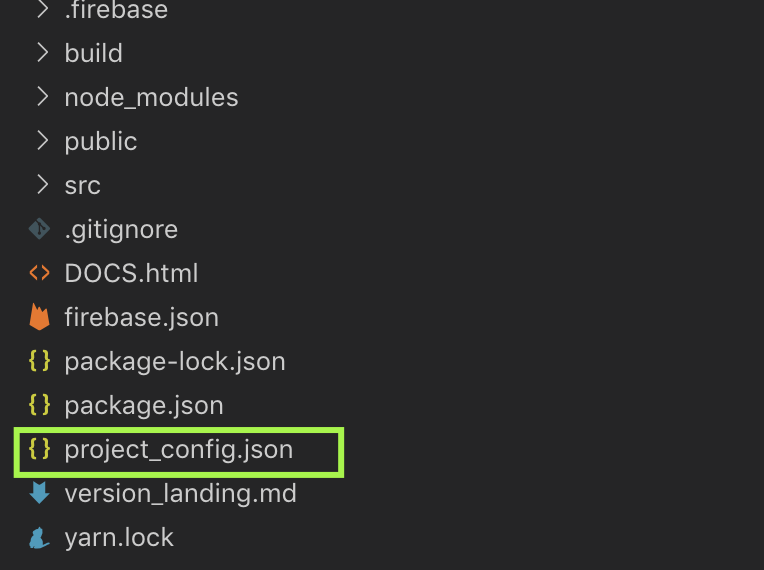
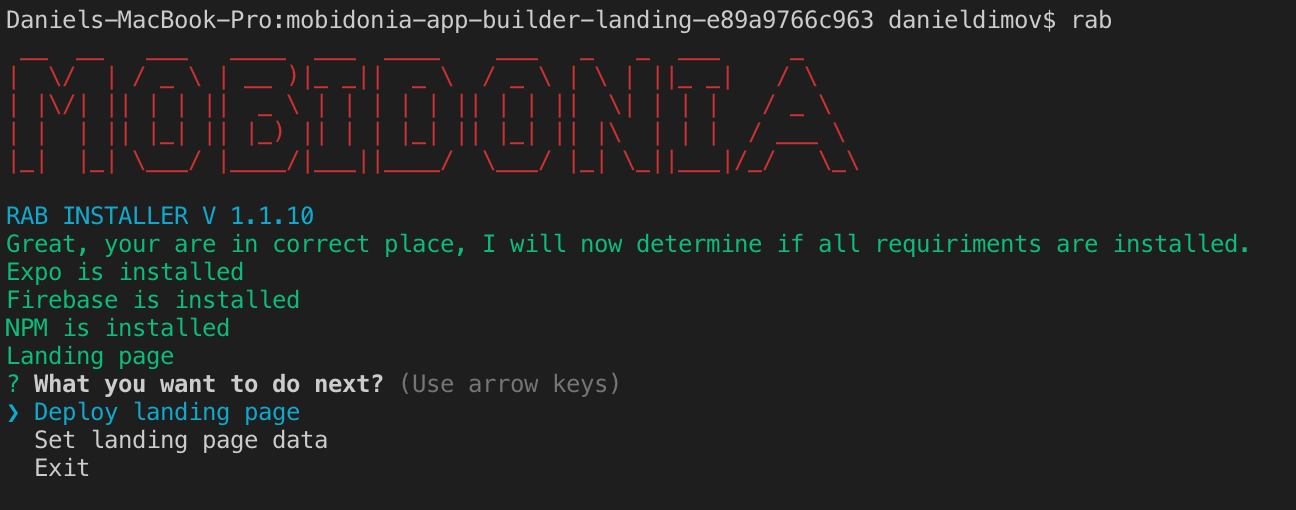
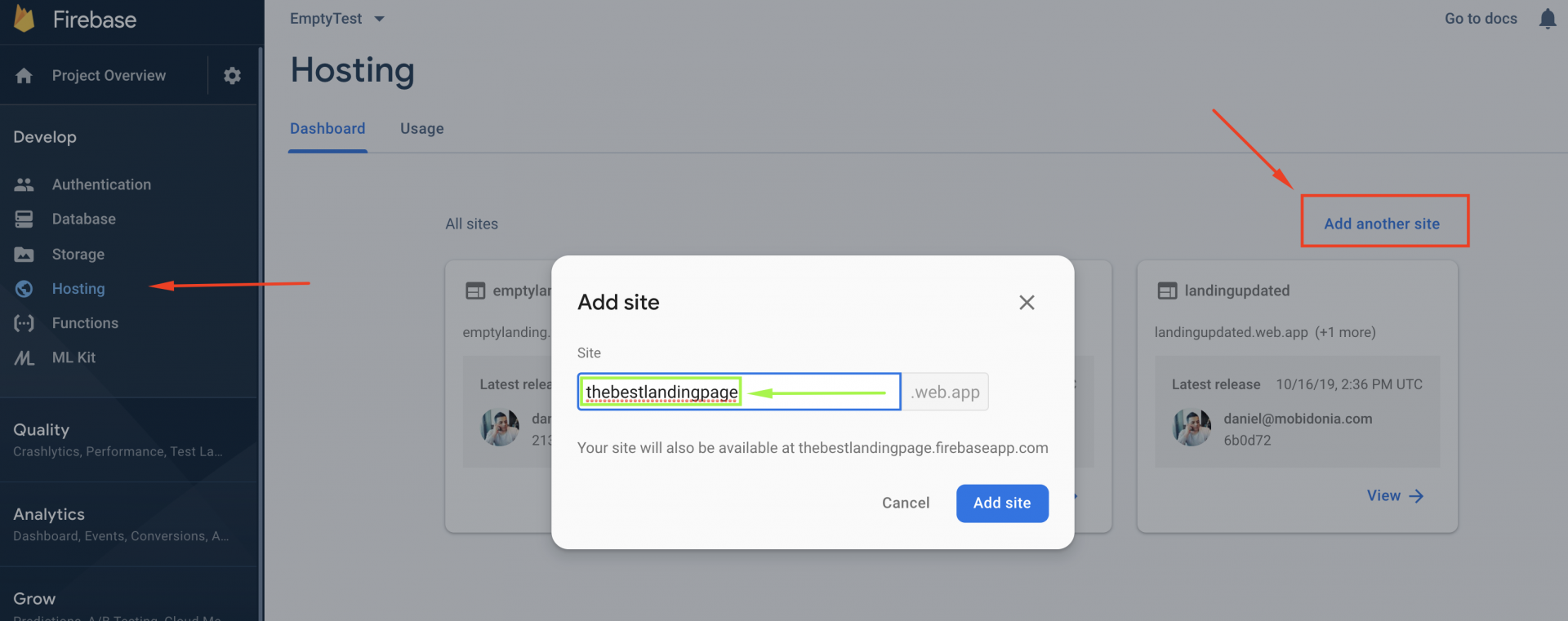
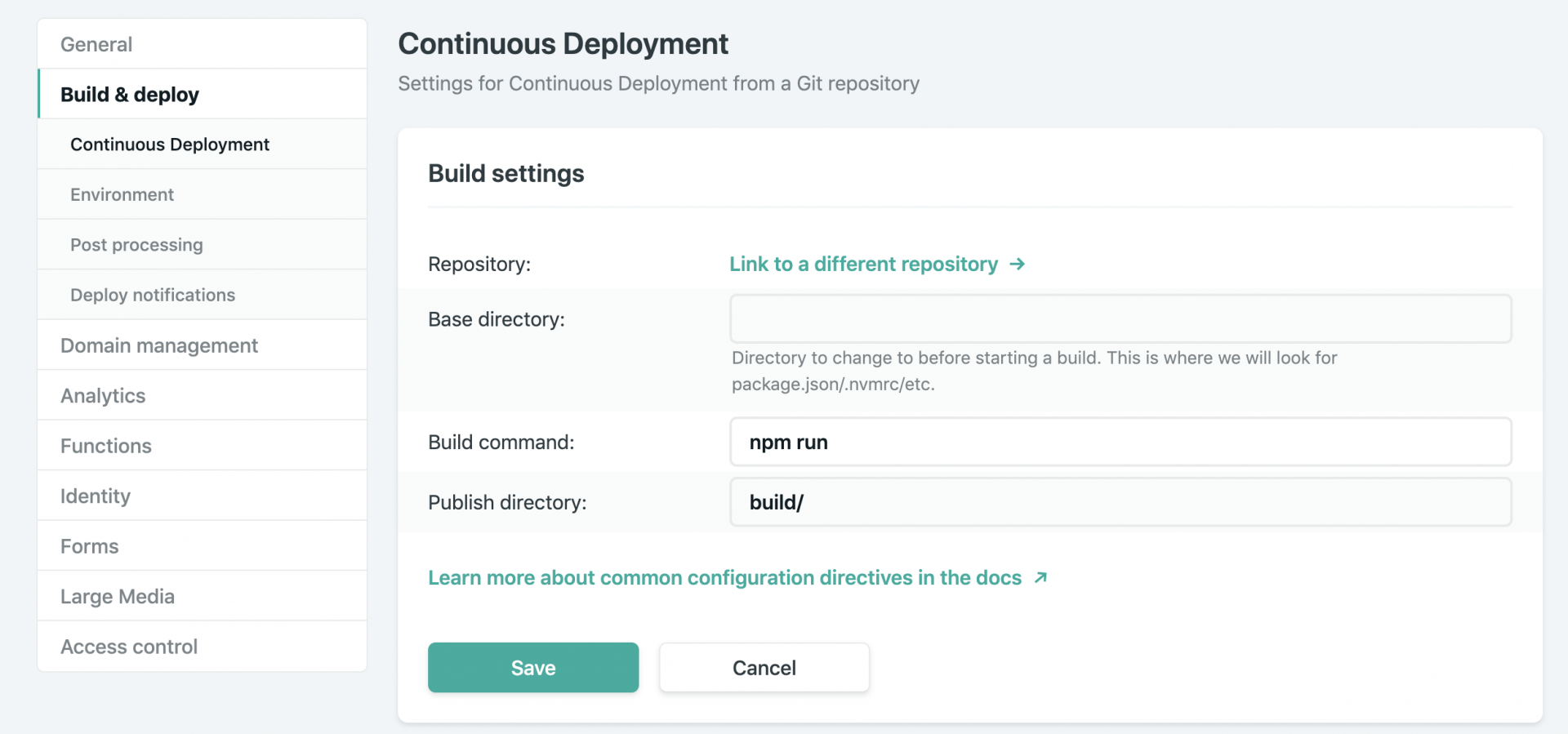
                <![CDATA[<h3>Requirements</h3><p>This Landing Page requires that you have purchased and installed React App Builder. </p><p><br /></p><h3>Install</h3><p>Download the landing page from your CodeCanyon Downloads. </p><p>Extract the zip file. </p><p><b>Important</b>: Copy the <a href="https://mobidonia.support-hub.io/articles/project-confiigjson-1431" target="_blank" rel="noreferrer noopener">project_config.json</a> file from your <a href="https://mobidonia.support-hub.io/knowledgebase/129" target="_blank" rel="noreferrer noopener">React App Build installation</a> to your Landing Page.</p><p>Open the folder in VS Code. </p><p>The folder structure should look like this</p><p><img src="https://support-hub--assets.s3.eu-west-2.amazonaws.com/assets/74/images/W0Ar102Mskzfp9mC85Q4xHYfTvHQJTzTDG9twUYb.png" style="width:50%;" alt="W0Ar102Mskzfp9mC85Q4xHYfTvHQJTzTDG9twUYb.png" /><br /></p><p>Open a terminal and execute </p><pre>rab</pre><p>You should see the menu now</p><p><img src="https://support-hub--assets.s3.eu-west-2.amazonaws.com/assets/74/images/FZ3H6sf5UOkJDT6B9X7drieqXZiRa47yU3goLtJT.png" style="width:100%;" alt="FZ3H6sf5UOkJDT6B9X7drieqXZiRa47yU3goLtJT.png" /><br /></p><p> </p><h3>Deploy</h3><p>Select the<b> Deploy landing page</b> option from the menu</p><p>This will start the following actions</p><ol><li>Install node modules</li><li>Ask you where you want to host</li><li>If on Firebase or on own hosting, it will build the project</li></ol><p><br /></p><h5>Firebase Hosting ( Recommended )</h5><p>It is the easiest option. It will build your project, and upload it to Firebase Hosting. In the end, the console will display your Hosting URL.</p><p><b>IMPORTANT</b></p><p>You will need to create additional site in Firebase Hosting, specialy for your landing page.</p><p>It is easy, go in your Firebase Project -&gt; Hosting and add a new site. </p><p><img src="https://support-hub--assets.s3.eu-west-2.amazonaws.com/assets/74/images/CqIf723poP2Qoc2ZTf4bh72prWAaURPgc8D5Q0I1.png" style="width:100%;" alt="CqIf723poP2Qoc2ZTf4bh72prWAaURPgc8D5Q0I1.png" /><br /></p><p>Remember the name</p><p>The CLI will ask for it. Enter that name and your landing will be uploaded there.</p><h5>Netlify</h5><p>To publish your project on Netlify, easiest way will be to create your own <b>private</b> repo of this project on Bitbucket or GitHub. And add that repo in Netlify.</p><p><img src="https://support-hub--assets.s3.eu-west-2.amazonaws.com/assets/74/images/ccqrMpCv0s6E6MJVrg3to8AhpH7kCYW8AV0GTIw2.png" style="width:100%;" alt="ccqrMpCv0s6E6MJVrg3to8AhpH7kCYW8AV0GTIw2.png" /><br /></p><p>The good thing about Netlify is that when there is an update, you will just commit the change, and Netlify will build the project automatically for you. It is free and fast.</p><p><br /></p><h5>My own hosting</h5><p>If you have your own hosting, you can use it to host your landing page. This script will create the build folder locally. You will need to upload the content on hosting. </p><p>Important: The Landing page can't be hosted in a subfolder. It can be hosted directly in a domain or any subdomain. </p><p><br /></p><h3>Insert Demo Data</h3><p>Open your Landing page URL.  If it doesn't display any info, you need to run the second step</p><p><b>Set landing page data</b></p><p>This will set landing page demo data.</p><p><br /></p><h3>Manage the Landing Page</h3><p>You will want to configure the Landing Page. And that can be done if you log in into App Builder with your admin email and password. Under your name/icon you will have the options "<b>Settings</b>"</p><p><br /></p><h3>I have Landing Page from the previous v11 RAB</h3><p>Then first follow <a href="https://mobidonia.support-hub.io/articles/i-have-the-landing-page-from-v11-of-rab-1465" target="_blank" rel="noreferrer noopener">these instructions</a>, and then come back here and continue the installation. </p>]]>
            </summary>
                                    <updated>2019-10-17T08:38:43+00:00</updated>
        </entry>
            <entry>
            <title><![CDATA[I have the Landing Page from v11 of RAB]]></title>
            <link rel="alternate" href="https://mobidonia.support-hub.io/articles/i-have-the-landing-page-from-v11-of-rab-1465" />
            <id>https://mobidonia.support-hub.io/1465</id>
            <author>
                <name><![CDATA[Daniel Dimov]]></name>
            </author>
            <summary type="html">
                <![CDATA[<p>If you have purchased the React App Builder before v12, there was a landing page included.</p><p>You can still use that one and follow the docs for installing the Landing Page. </p><p>All you need to do is to add this<a href="https://drive.google.com/drive/folders/1XONZw6ATH6EofYxCrTBoIj38gUH7qeFI?usp=sharing" target="_blank" rel="noreferrer noopener"> 2 additional files</a> in your <b>app-builder-landing</b> folder.  </p><p>Then run</p><pre>rab</pre><p>In your terminal and <a href="https://mobidonia.support-hub.io/articles/install-rab-landing-page-1453" target="_blank" rel="noreferrer noopener">follow the docs</a></p><p><br /></p>]]>
            </summary>
                                    <updated>2019-10-17T08:37:28+00:00</updated>
        </entry>
    </feed>